66 / Administration
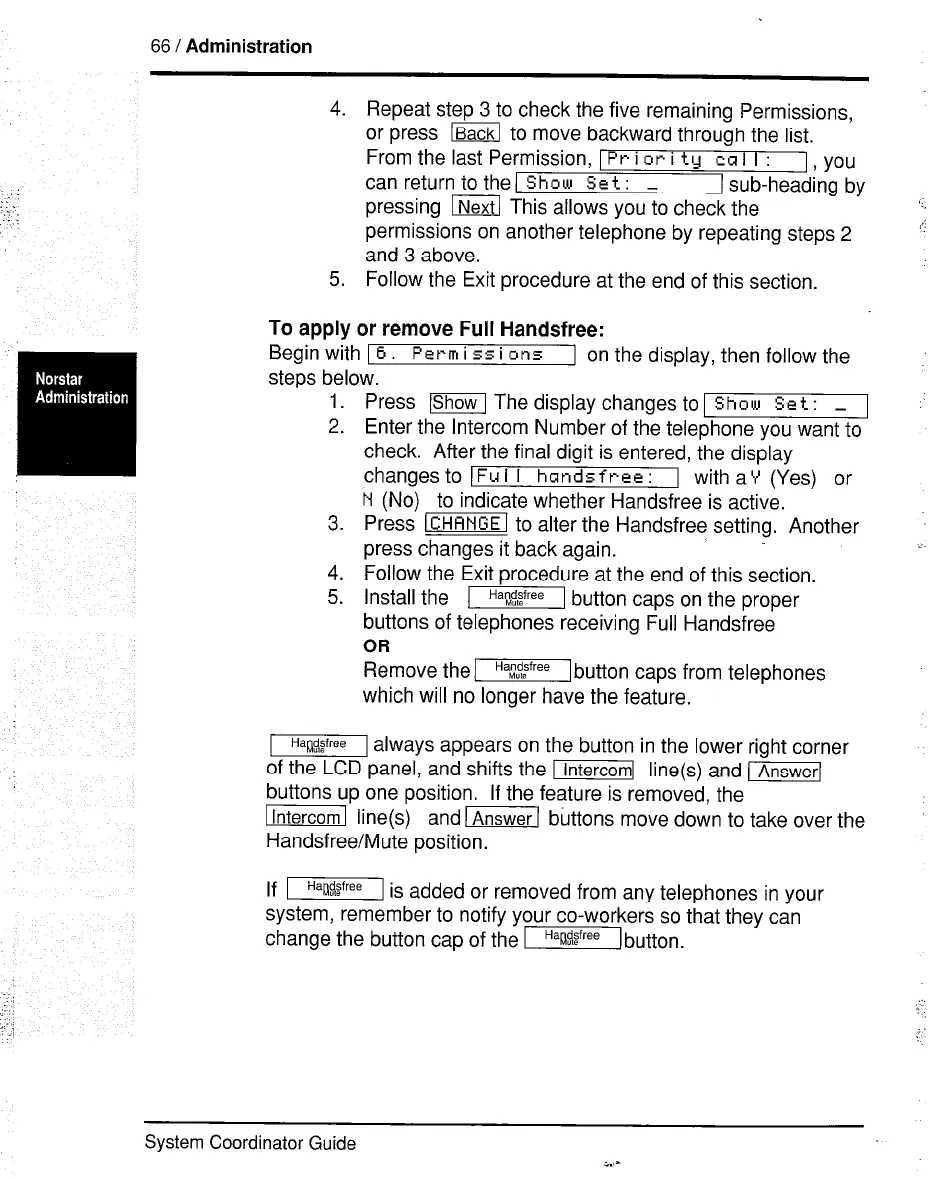
4. Repeat step 3 to check the five remaining Permissions,
or press lBackl to move backward through the list.
From the last Permission, 1 Pr i or i ty CCI I I :
can return to the/ Show Set: -
I, YOU
I sub-heading by
pressing m This allows you to check the
permissions on another telephone by repeating steps 2
and 3 above.
5. Follow the Exit procedure at the end of this section.
To apply or remove Full Handsfree:
Begin with I 6. Perm i 55 i on5 I on the display, then follow the
steps below.
1.
2.
3.
4.
5.
Press lShow The display changes to 1
Show Set : _ 1
Enter the Intercom Number of the telephone you want to
check. After the final digit is entered, the display
changes to IFul
I handsfrcc:
1 with aY (Yes) or
N (No) to indicate whether Handsfree is active.
Press ~ to alter the Handsfree setting. Another
press changes it back again.
Follow the Exit procedure at the end of this section.
Install the m button caps on the proper
buttons of telephones receiving Full Handsfree
OR
Remove the I button caps from telephones
which will no longer have the feature.
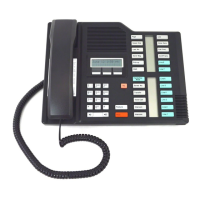
m always appears on the button in the lower right corner
of the LCD panel, and shifts the m line(s) and m
buttons up one position. If the feature is removed, the
m line(s) and E] buttons move down to take over the
Handsfree/Mute position.
If m is added or removed from any telephones in your
system, remember to notify your co-workers so that they can
change the button cap of the -button.
System Coordinator Guide
i..-



 To Next Page