64
P. Technical Menu - Access and Navigation
To access advanced setup and troubleshooting parameters, it is
necessary to enter the Technical Menu. The Technical Menu includes a
number of Quick Access Menus which allow easy access to commonly
used parameters. See Q. Technical Menu - Menu Structure.
The Quick Access Menu option, “MENU”, provides access to all
parameters. See R. Technical Menu - Complete Menu.
Instructions on how to access and change the menus are provided
below.
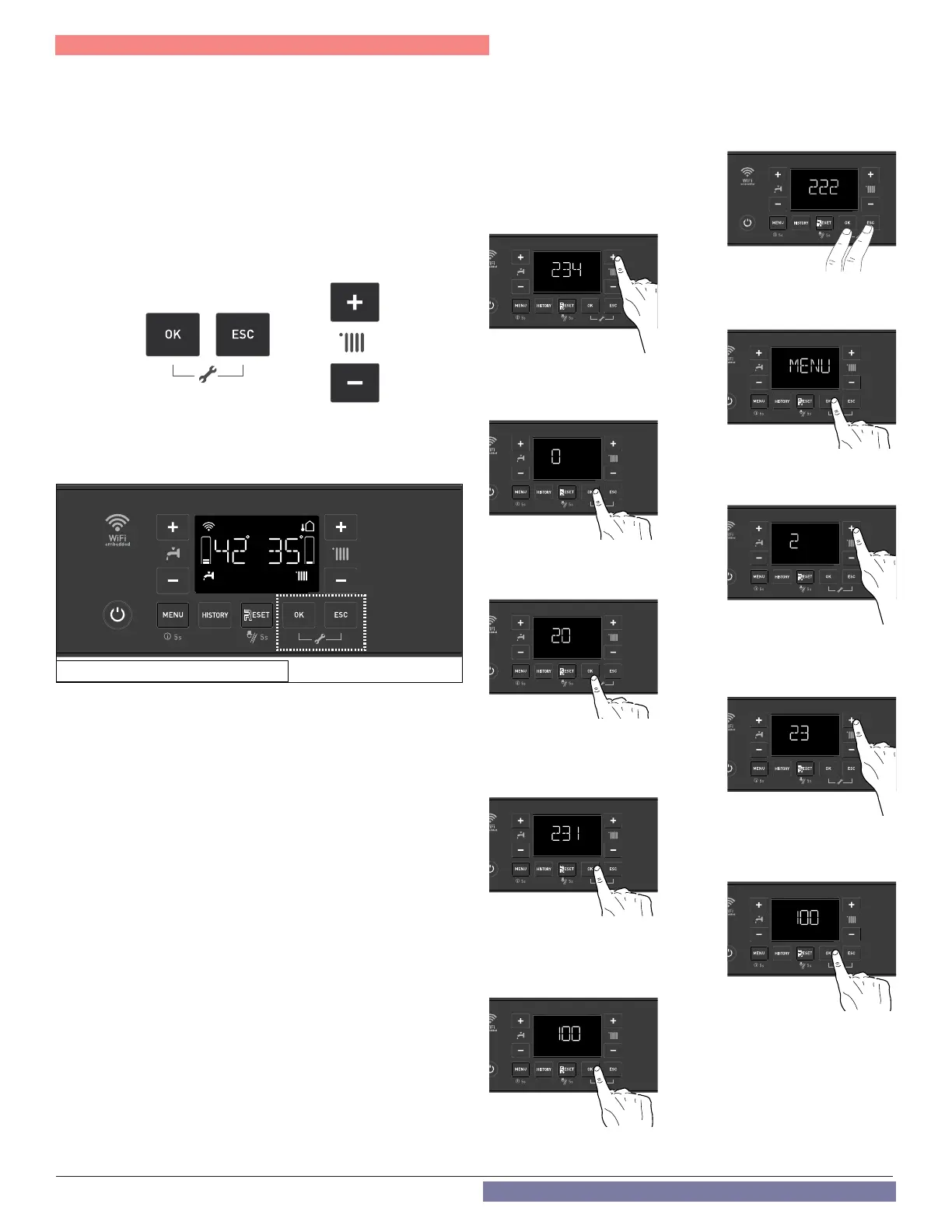
The various parameters can be activated and changed using the
buttons shown below:
OK and ESC buttons together for 5 seconds to access the technical
menu. CH + and – buttons to scroll through the menus and adjust
settings. OK button to select parameters and save settings. ESC button
to exit menu level / parameter without saving.
The menu and parameter numbers are shown on the display.
CAUTION! THE MENUS RESERVED FOR QUALIFIED TECHNICIANS MAY
ONLY BE ACCESSED AFTER ENTERING THE ACCESS CODE.
To access the Menus, open the cover and proceed as follows (in this
example: Parameter 2.3.1)
1. Simultaneously press the OK and ESC
buttons for 5 seconds.
The display shows 222.
2. Press the “+” button to select 234,
the service code.
3. Press the OK button.
The display shows
MENU.
4. Press the OK button.The display shows
menu 0.
5. Press the “+” button to select
menu 2
.
6.
Press the OK button to access the
menu. The display shows sub-menu 20.
7. Press the “+” button to select the
sub-menu 23.
9. Press
OK to access the sub-menu. The display
shows the parameter 231.
10. Press OK to access the parameter.
The display shows the current parameter
value. In this example, 100.
11. Press the “+” or “-” buttons to
select a new value.
In this example, 96.
12. Press OK to save the change, or press
the ESC button to exit without saving.
In this example press OK.
After making changes, press the ESC button until the normal display
screen is restored.
AUTO
CODE
AUTO
CODE
AUTO
MENU
AUTO
MENU
AUTO
MENU
AUTO
MENU
AUTO
MENU
AUTO
PAR
AUTO
PAR
AUTO
PAR
AUTO
Figure 69 - Access to the Technical Area
Part 9 - Controls



 To Next Page