44 Preparing and maintaining the equipment
6.3 Creating a Wi-Fi Connection
Before you can use your GeoSeeker for the first time you have to create a Wi-Fi (WLAN) connection
between your Tablet PC and Controller. If you purchased the Tablet PC with your GeoSeeker it has been
already prepared and you should be able to start your measurement right away.
If there are other public networks available and your Controller is not powered on it might be possible
that your Tablet PC is establishing a connection to other networks first.
In case you have to create a new network connection by yourself, you have to use the Wi-Fi capabilities
of your Android Tablet PC. Please follow these steps to create your Wi-Fi connection:
1. Power on your Controller
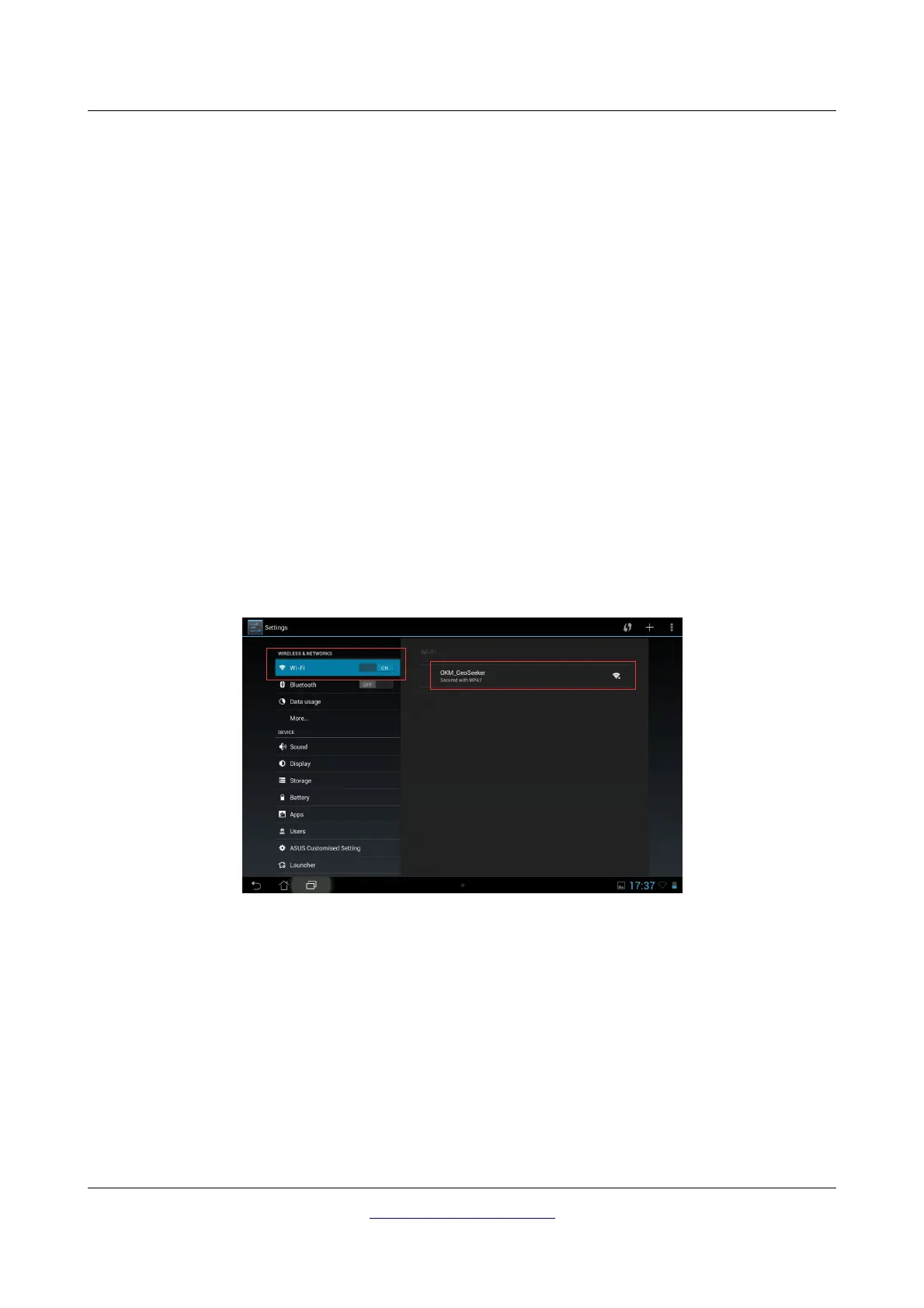
2. Power on your Tablet PC and go to “Settings”.
3. Enable “Wi-Fi” by setting it from “OFF” to “ON”. Now your Tablet PC is looking for available
networks automatically. If successful you will see a network called “OKM_GeoSeeker” in your list
of available networks.
4. Select “OKM_GeoSeeker” and enter the network password “GeoSeeker” (use correct upper and
lower case). Confirm by tapping “OK”.
OKM GmbH
www.okmmetaldetectors.com


 To Next Page