8-62
Default Setting (System Menu)
XPS FitTo Page
Select the XPS FitTo Page default.
NOTE: Refer to page 6-4 for XPS FitTo Page.
Use the procedure below to set the default XPS FitTo Page setting.
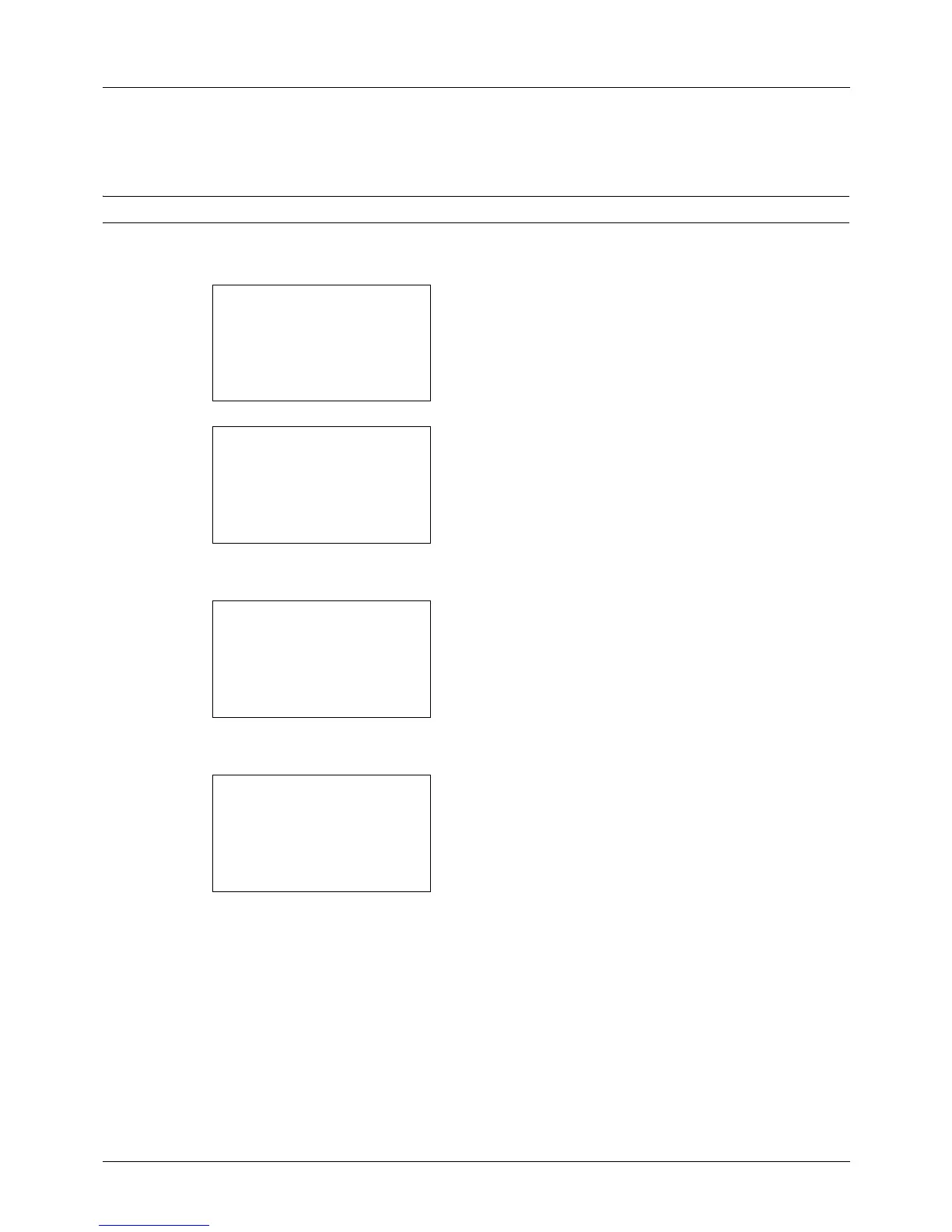
1 In the Sys. Menu/Count. menu, press the or key to
select [Common Settings].
2 Press the OK key. The Common Settings menu appears.
3 Press the or key to select [Function Default].
4 Press the OK key. The Function Default menu appears.
5 Press the or key to select [XPS FitTo Page].
6 Press the OK key. XPS FitTo Page appears.
7 Press the or key to select [Off] or [On].
8 Press the OK key. Completed. is displayed and the
screen returns to the Function Default menu.







 To Next Page