8-118
Default Setting (System Menu)
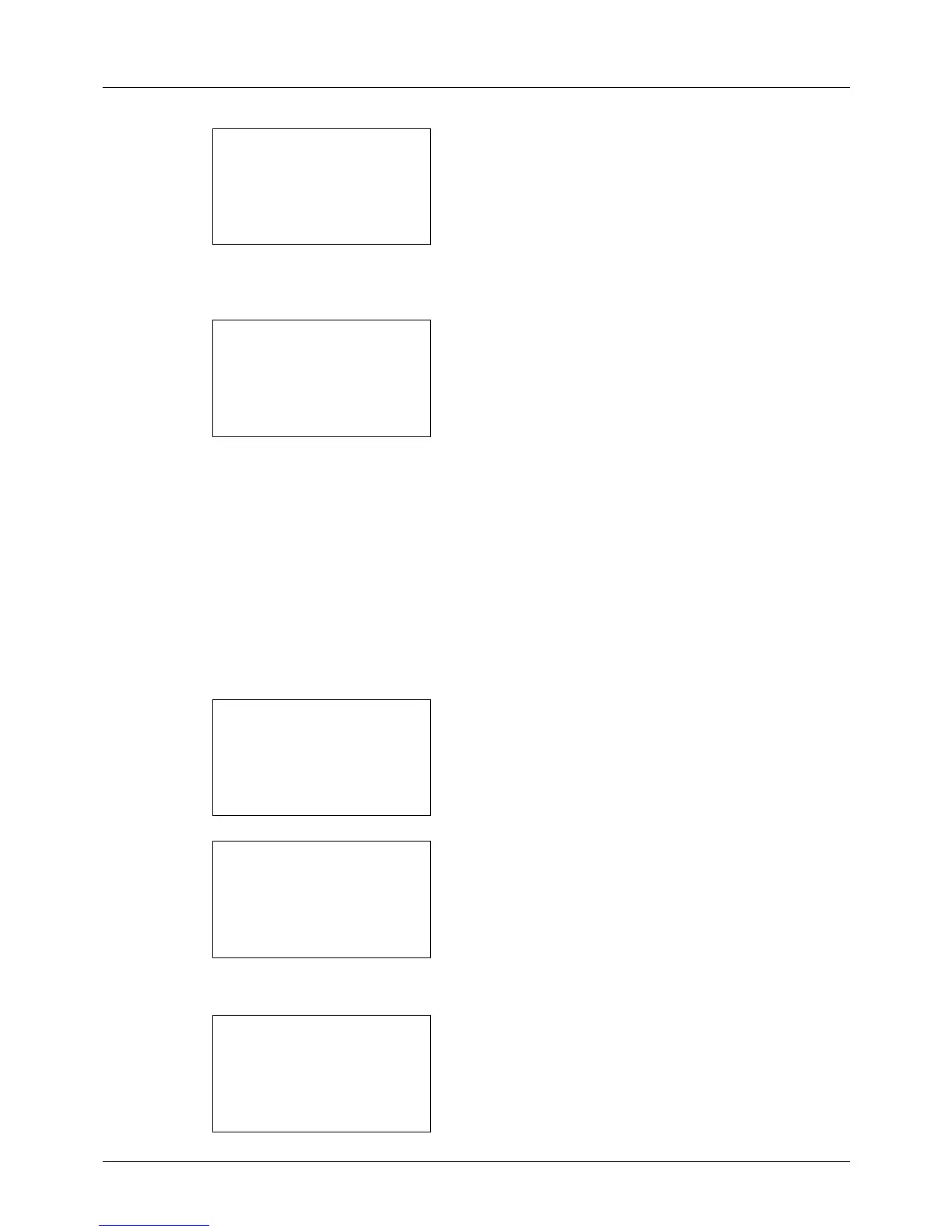
4 Press the OK key. Background Density appears.
5 Press the or key to select [Copy(Auto)] or [Send/
Box(Auto)].
6 Press the OK key. This displays the density selection
screen for the mode selected in step 5. The screen
shown is the one when [Copy(Auto)] is selected.
7 Press the or key to select the density from [-3
Lighter] to [+3 Darker].
8 Press the OK key. Completed. is displayed and the
screen returns to the Background Density menu.
Print Density
Adjust Print Density.
Use the procedure below to adjust the Print Density.
1 In the Sys. Menu/Count. menu, press the or key to
select [Adjust/Maint.].
2 Press the OK key. The Adjust/Maint. menu appears.
3 Press the or key to select [Print Density].
4 Press the OK key. Print Density appears.







 To Next Page