
 Need help?
Do you have a question about the Olivetti d-COPIA4513MF plus and is the answer not in the manual?
Locates and explains how to find the equipment's serial number for service.
Describes features to improve office efficiency, including Favorites, Quick Setup Wizard, and FAX Setup.
Details functions that reduce energy consumption and toner usage, like Energy Saver and EcoPrint.
Covers features for enhancing security, such as Private Print, Card Authentication, and Administrator settings.
Explains efficient use of features like Quiet Mode, Applications, USB memory, and Wireless Network.
Explains the fundamental color modes available for scanning and copying operations.
Details how to precisely adjust density, sharpness, contrast, and background density for scanned images.
Lists the physical guides included with the machine for quick use and safety.
Lists the available PDF manuals on the product library DVD for detailed information.
Outlines the chapter structure and content of the operation guide.
Explains the symbols and conventions used throughout the document for clarity.
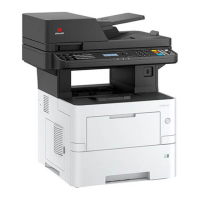
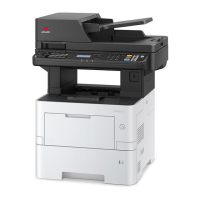
Identifies and labels the external and internal components of the machine.
Provides instructions on connecting the machine to PCs and other devices via USB or network.
Details the procedure for turning the machine's power on and off correctly.
Explains the function and operation of the machine's control panel keys and touch screen interface.
Guides through configuring wired and wireless network connections for the machine.
Describes the Low Power Mode and Sleep modes for reducing power consumption.
Provides instructions for installing necessary drivers and utilities on a computer.
Contains essential safety conventions, warnings, and symbols used in the manual.
Specifies the recommended environmental conditions for machine operation and placement.
Details safety precautions for handling consumables and operating the machine.
Explains the safety classification and precautions regarding the machine's laser product.
Covers US safety standards and precautions for laser beam emission from the machine.
Provides critical safety instructions for disconnecting the machine from the power source.
Lists compliance with EU directives and FCC rules, including radio equipment information.
Informs about legal restrictions on copying or scanning copyrighted materials and prohibited items.
Warns about potential communication interception and unauthorized access risks with wireless LAN.
Addresses limitations on using the product in medical or safety-critical applications.
Contains copyright information and trade name acknowledgments for the guide.
Explains the Sleep mode and automatic power-saving functions for reduced energy consumption.
Guides on how to print documents from a computer using the Printing System Driver.
Details how to register and use custom paper sizes not included in standard print settings.
Explains how to set up and print long documents suitable for banner printing.
Describes the interface and various tabs for configuring print settings.
Explains how to change the default print settings for quicker printing.
Provides steps to cancel print jobs initiated from a computer.
Describes how to print wirelessly via Wi-Fi Direct connection without a network access point.
Explains how to print documents saved in the machine's Job Box, Private Print Box, etc.
Details how to monitor printer status, view job lists, and manage alerts.
Provides instructions on how to correctly place originals on the platen and in the document processor.
Explains how to register and recall frequently used settings for quick access.
Guides on installing, activating, and uninstalling machine applications to expand functionality.
Describes how to create shortcuts for frequently accessed functions on the operation panel.
Details the basic operation and procedures for making copies using the machine.
Explains how to send scanned images via email, to folders, or using TWAIN/WIA drivers.
Introduces the Document Box feature, including Custom Box, Job Box, and Removable Memory.
Guides on creating, managing, and using Custom Boxes for storing documents.
Lists and describes various functions available for Copy and Send operations.
Details functions for storing, printing, and sending documents via Custom Box.
Explains how to store and print documents using USB memory or SD cards.
Describes how to copy driver's licenses or insurance cards, combining front and back.
Explains how to specify the original size for scanning and copying.
Guides on selecting the appropriate paper cassette or tray and matching paper size/type.
Details how to set the original document's orientation for correct scanning direction.
Explains the function to scan sheets of different sizes from the document processor.
Describes how to print ordered sets of copies.
Explains how to adjust the print density for lighter or darker output.
Describes selecting the best image type for Text, Photo, or Graphics.
Explains the EcoPrint function to save toner when high print quality is not required.
Details how to select color modes like Full Color, Grayscale, or Black & White for scanning.
Explains how to adjust image sharpness for clearer outlines or to reduce moire patterns.
Describes how to adjust the contrast between light and dark areas of an image.
Explains how to remove or adjust dark backgrounds from originals like newspapers.
Describes how to hide background colors and image bleed-through when scanning thin originals.
Details how to reduce or enlarge images using auto or manual zoom settings.
Explains how to combine multiple original sheets into a single printed page.
Guides on producing two-sided copies from one-sided or two-sided originals.
Explains how to select the size of the image to be sent.
Details how to specify the image file format (PDF, TIFF, JPEG, etc.) and quality level.
Explains how to restrict access to PDF files by assigning passwords for viewing, printing, and editing.
Provides methods to check the status of jobs being processed or waiting to be printed.
Explains how to view detailed information for each job, including status and history.
Guides on checking the history of completed jobs, including print, send, and store logs.
Details how to pause, resume, or cancel jobs currently being processed or waiting.
Explains how to check the status of connected devices and communication lines.
Describes how to check the remaining toner and paper levels on the touch panel.
Explains the overall operation of the System Menu for configuring machine settings.
Lists and describes the various functions configurable within the System Menu.
Guides on selecting paper size and media type for cassettes and the multi-purpose tray.
Covers configuration of common machine operations like Default Screen and Sound.
Details settings related to original size detection and default paper size for originals.
Explains how to configure custom paper sizes for cassettes and the multi-purpose tray.
Guides on setting media types, including weight and custom options for duplex printing.
Allows setting default values for various functions like file format, orientation, and scan resolution.
Explains how the machine handles errors like paper mismatch or duplexing issues.
Covers configuration of network settings, including Wi-Fi, Wi-Fi Direct, and wired connections.
Details settings for date, time, energy saving modes, and sleep schedules.
Explains settings for adjusting print quality and performing machine maintenance.
Explains the concept of user login administration and its security levels.
Guides on enabling user login and selecting authentication methods like Local or Network.
Covers configuring authentication security, user lockout, and password policies.
Details the process of adding new users to the machine's local user list.
Explains how to modify existing user properties such as name, password, and email address.
Describes how to manage users who print from a PC by configuring the Printing System Driver.
Guides on managing users for scanning operations via TWAIN driver.
Guides on managing users for scanning operations via WIA driver.
Explains how to manage users for sending faxes from a PC using the FAX driver.
Details how to select whether or not to use local authorization for user access.
Covers setting machine usage restrictions based on individual groups from an authentication server.
Explains how to set functions available for guest users who cannot log in.
Guides on obtaining network user properties from an LDAP server.
Describes how to enable simple login by selecting a user name.
Explains how to select authentication types when ID card authentication is enabled.
Details how to configure PIN code authorization for network authentication.
Introduces job accounting for managing copy, print, scan, and fax counts by account ID.
Guides on enabling the job accounting feature for tracking usage.
Explains how to set job accounting access to Local or Network.
Details how to add, change, and delete accounts, and set usage restrictions.
Explains how to restrict machine usage by account or by the number of sheets.
Guides on configuring job accounting settings for print jobs sent from a computer.
Details how to manage scanned job accounts using the TWAIN driver.
Details how to manage scanned job accounts using the WIA driver.
Explains how to manage FAX jobs transmitted from a computer using the FAX driver.
Covers setting default job accounting parameters like apply limit and copy/print count.
Explains how to count printed pages for total or individual job accounting.
Guides on printing accounting reports detailing usage by account.
Explains how to log in and out of job accounting for managing usage.
Specifies behavior for handling jobs sent with unknown user names or User IDs.
Describes how to register user information for unknown IDs and restrict functions.
Provides instructions for routine cleaning of machine parts like the glass platen and slit glass.
Details the procedure for replacing the toner container when it is low or empty.
Explains how to replace the waste toner box when it becomes full.
Provides instructions for adding staples to the optional manual stapler.
Offers general guidelines and checkpoints for resolving common machine problems.
Guides on interpreting and responding to various error and status messages displayed on the touch panel.
Provides step-by-step instructions for removing jammed paper from different parts of the machine.
Details the procedure for clearing staple jams in the optional stapler unit.
Lists and describes the optional equipment available for the machine.
Lists the applications that can be installed to expand machine functionality.
Explains how to enter characters using the on-display keyboard on the touch panel.
Provides specifications and guidelines for using various types and sizes of paper.
Details printing guidelines for special paper types like transparencies, envelopes, and thick paper.
Lists detailed technical specifications for the machine's hardware and functions.
Provides specific details on copy speeds, first copy time, zoom levels, and resolution.
Lists specifications related to the printer functions, including OS support and emulations.
Details specifications for scanner resolution, file formats, and scanning speeds.
Provides specifications for the document processor, including supported paper sizes and capacities.
Lists specifications for the optional 500-sheet paper feeder.
Details specifications for the optional manual stapler.
Defines technical terms and concepts used throughout the manual.
 General
| Print Speed (Black) | Up to 45 ppm |
|---|---|
| Print Resolution | 1200 x 1200 dpi |
| Copy Resolution | 600 x 600 dpi |
| Scan Type | Flatbed, ADF |
| Scan Resolution | 600 x 600 dpi |
| Fax Type | Super G3 |
| Fax Speed | 33.6 Kbps |
| Duplex Printing | Yes |
| Operating System Compatibility | Windows, Mac OS, Linux |
| Duplex scanning | Yes |
| Standard output capacity | 250 sheets |
| Type | All in One Printer |
| Functions | Print, Copy, Scan, Fax |
| Print Technology | Laser |
| Monthly Duty Cycle | 150, 000 pages |
| Copy Speed (Black) | 45 cpm |
| Network Connectivity | Ethernet |
| Scan speed (black) | 45 ipm |







 To Next Page