2-47
Installing and Setting up the Machine > Installing Software
Setting TWAIN Driver
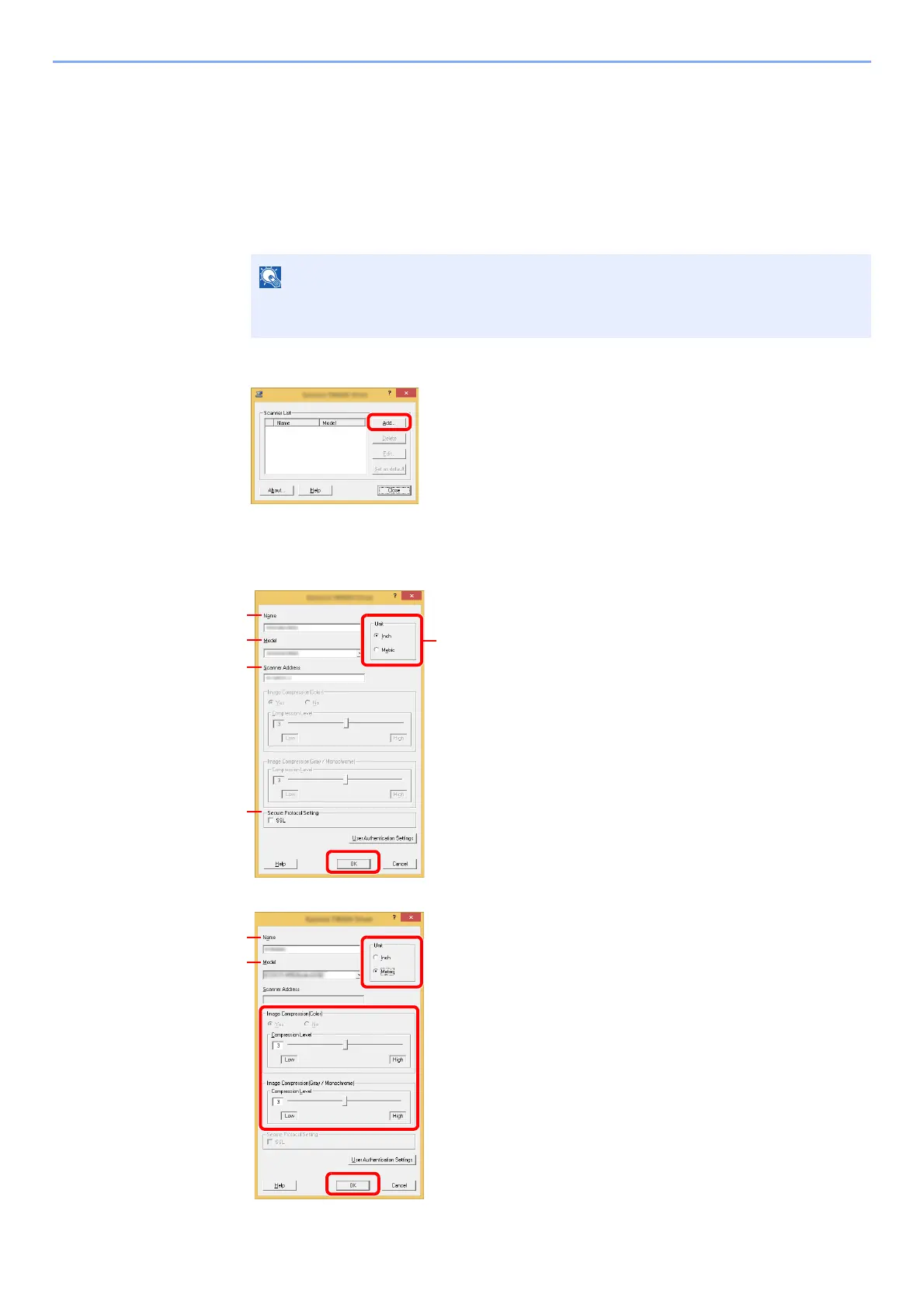
Register this machine to the TWAIN Driver. Instructions are based on interface elements as they appear in Windows 8.1.
1
Display the screen.
1 Click [Search] in charms, and enter "TWAIN Driver Setting" in the search box. Select
[TWAIN Driver Setting] in the search list.
2 Click [Add].
2
Configure TWAIN Driver.
In Windows 7, select [Start] button on the Windows, [All Programs], [Olivetti and then
[TWAIN Driver Setting]. TWAIN Driver s
creen appears.
(Network)
1 Enter the machine name.
2 Select this machine from the list.
3 Enter the machine's IP address or host name.
4 Set units of measurement.
5 When using SSL, select the checkbox beside SSL.
6 Click [OK].
(USB)
1 Enter the machine name.
2 Select this machine from the list.
3 Set units of measurement.
4 Set the Compression Level.
5 Click [OK].
3
2
1
5
4
6
3
2
1
4
5









 To Next Page