9-31
User Authentication and Accounting (User Login, Job Accounting) > Setting User Login Administration
PIN Code Authorization
1
Display the screen.
1 [System Menu/Counter] key > [User Login/Job Accounting]
2 [User Login Setting] > [PIN Login]
2
Configure the settings.
1 Select [Off] or [On].
2 Select [OK].
When using PIN Code Authorization, the network authentication must be enabled and [Ext.] must be selected for
server type.
Enabling User Login Administration (page 9-3)
If the login user name entry screen appears during operations, enter a login user name
and password, and select [Login]. For this, you need to login with administrator
privileges.
The factory default login user name and login password are set as shown below.
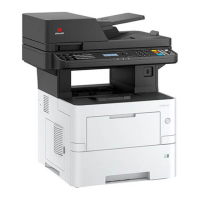
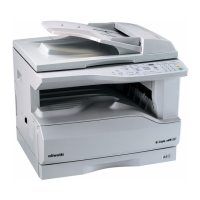
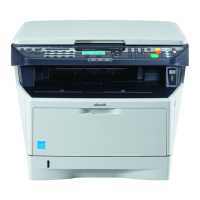
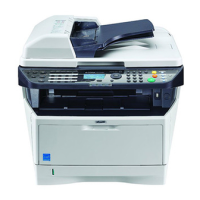
d-COPIA 4513MF plus d-COPIA 5514MF d-COPIA 6014MF
d-COPIA 4514MF plus
5500 6000
Login User Name: 4500
Login Password: 4500
5500 6000








 To Next Page