31
EN
Basic operations
2
Using art fi lters
1
Rotate the mode dial to ART.
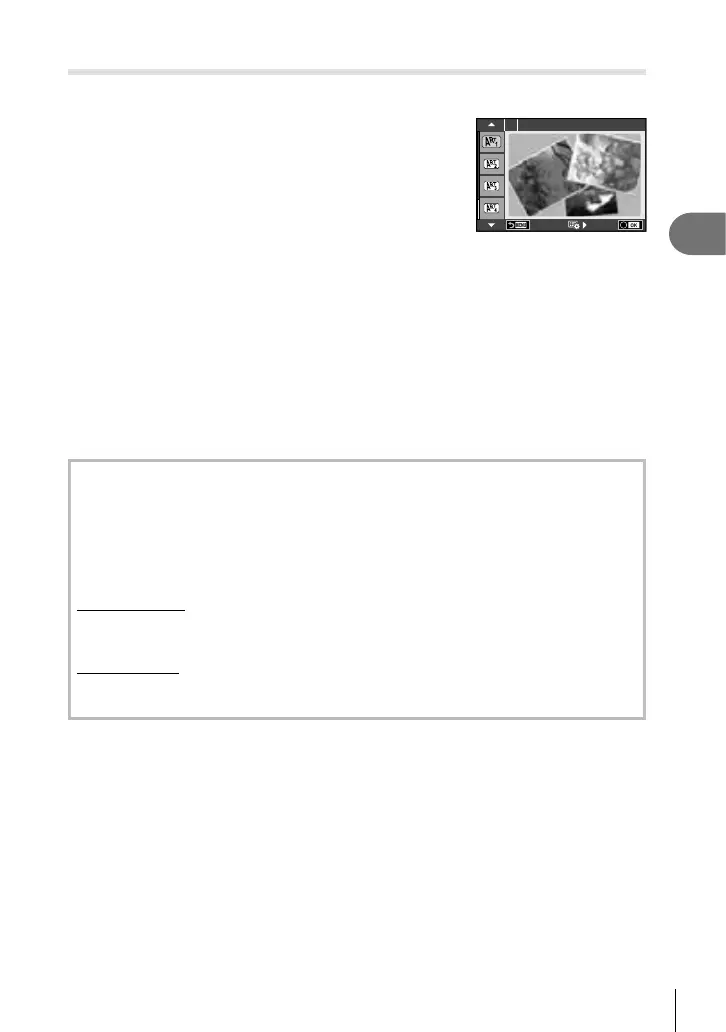
• A menu of art fi lters will be displayed. Select a fi lter
using FG.
• Press Q or press the shutter button halfway to select
the highlighted item and exit the art fi lter menu.
1
Pop Art
Types of art fi lters
j Pop Art t Cross Process
k Soft Focus u Gentle Sepia
l Pale&Light Color v Dramatic Tone
m Light Tone Y Key Line
n Grainy Film Z Watercolor
o Pin Hole u ART BKT (ART bracketing)
s Diorama
2
Shoot.
• To choose a different setting, press Q to display the art fi lter menu.
ART bracketing
Each time the shutter is released, the camera creates copies for all art fi lters. Use the
[
v
] option to choose fi lters.
Art effects
Art fi lters can be modifi ed and effects can be added. Pressing I in the art fi lter menu
displays additional options.
Modifying fi lters
Option I is the original fi lter, while options II and on add effects that modify the original
fi lter.
Adding effects*
Soft focus, pin-hole, frames, white edges, starlight, fi lter, tone
* The effects available vary with the selected fi lter.
# Cautions
• If [RAW] is currently selected for image quality, image quality will automatically be set to
[YN+RAW]. The art fi lter will be applied to the JPEG copy only.
• Depending on the subject, tone transitions may be ragged, the effect may be less
noticeable, or the image may become more “grainy.”
• Some effects may not be visible in live view or during movie recording.
• Playback may differ according to the fi lters, effects, or movie quality settings applied.


 To Next Page