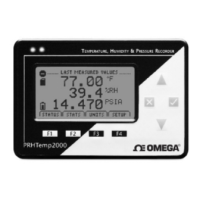
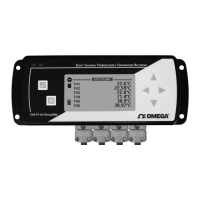
OMEGA OM-CP-OCTTEMP2000
Auto - display turns off after two minutes of inactivity
On - display always on
Backlight – Options for use of display backlight
Use to select
Auto - backlight turns off after fi ve seconds of inactivity
On - backlight always on
Off - backlight always off
LED – Options for use of status LEDs
Use
to select
Enabled - status LEDs fl ash to indicate reading status
Disabled - LEDs off
Contrast – Set screen contrast value
Use to set desired contrast value
Battery Type – User defi ned based on the type of battery currently installed in the device
Use to select Lithium or Alkaline battery
Battery Life – Percentage of battery power remaining
Battery Voltage – Voltage supplied to the device by the battery
External Power – Presence of external power supply
External Voltage – Voltage supplied to the device by external power supply
Reading Date/Time – Date and time of last recorded reading
Cal Date – Date of last device calibration
Cal Due – Date device is due for recalibration
Note: It is important to keep your device properly calibrated to ensure
accurate readings. Contact Omega for further information regarding
calibration services.
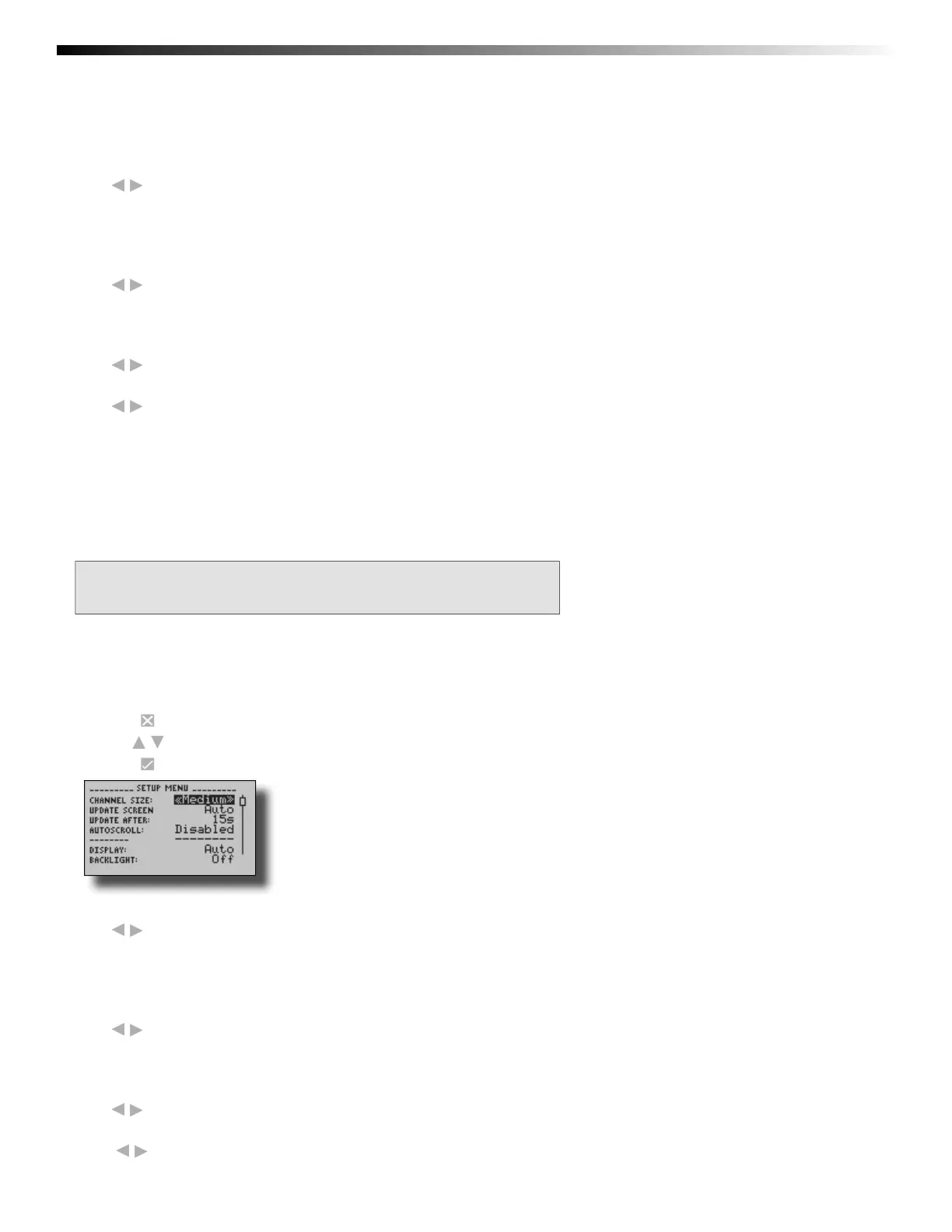
4.2 Device Setup Menu
Functions in the Device Setup Menu allow you to change home screen, display, and battery options.
To access the Device Setup Menu from the Home Screen:
1. Press to enter the Main Menu
2. Use to highlight Setup Menu
3. Press to enter the Setup Menu
Channel Size – Options for channel font size displayed on Home Screen.
Use to select font size
Small - up to six channels displayed on Home Screen
Medium - up to three channels displayed on Home Screen
Large - up to two channels displayed on Home Screen
Update Screen – Frequency of Home Screen Update
Use
to select
Auto - Home Screen updates at user defi ned interval
Reading - Home Screen updates each time a reading is taken
Update After – User defi ned Home Screen update frequency
Use to set desired frequency
Auto-Scroll – When device is idle, screen view alternates between home and statistics screens
Use to Enable/ Disable auto-scroll
Page 12


 To Next Page