EasyManua.ls Logo

OptConnect COMPLETE - User Manual

Default Icon
17 pages
Print Icon
To Next Page IconTo Next Page
Loading...
COMPLETE
CONNECT GUIDE
MANAGED WIRELESS SOLUTIONS

Questions and Answers

  • I
    Isaac CunninghamAug 3, 2025
    What to do if my device is unable to complete transactions using the OptConnect Modem?
    • W
      William JacksonAug 3, 2025
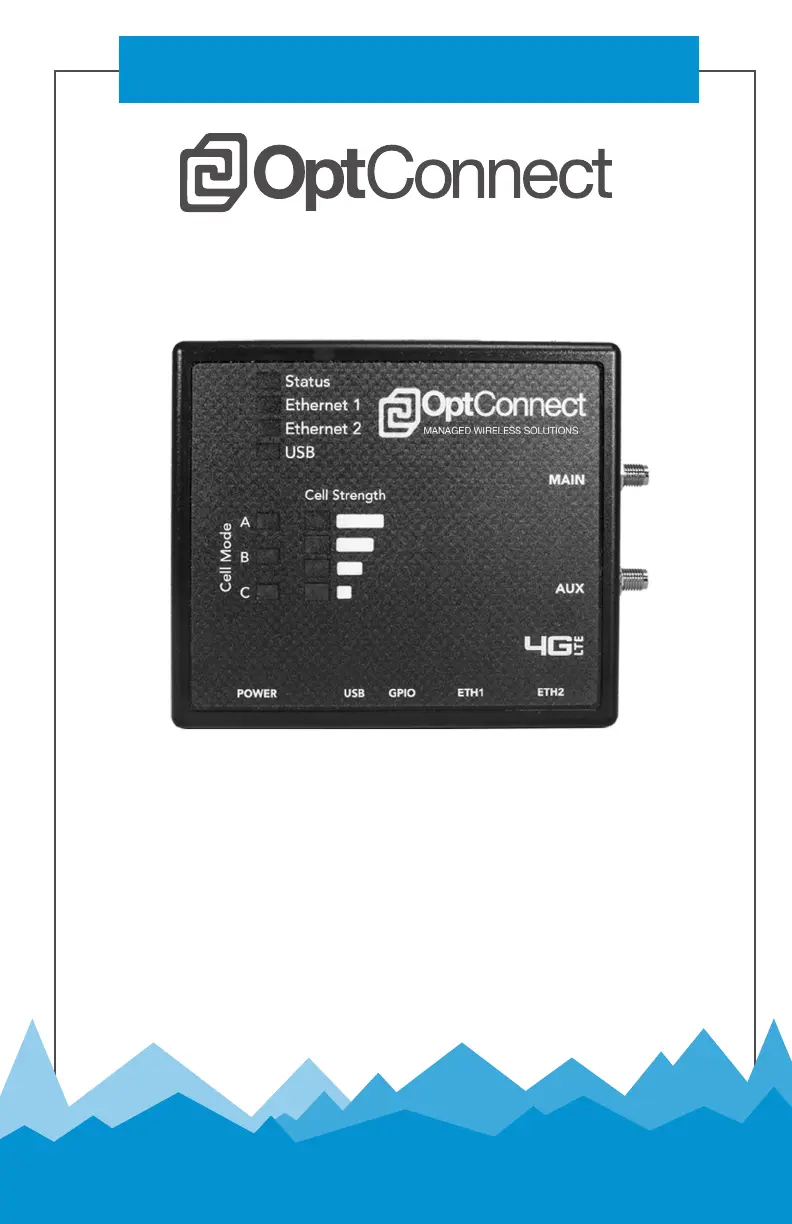
      To resolve transaction issues with your OptConnect Modem, first, ensure the modem is plugged in and the "Status" light is flashing green, with the "Cell Mode", "Cell On", and Signal Strength lights solid green. Next, confirm the CAT5E Ethernet Patch Cable is securely connected to both an open Ethernet port on your device and the Ethernet port on the modem. If connected to an ATM, verify that the ATM is correctly programmed for your processor and that the terminal setup is valid.
  • R
    Robert WardAug 17, 2025
    Why do I experience intermittent communication issues with the OptConnect COMPLETE Modem?
    • L
      Lisa MillerAug 17, 2025
      If you're experiencing intermittent communication issues with your OptConnect Modem, start by verifying that the signal strength is sufficient. If the Signal Strength lights show only 1 to 2 bars, try repositioning the antennas. If the signal doesn't improve, consider purchasing an upgraded antenna or an in-line signal booster. If the Signal Strength lights are flashing, disconnect and then reconnect power to the modem, waiting at least 5 minutes for it to reboot. Also, ensure the modem is away from potential sources of interference to stabilize the connection.

Summary

Device Setup and Information

Package Contents

Lists the items included in the OptConnect modem package.

Device Details

Explains the ports, lights, and physical features of the OptConnect modem.

Setting Up Your OptConnect Device

Power Supply and Antenna Connection

Instructions for connecting the power supply and attaching antennas.

Ethernet Cable Connection

Guidance on inserting the phone line/Ethernet cable.

Verifying Status Lights

Checks Cell Mode and Signal Strength lights for correct status.

Usage in Non-ATM Environments

Details for using the device in kiosks or digital signs.

ATM Programming Guide

OptConnect as a Router

Recommended method for routing traffic securely.

OptConnect as a Payment Gateway

Method for intercepting, routing, and encrypting data.

Nautilus Hyosung ATMs Configuration

Router Setup

Configuration steps for Nautilus Hyosung ATMs using Router mode.

Payment Gateway Setup

Configuration steps for Nautilus Hyosung ATMs using Payment Gateway.

Hantle;Genmega ATMs Configuration

Router Setup

Configuration steps for Hantle/Genmega ATMs using Router mode.

Payment Gateway Setup

Configuration steps for Hantle/Genmega ATMs using Payment Gateway.

Triton ATMs Configuration

Router Configuration

Configuration steps for Triton ATMs using Router mode.

Payment Gateway Setup

Configuration steps for Triton ATMs using Payment Gateway mode.

Processor and Communication Details

Processor Phone Numbers

Contact information for various ATM processors.

Routing and Communication IDs

Defines routing and communication IDs for processors.

Troubleshooting Common Issues

Device Unresponsiveness

Steps for when the device or machine cannot complete transactions.

Intermittent Communication

Guidance for resolving signal strength and connection issues.

Common ATM Error Codes

Lists and explains common error codes for ATMs.

Support and Warranty Information

Warranty Information

Details on receiving warranty service and the maintenance plan.

Customer Care Center

Contact information and services provided by the customer care team.

OptConnect COMPLETE Specifications

General IconGeneral
CategoryModem
Cellular Technology4G LTE
Ethernet Ports1
Operating Temperature-22° to 140°F (-30° to 60°C)
Wi-FiNo
BandsLTE Band 2, 4, 5, 12, 13

Related product manuals