Optomed Aurora 29
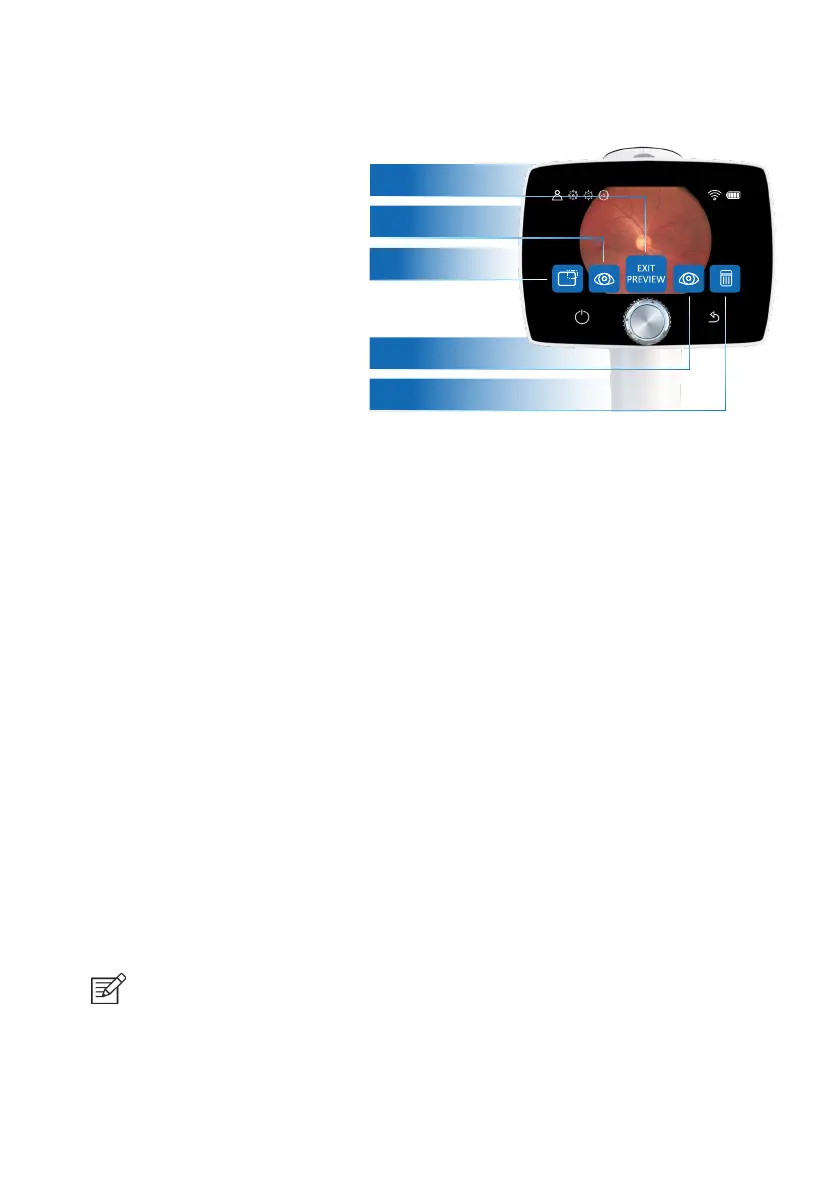
There is also a possibility to select the side of the imaged eye in image preview by choosing either ‘Le’
(OS) or ‘Right’ (OD) by using Optoroller. In addition, the captured image can be deleted in image preview.
Note that if the image is deleted, it is not transferred over WLAN or saved to the memory card. To exit from
image preview without selecting the side of the imaged eye, select ‘Exit preview’. The Image is then saved
to the memory card and transferred over WLAN.
Captured images and recorded videos are saved to the memory card. When WLAN is used, Aurora Camera
transfers captured images and recorded videos to the PC automatically immediately aer imaging. Please
note that wireless transfer is paused if the camera is placed on Aurora Charging Station during wireless
transfer. The camera will continue wireless transfer when removed from Aurora Charging Station.
Images and videos can also be transferred to PC from the memory card when the camera is placed on Aurora
Charging Station. Aurora Camera will display a ‘Connected’ message when the device is connected to a PC
via USB. The image data transfer method to PC is similar as with any other USB mass storage device. The
device does not need any drivers to be installed on the PC. Writing to the memory card from PC is disabled
by default. When the Aurora Camera is not used, it may be stored on Aurora Charging Station. Storing the
device on Charging Station is not harmful for the battery.
When the memory card or image counter is full, Aurora Camera will display a message with request to erase
the image memory. First copy the images to a safe location and then select ‘Erase image memory’ from the
device menu to erase images and videos from the camera memory card. The image counter will also be reset.
NOTE!
If images are corrupted or not transferred to the PC, the original images are saved to the memory
card. Please try again to transfer images to the PC via USB.
5.3 After imaging
Aer capturing a still image, the image
preview is shown on camera display.
The image specific query is shown
aer pressing or rotating Optoroller. In
preview query there is the possibility
to zoom the captured image, select
a side of imaged eye and delete the
captured image.
When the image is zoomed by pressing
Optoroller, first the center of image
is displayed as zoomed. To view the
periphery of the image as zoomed,
turn Optoroller le or right. Note that
the zoomed areas overlap.
Imaging with Aurora |
EXIT
PREVIEW
No eye selection
Right eye selection
Zoom image
Left eye selection
Delete image


 To Next Page