Optomed Aurora 43
A. Appendix - WLAN
A.1 Wireless settings
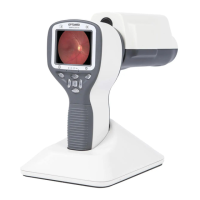
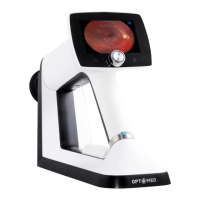
Aurora Camera has a WLAN module that enables wireless connection to a PC or other client device. In order
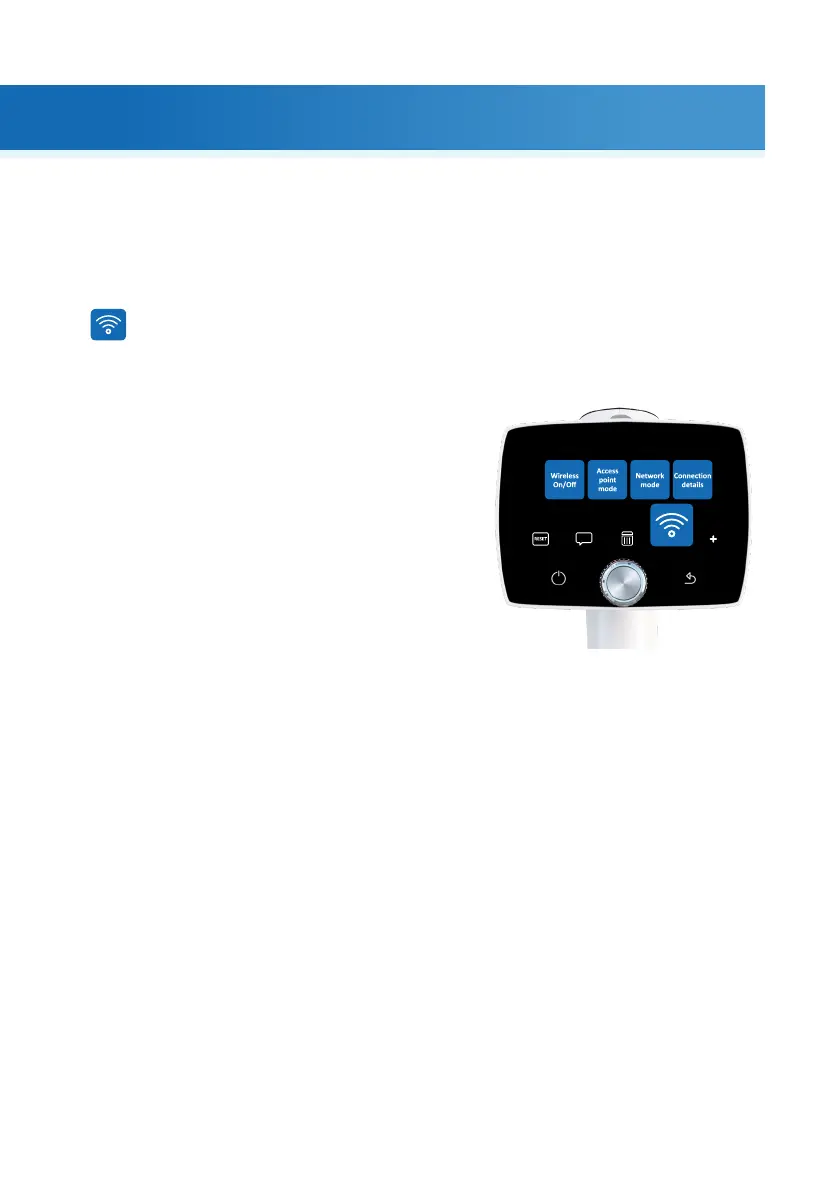
to change wireless settings, open the wireless menu from camera settings by using Optoroller
WIRELESS
In wireless menu, there are four options: Wireless, Access point mode, Network mode
and Connection details.
Wireless
First you need to set wireless connection to on to enable
WLAN. When wireless connection is set to on, either access
point mode or network mode can be used, but not at the
same time.
Connection details menu shows the information of
established connection. The information consists of
network name and camera IP and MAC addresses.
Access point mode
In access point mode Aurora Camera sets up a camera-
specific access point to which the PC can connect. First set access point on in camera menu. Then connect
PC to the created access point. Aer connection is done, open Optomed Client for image transfer.
Network mode
In network mode Aurora Camera can connect to available networks. Set network mode on in the camera
menu, then browse available networks and select the desired network by using Optoroller. Aer selecting
the network, enter the network password to the camera. Aer connection is done, open Optomed Client
for image transfer.
Wireless communication issues
In case the wireless communication between the camera and the PC delays, the images will transfer slowly.
You can follow the progress of the transfer from Optomed Client PC soware. Optomed Client PC soware
will inform, if the wireless communication between the camera and the PC failures and images cannot be
transferred. In case, the wireless transfer will not be completed, images can be transferred via USB connection.
To improve wireless communication between the camera and the PC, you can move the camera closer to
the PC and ensure that there are no large obstacles between the camera and the PC. Check, that there are
no other RF sources near the camera or the PC. You can also change the network in order to try to improve
the wireless communication.
Appendix - WLAN |


 To Next Page