37
Changing the Admin password
To change the Admin password:
1. Click the down arrow next to Sign Out in the top-right corner
of any web Interface page and select Change Password >
Admin Settings.
1. Enter your current Admin password, then click Continue.
2. Enter your current Admin password, then enter a new
password and conrm it.
3. Select a security question from the drop-down list and type
an answer to question in the Answer eld.
NOTE: Answers are case-sensitive.
4. Click Continue.
The next time you sign in to the Admin Web UI, use the new Admin
password. If you cannot remember the password, click Forgot
Admin password. After you correctly answer the security question
you set up, the current password is displayed. Alternately, you can
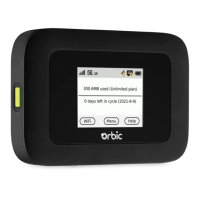
view the Admin password on the Hotspot touchscreen by tapping
Help > Web UI or Menu > Help > Web UI.
Hiding the Admin password on the Touchscreen
The Admin password can be viewed on the Hotspot touchscreen
by tapping Help > Web UI or Menu > Help > Web UI.
To hide the Admin password:
1. Click the down arrow next to Sign Out in the top-right corner
of any Web Interface page and select Change Password.
2. Move the Hide Admin Password on the Screen ON/OFF
slider to the right to hide the Admin password on the Hotspot
touchscreen. The Admin password is no longer visible on the
touchscreen.



 To Next Page