Otoport OAE+ABR
User Manual for Otoport Lite model
75
OAE test procedure
7.6 Save
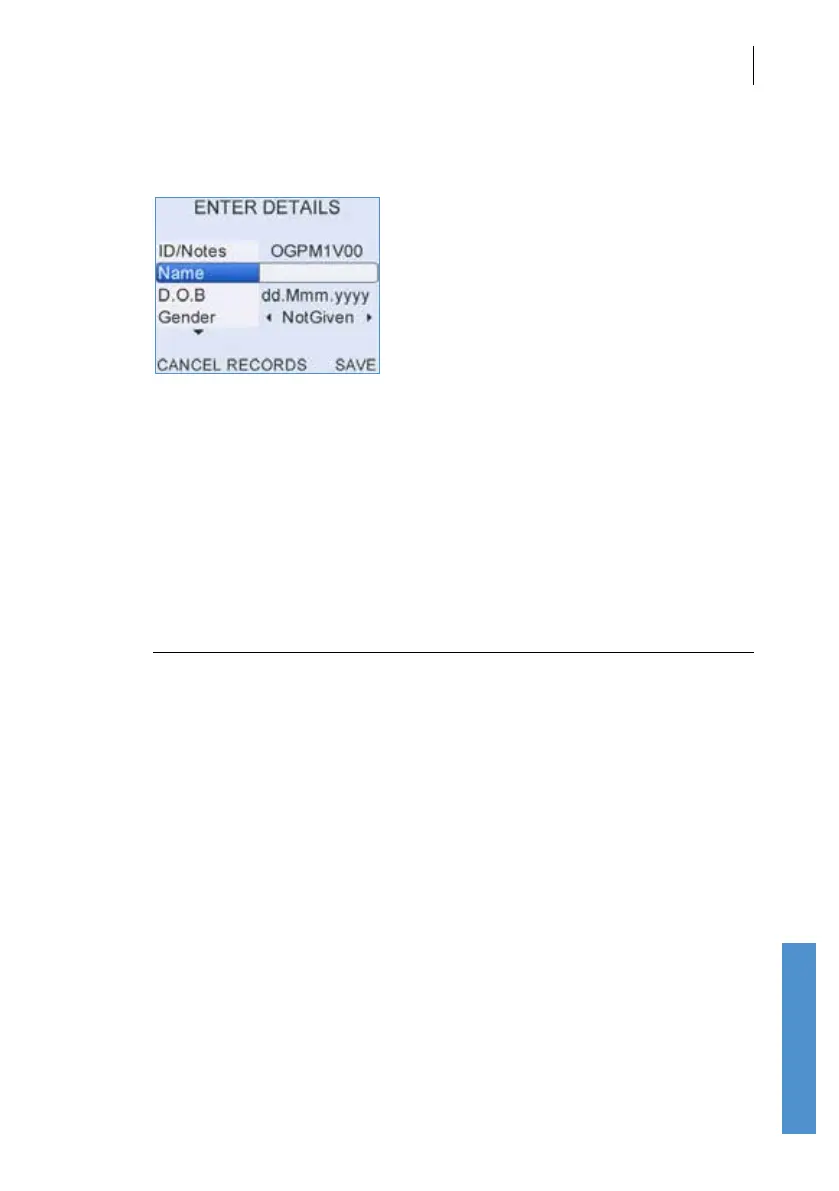
The Enter details screen is shown. The patient ID is lled with an
automatically generated ID. The Name eld displays Auto. The user may
either save these details or overwrite them with alternative patient’s details.
If an ID is not required, this eld may be used as a notes eld.
A Date of Birth (D.O.B) and Gender may also be added for the patient.
A further three elds are available by scrolling down using the arrow keys.
These are NICU (Yes or No), Location (Inpatient, Outpatient or At Home)
and Facility.
Note:
Only one Facility can be stored on the Otoport. It is not
possible to store dierent facilities for dierent patients. If you
wish to change the Facility, download and erase all test records
from the Otoport rst.
It is also not possible to set the NICU eld to Yes if Location
is set to Outpatient or At home. The elds are automatically
corrected in this case.
Alternatively, the user may select Records and choose an existing patient
record to which the current results may be appended.
If the test was run using the Last option test results will be saved with the
same details as the last performed test.
If a scanner is installed on the Otoport, pressing any arrow key or key on
the data entry panel will enable scan functions to enter patient details (see
chapter
10 Scanning for more information).
When the patient details are entered, select Save to store the result.



 To Next Page