10400589-001 ©2008-14 Overland Storage, Inc. 258
SnapServer / GuardianOS 7.6 Administrator’s Guide 11 - Misc. Options
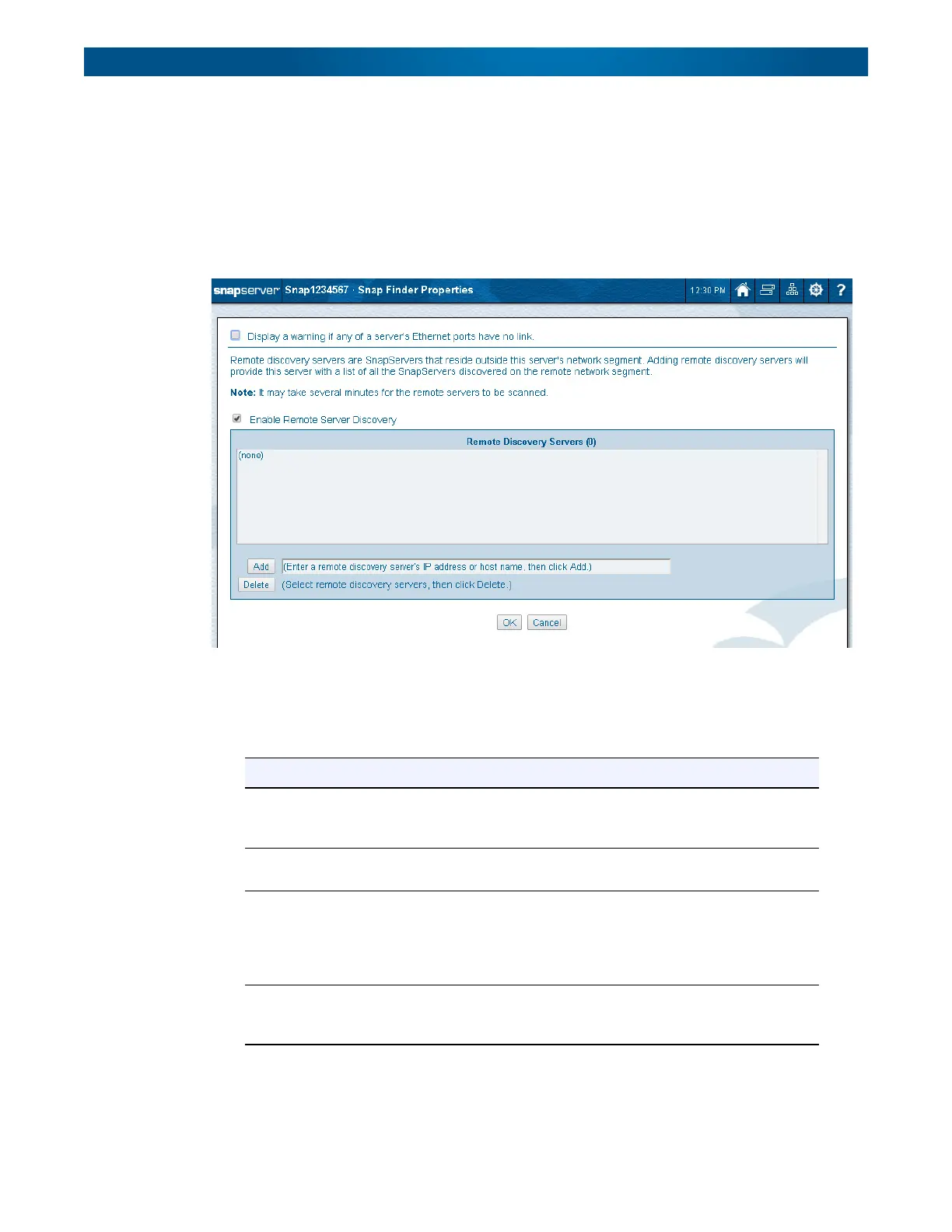
To enable remote discovery of clusters, nodes, or servers on a different subnet or to display a
warning icon for SnapServers or Uninitialized nodes with an enabled Ethernet port that has
no link, click
Properties
to open the
Snap Finder Properties
page.
Edit Snap Finder Properties
Anyone with administrative privileges can view or edit the Snap Finder properties. Click
Properties
to access the page.
From this page you can choose to display a warning icon for Uninitialized nodes or
SnapServers with an enabled Ethernet port that has no link and enable remote discovery of
units on a different subnet. Complete the following fields and then click
OK
to return to the
Snap Finder
page:
Option Description
Display warning if any
of a server’s Ethernet
ports have no link
Check to display a warning icon in the Status column for any nodes
or SnapServers that have an enabled Ethernet port with no link. By
default, this box is unchecked.
Enable Remote Server
Discovery
Check to enable remote discovery of clusters, nodes, or
SnapServers on a different subnet.
Add Server Enter the host name or IP Address of a cluster, node, or server in
the field to the right of the Add button, and click Add to incorporate
it into the list of Remote Discovery Servers. Remote Discovery
Servers send information about themselves as well as all other
servers they've discovered on the remote network.
Delete Server Select a cluster, node, or server, in the Remote Discovery Servers
field and click Delete. When asked to confirm the deletion, click
Delete again.




 To Next Page