10400589-001 ©2008-14 Overland Storage, Inc. 33
SnapServer / GuardianOS 7.6 Administrator’s Guide 2 - Initial Setup and Configuration
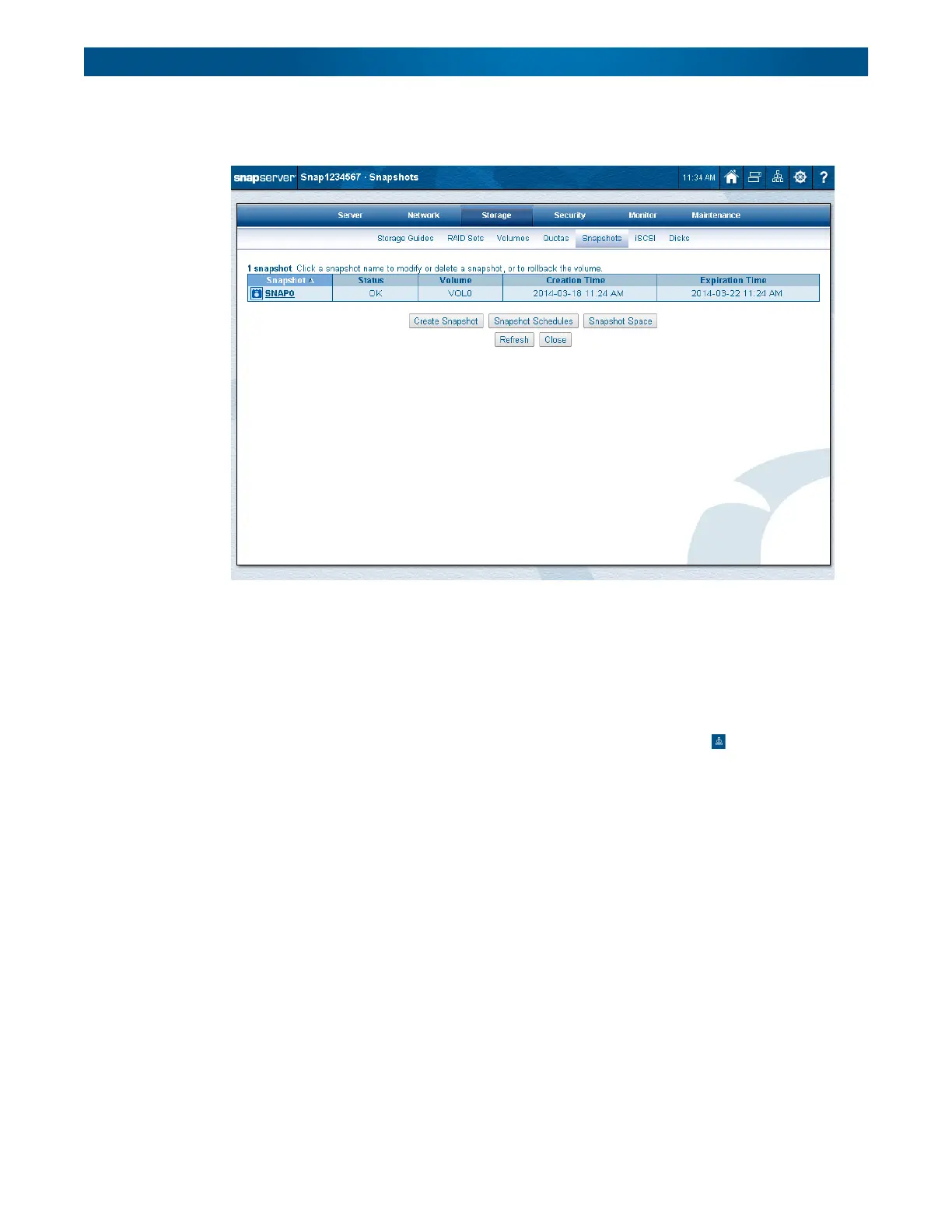
Navigate to
Storage > Snapshots
in the browser-based Web Management Interface to create
or schedule snapshots.
Snapshots should be taken when the system is idle or under low data traffic. To modify the
space available for storing snapshots:
• For DynamicRAID mode, go to
Storage > Storage Pools
and click the storage pool name
(Storage Pool Properties).
• For Traditional RAID mode, go to
Storage > Snapshots > Snapshot Space
(Storage
Pools).
Set up antivirus protection by first clicking the SnapExtensions icon ( ) and then clicking
CA Antivirus
. Check the box to enable antivirus and click
OK
. When the configuration link
appears, click it to launch the administration user interface for configuration and scheduling
of virus scans and virus signature file updates.
Create a disaster recovery image on the
Maintenance > Disaster Recovery
page. This image
should be created after the server configuration is complete and it can be used to recover the
server or bring a replacement server to the configured state. See Disaster Recovery for
detailed information on creating and using disaster recovery images.
GuardianOS contains built-in support for Snap EDR (trial mode) to synchronize and back up
to and from other SnapServers. GuardianOS also supports several third-party backup agents.
For information on using these backup methods to help protect your data, see Backup
Solutions.
Web Management Interface
SnapServer appliances use a web-based graphical user interface (GUI), called the Web
Management Interface, to administer and monitor the server. It supports most common web
browsers. JavaScript must be enabled in the browser for it to work.




 To Next Page