Model 6755i Series IP Phone User Guide — 67
Line Keys, Programmable Keys, and Softkeys
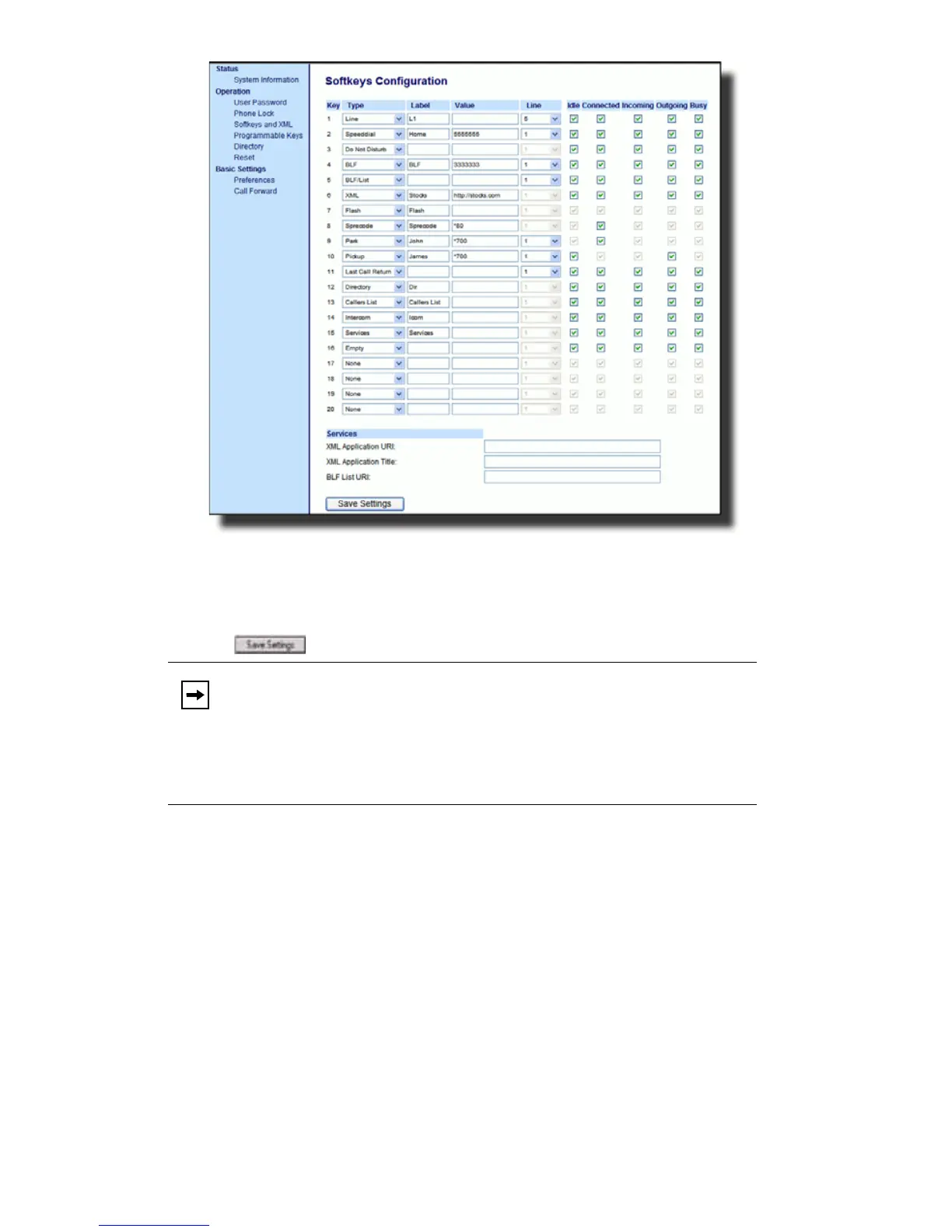
Click on Operation->Expansion Module <N>.
2. For softkeys, select from "Key 1" through "Key 20" or for programmable keys,
select from "Key 1" through "Key 6".
3. In the Type field, select Phone Lock from the list of options.
4. Click to save your changes.
Using the Lock/Unlock Key on the IP Phone
After configuring a key as a lock/unlock key, refer to the following procedure to
use the key on the IP phone.
Lock the Phone
1. Press the LOCK key. The phone locks. The LED for the key AND the Message
Waiting Lamp illuminate steady ON. An Unlock label appears next to the key
you just pressed.
Unlock the Phone
1. Press the UNLOCK key. A password prompt displays.
2. Enter your user password and press ENTER. The phone unlocks. The LED for
the key AND the Message Waiting Lamp go OFF. The Lock label appears
next to the key you just pressed.
Note: You can lock/unlock the phone using the new key you just config-
ured, using the Packet8 Web Phone UI at the path Operation-
>PhoneLock, or using the Phone Lock option on the IP Phone UI
at the path Options->Phone Lock. For more information about
using the lock/unlock feature, see "Locking/Unlocking a Phone" on
page 41.



 To Next Page