66 — Model 6755i Series IP Phone User Guide
Line Keys, Programmable Keys, and Softkeys
Click on Operation->Expansion Module <N>.
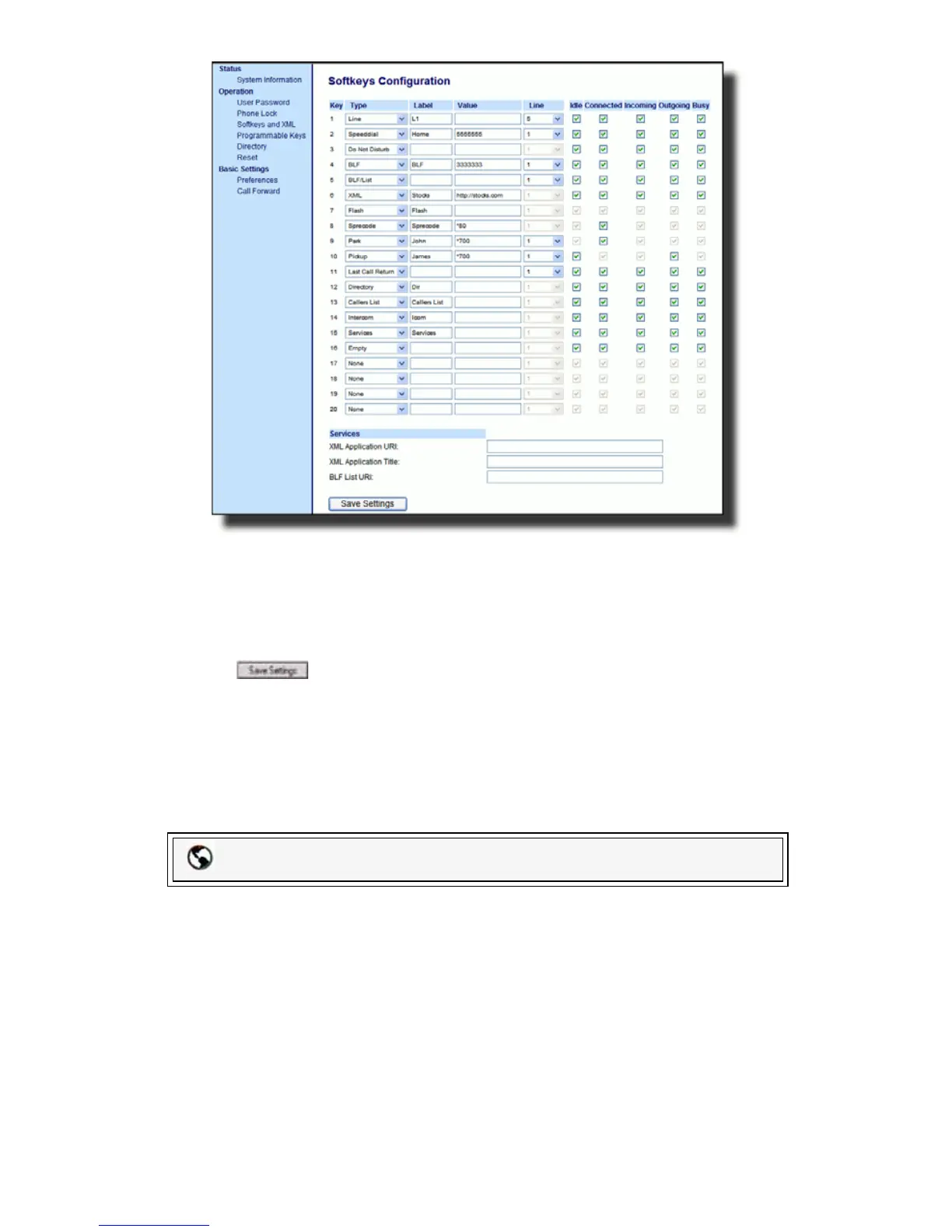
2. For softkeys, select from "Key 1" through "Key 20".
3. In the Type field, select Empty.
4. When configuring a softkey, in the state fields, check (enable) or uncheck
(disable) the states you want to apply to this softkey.
5. Click to save your changes.
Phone Lock Key
You can configure a key on the IP Phone to use as a lock/unlock key. You assign
the function of the key as Phone Lock.
Setting a Phone Lock Key
Use the following procedure to configure a Phone Lock key on the 6755i IP
Phone. The procedure shows the softkey screen as an example.
1. Click on Operation->Softkeys and XML.
or
Click on Operation->Programmable Keys.
or
Packet8 Web Phone UI



 To Next Page