Advanced-Shooting
- 52 -
Taking Pictures that Match the Scene being
Recorded
(Scene Mode)
Recording Mode:
5
When you select a Scene Mode to match the subject and recording situation, the camera sets
the optimal exposure and hue to obtain the desired picture.
1
Slide the recording/playback switch to [
1
].
2
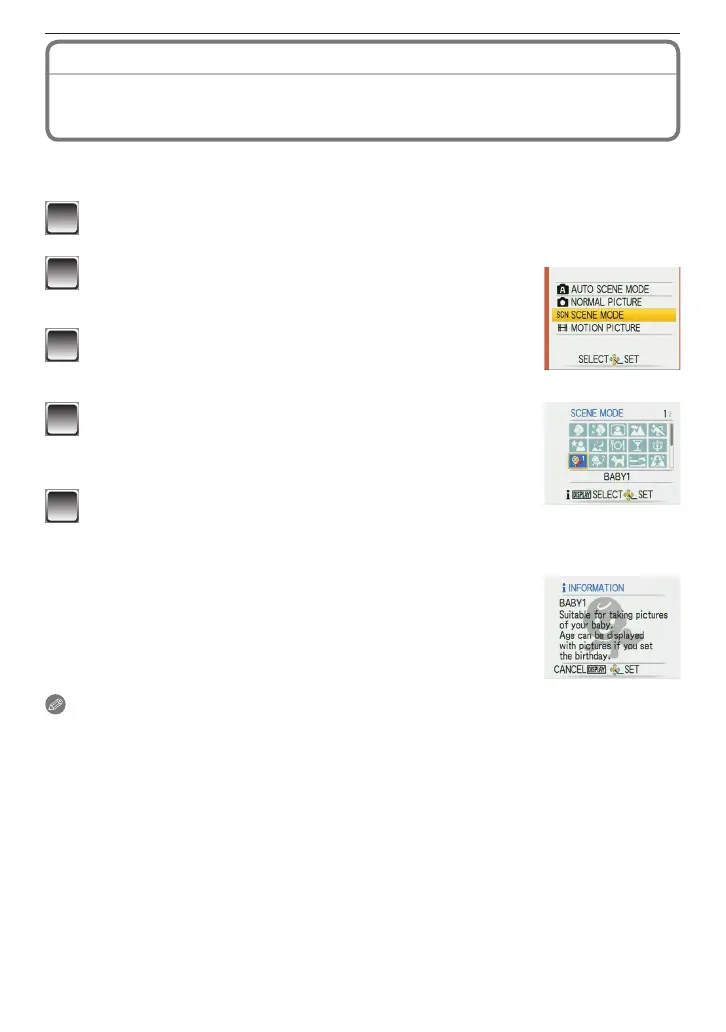
Press [MODE] to display the mode selection
screen.
3
Press
e
/
r
to select [SCENE MODE] and then
press [MENU/SET].
4
Press
e
/
r
/
w
/
q
to select the Scene Mode.
• You can switch menu screens by the page from any menu item
by rotating the zoom lever.
5
Press [MENU/SET] to set.
• The menu screen is switched to the recording screen in the selected Scene Mode.
• Depending on the scene mode, the setting screen appears.
Scene mode help [
6
INFORMATION]
• To see explanations about the scene modes, press [DISPLAY] while a
Scene Mode is selected in step
4
. Press again to return to the Scene
Mode menu.
Note
• To change the Scene Mode, press [MENU/SET] and
q
, and then perform steps
4
and
5
above.
• Refer to
P48 for the shutter speed.
• The ash settings return to the initial settings when you change the Scene Mode.
• The color of the picture may seem strange if you use a scene mode that is unsuitable for the
shot.
• The following cannot be set in Scene Mode.
– [SENSITIVITY]/[COLOR MODE]








 To Next Page