EasyManua.ls Logo

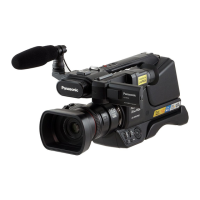
Panasonic HC-MDH2 - User Manual

Panasonic HC-MDH2
136 pages
Print Icon
To Next Page IconTo Next Page
Loading...
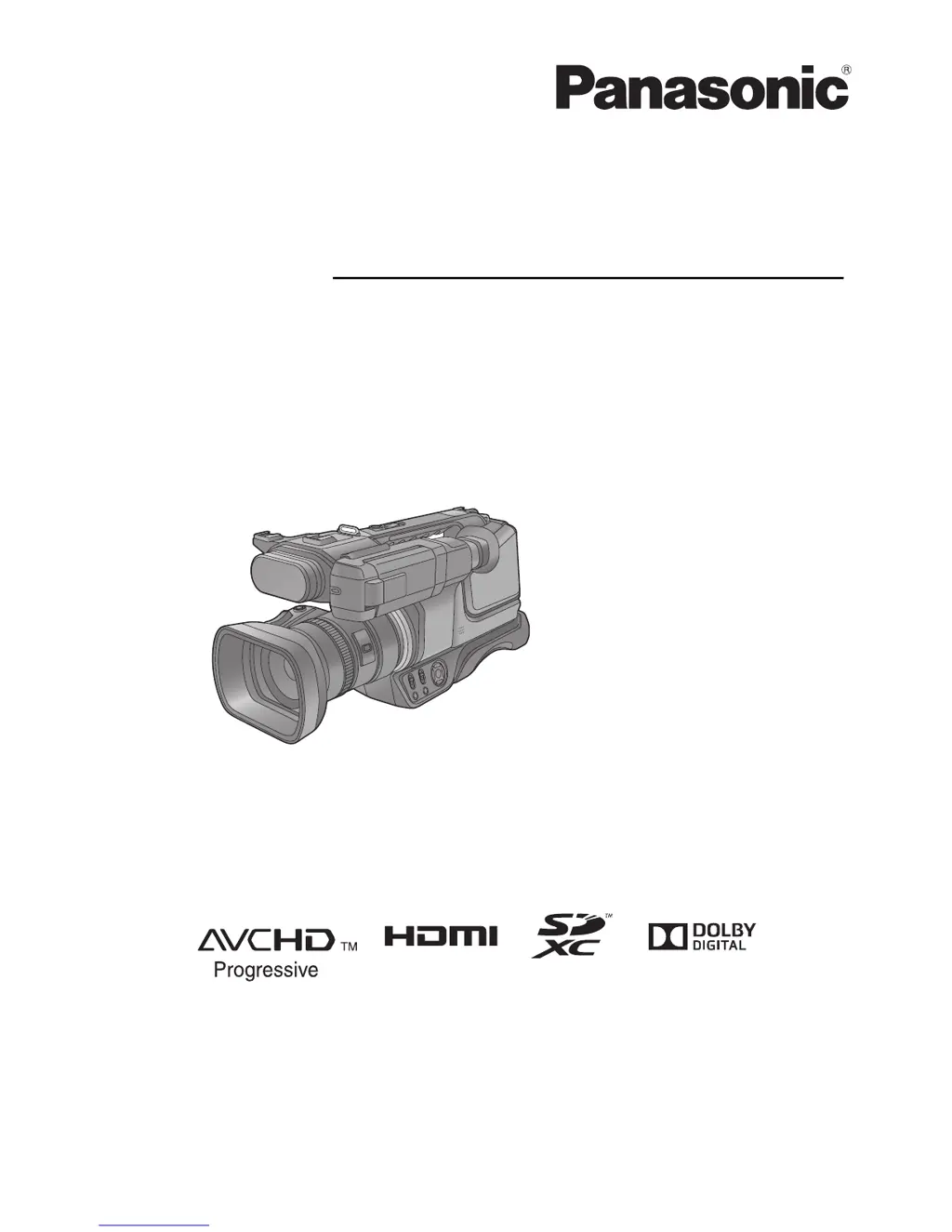
Operating Instructions
High Definition Video Camera
Model No.
HC-MDH2
HC-MDH2M
Please read these instructions carefully before using this product, and save this manual for future
use.
VQT5E10
until
2013/9/30

Table of Contents

Other manuals for Panasonic HC-MDH2

Questions and Answers

  • K
    Kendra HaasAug 19, 2025
    What to do if my Panasonic HC-MDH2 is not detected by the PC when connected by USB cable?
    • D
      Donna AdamsAug 20, 2025
      If your Panasonic Camcorder isn't being recognized by your PC via USB, try these steps: First, re-insert the SD card into the camcorder, and then reconnect the supplied USB cable. If that doesn't work, try a different USB port on your PC. Ensure your operating environment is supported. As a final step, restart your PC and the camcorder, then reconnect the USB cable.
  • S
    Sandra WarrenAug 22, 2025
    Why are images or sounds not visible when Panasonic Camcorder is connected to TV?
    • D
      daniel10Aug 22, 2025
      If you're not seeing images or hearing sound when your Panasonic Camcorder is connected to a TV, consult your TV's operating instructions to select the correct input channel for the connection. Adjust the [TV ASPECT] setting to match your TV's aspect ratio. Note that audio during playback is output from the TV, not the camcorder, so adjust the sound on the TV.
  • B
    Bryan AdamsAug 25, 2025
    Why does my Panasonic HC-MDH2 Camcorder battery run down quickly?
    • L
      Loretta GreeneAug 25, 2025
      If your Panasonic Camcorder's battery is draining faster than expected, several factors could be at play. Ensure the battery is fully charged by charging it again. Keep in mind that battery life can be shorter in cold environments. Also, batteries have a limited lifespan, so if the operating time remains short even after a full charge, the battery may be worn out and need replacing.
  • J
    Jacob TurnerAug 26, 2025
    What to do if my Panasonic HC-MDH2 Camcorder displays “ERROR OCCURRED. PLEASE TURN UNIT OFF, THEN TURN ON AGAIN.”?
    • T
      Tommy HortonAug 26, 2025
      This message indicates that your camcorder has detected an error. Try restarting the unit by turning it off and then on again. If the error message reappears after restarting, it may require professional repair. Detach the power and consult the dealer where you purchased the unit. Do not attempt to repair it yourself.
  • H
    hjohnsonAug 27, 2025
    What to do if VIERA Link does not work on my Panasonic HC-MDH2 Camcorder?
    • K
      kaylamillerAug 28, 2025
      If VIERA Link is not functioning with your Panasonic Camcorder, ensure you are using a commercially-available HDMI cable for the connection. Press the MENU button, then select [OTHER FUNCTION] # [VIERA Link] # [ON] using the cursor button. Try turning the unit off and then back on again. If the TV input doesn’t switch automatically, use the TV remote to manually switch the input. Also, check the VIERA Link settings on the connected device. For further assistance, please refer to the operating instructions of the connected device.
  • H
    hughesmitchellAug 29, 2025
    How to fix auto focus on Panasonic HC-MDH2 Camcorder?
    • E
      Erica ClarkAug 29, 2025
      If the auto focus function on your Panasonic Camcorder isn't working, try switching to Intelligent Auto Mode or Intelligent Auto Plus Mode. If you're recording a scene that's difficult to focus on in Auto Focus Mode, switch to Manual Focus Mode to adjust the focus manually.
  • J
    johnhallSep 1, 2025
    What to do if my Panasonic Camcorder cannot be operated though it is turned on?
    • S
      Suzanne JamesSep 1, 2025
      If your Panasonic Camcorder is on but not responding, try removing the battery or AC adapter. Wait for about a minute, then reconnect either the battery or AC adapter. After another minute, try turning the unit on again. If normal operation is still not restored, detach the power connected, and consult the dealer who you purchased this unit from.
  • A
    Amy ThompsonSep 3, 2025
    Why does my Panasonic HC-MDH2 arbitrarily stop recording?
    • E
      Elizabeth DaughertySep 3, 2025
      If your Panasonic Camcorder is unexpectedly stopping recordings, ensure you're using an SD card suitable for motion picture recording. The recordable time may also have shortened due to the deterioration of the data writing speed or repeated recording and deletion. Format the SD card or built-in memory using the unit.
  • J
    Joseph PachecoSep 5, 2025
    Why is the colour balance strange on my Panasonic HC-MDH2 Camcorder?
    • B
      Brian SwansonSep 5, 2025
      If you notice strange colour balance when recording with your Panasonic Camcorder in places like a gymnasium, it may be due to multiple light sources. Try setting the White Balance to (Indoor mode 2). If the image is still unclear, switch to (Manual adjustment mode).
  • R
    Ronald WelchSep 7, 2025
    What to do if SD card is not recognised by other device with my Panasonic HC-MDH2?
    • C
      Christina WrightSep 7, 2025
      If an SD card from your Panasonic Camcorder isn't being recognized by another device, verify that the device supports the SD card's capacity and type (SD Memory Card, SDHC Memory Card, or SDXC Memory Card). Refer to the device's operating instructions for compatibility details.

Summary

Read this first

About the recording format for recording motion pictures

Explains AVCHD and AVCHD Progressive recording formats.

Handling of built-in memory [HC-MDH2 M]

Precautions for using the built-in memory.

About Condensation (When the lens, the viewfinder or LCD Monitor is fogged up)

Explains condensation and how to prevent/resolve it.

Preparation

Names and Functions of Main Parts

Identifies and explains the main components of the video camera.

Power supply

Details about batteries, charging, and power connection.

Recording to a card

Information on using SD cards for recording media.

Basic

Before recording

Basic camera positioning and setup tips before recording.

Formatting cards

Steps to format SD cards before first use.

Recording motion pictures

Step-by-step guide to recording video footage.

Advanced (Recording)

Using the zoom

Explains zoom lever operation and zoom bar display.

Image Stabilizer Function

Details on reducing shake using the O.I.S. feature.

Manual recording

Guides on using manual controls for recording.

Advanced (Playback)

Playback Operations

Covers basic playback controls and functions.

Highlight Playback

Creating and playing back highlight clips with effects.

Deleting scenes;still pictures

Procedures for removing recorded content.

Watching Video;Pictures on your TV

Connecting the camera to a television for playback.

Copy;Dubbing

Copying between SD card and Built-in Memory [HC-MDH2 M]

How to transfer files between memory cards and built-in storage.

Copying;playing back with an external drive

Connecting and using external drives for copying and playback.

Dubbing with a Blu-ray disc recorder, video device, etc.

Transferring recorded content to other devices like recorders.

With a PC

Connecting to a PC (File transfer;nonlinear editing)

Transferring files to a computer for editing.

Menu

Using the Menu

Navigating and understanding the camera's menu system.

Others

Indications

Explains various on-screen icons and indicators.

Messages

Lists common confirmation and error messages.

Troubleshooting

Solutions for common operational problems.

Cautions for use

Important safety and usage guidelines.

Panasonic HC-MDH2 Specifications

General IconGeneral
Sensor typeMOS
Total megapixels17.52 MP
Optical sensor size1/2.33 \
Camcorder type-
Minimum illumination1 lx
On Screen Display (OSD)Yes
Supported aspect ratios3:2, 4:3, 16:9
On Screen Display (OSD) languagesARA, CHI (TR), ENG, HIN, PER, THA
Filter size49 mm
Digital zoom60 x
Optical zoom21 x
Focal length range2.82 - 59.2 mm
Maximum aperture number3.5
Minimum aperture number1.8
Focus adjustmentAuto/Manual
Shutter speed (photo)1/2 - 1/2000 s
Shutter speed (video)1/50 - 1/8000 s
Camcorder media typeMemory card
Disc types supportedNo
Compatible memory cardsSD, SDHC, SDXC
Internal storage capacity- GB
Supported video modes1080p
Video formats supportedAVC, AVCHD, MPEG4
Maximum video resolution1920 x 1080 pixels
Image formats supportedEXIF, JPEG XR
Maximum image resolution6016 x 3384 pixels
Still image resolution(s)6016 x 3384 4096 x 2304 1920 x 1080 4752 x 3168 3456 x 2304 1728 x 1152 4480 x 3360 2784 x 2088 4096 x 2304 1920 x 1080 1440x1080
Battery voltage7.2 V
Battery capacity- mAh
Battery life (max)- h
Display diagonal3 \
Display resolution (numeric)460000 pixels
Viewfinder typeElectronic
Viewfinder screen size0.24 \
Headphone outputs1
USB 2.0 ports quantityUSB 2.0 ports have a data transmission speed of 480 Mbps, and are backwards compatible with USB 1.1 ports. You can connect all kinds of peripheral devices to them.
Cables includedUSB
Product colorBlack
Weight and Dimensions IconWeight and Dimensions
Depth479 mm
Width205 mm
Height217 mm
Weight2270 g

Related product manuals