EasyManua.ls Logo

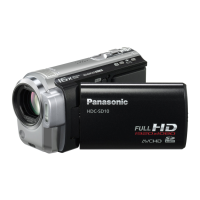
Panasonic HDC-SD40 - User Manual

Panasonic HDC-SD40
132 pages
Print Icon
To Next Page IconTo Next Page
Loading...
until
2011/2/10
For USA and Puerto Rico assistance, please call: 1-800-211-PANA(7262) or,
contact us via the web at: http://www.panasonic.com/contactinfo
For Canadian assistance, please call: 1-800-561-5505 or visit us at www.panasonic.ca
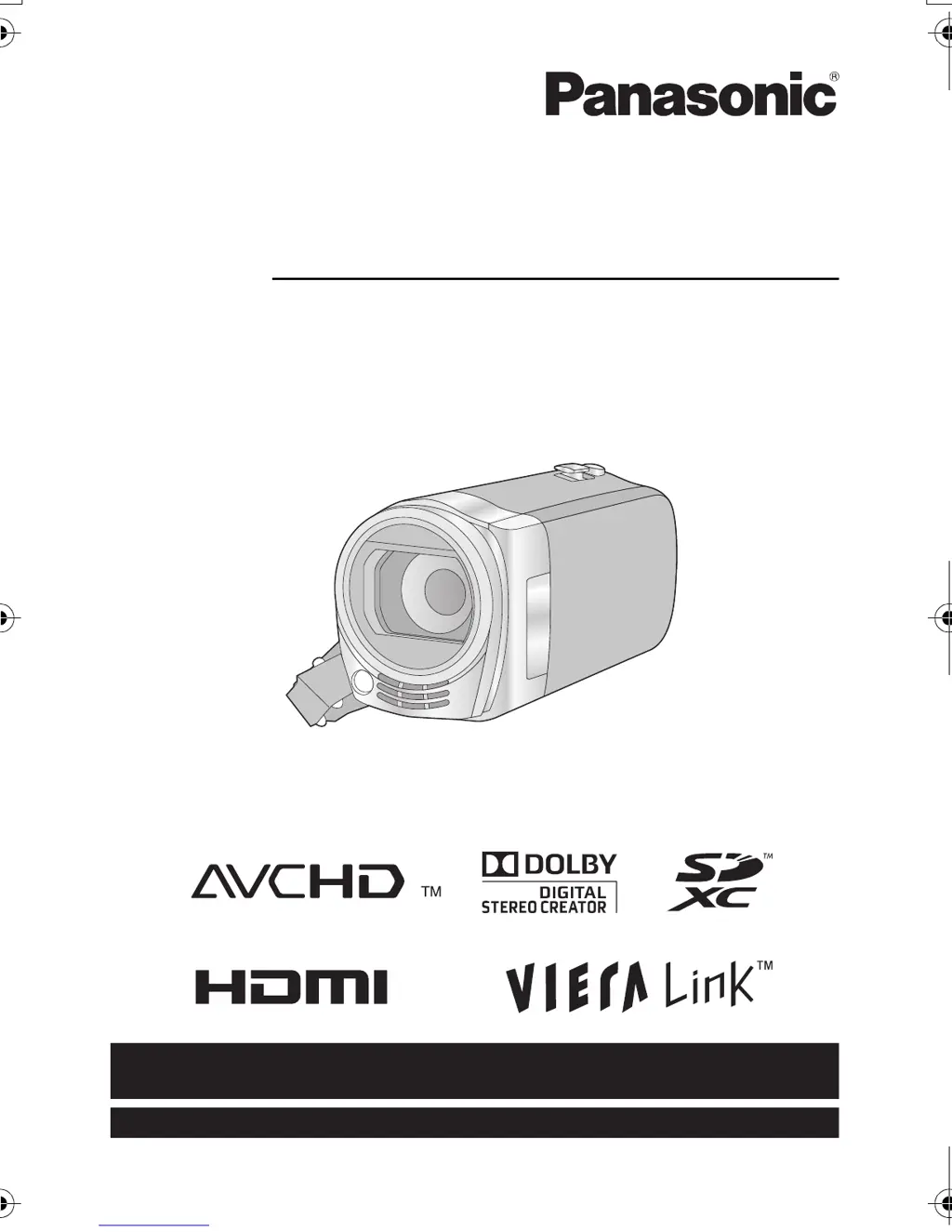
Owners Manual
High Definition Video Camera
Model No.HDC-SD40P/PC
HDC-TM40P/PC
HDC-TM41P/PC
Before connecting, operating or adjusting this product, please read the instructions completely.
VQT3J95
HDC-SD40&TM40P_PC_VQT3J95_mst.book 1 ージ 2011年1月20日 木曜日 午前11時49

Table of Contents

Other manuals for Panasonic HDC-SD40

Questions and Answers

  • M
    Michael WatkinsSep 1, 2025
    What to do if Panasonic Camcorder SD card is not recognized in other device?
    • T
      Timothy NelsonSep 1, 2025
      If an SD card from your Panasonic Camcorder isn't recognized in another device, verify that the device supports the SD card's capacity or type (SD Memory Card/SDHC Memory Card/ SDXC Memory Card).
  • V
    vanessasmithSep 2, 2025
    Why Scenes/still pictures cannot be played back on Panasonic Camcorder?
    • J
      John BaileySep 2, 2025
      Scenes/still pictures where the thumbnails are displayed as cannot be played back on Panasonic Camcorder.
  • V
    Vincent TurnerSep 2, 2025
    Why Panasonic HDC-SD40 Camcorder is not detected by other devices via USB?
    • R
      Richard BrownSep 2, 2025
      If your Panasonic Camcorder isn't detected when connected to other devices via USB cable, and you're only using battery power, try reconnecting with the AC adapter.
  • J
    john69Sep 3, 2025
    Why Panasonic Camcorder is not detected by PC via USB?
    • T
      Timothy HardySep 3, 2025
      If your Panasonic Camcorder is not detected by your PC when connected via USB cable, try the following: 1. Re-insert the SD card into the unit, then reconnect the supplied USB cable. 2. Try a different USB terminal on your PC. 3. Check the operating environment. 4. Restart your PC and the camcorder, then reconnect the USB cable.
  • C
    Casey BenjaminSep 4, 2025
    Why Panasonic HDC-SD40 Camcorder does not recognize SD card?
    • C
      collinslauraSep 4, 2025
      If your Panasonic Camcorder doesn't recognize the SD card, and the SD card was formatted on a PC, it may not be recognized by this unit. Use this unit to format SD cards.
  • L
    Linda CarterSep 5, 2025
    Why does my Panasonic Camcorder turn off automatically?
    • J
      Jacqueline WatsonSep 5, 2025
      If your Panasonic Camcorder unit turns off automatically, and you're not using VIERA Link, set [VIERA Link] to [OFF]. This is likely happening because the unit is responding to the TV's remote control turning off the TV.
  • S
    Stephanie RodriguezSep 6, 2025
    How to fix incorrect battery display on Panasonic Camcorder?
    • J
      Jennifer FryeSep 6, 2025
      If the remaining battery indication is not displayed properly on your Panasonic Camcorder, fully charge the battery, discharge it, and then charge it again.
  • I
    irangelSep 6, 2025
    What to do if Panasonic HDC-SD40 displays 'Error occurred'?
    • C
      Craig MatthewsSep 7, 2025
      If your Panasonic Camcorder displays the message “ERROR OCCURRED. PLEASE TURN UNIT OFF, THEN TURN ON AGAIN,” the unit has detected an error. Try restarting the unit by turning it off and then on again. If the error message continues to appear after restarting, disconnect the power and contact consumer support, as repair may be needed.

Summary

IMPORTANT SAFETY INSTRUCTIONS

Precautions

USE & LOCATION

Precautions for using the camera in various environments and locations.

Quick Guide

Inserting the battery

Step-by-step instructions for inserting the camera's battery.

Charging the battery

Procedure for charging the camera's battery using the AC adaptor.

Parts identification and handling

Power supply

Inserting;removing the battery

Step-by-step guide on how to insert and remove the battery.

Recording motion pictures

Recording still pictures

Intelligent Auto Mode

Motion picture;Still picture playback

Manual recording

White balance

Adjusting white balance for accurate color reproduction in different lighting conditions.

Manual shutter speed;iris adjustment

Controlling shutter speed and iris for exposure and image brightness.

Playback Operations

Motion picture playback using operation icon

Using on-screen icons to control motion picture playback functions.

Watching Video;Pictures on your TV

Connect this unit to a TV.

Guide on connecting the camcorder to a television for playback.

Copy;Dubbing

Copying from Built-in Memory to SD card

Instructions for copying recorded content from internal memory to an SD card.

With a PC

What you can do with a PC

Overview of PC operations using HD Writer LE 1.0 software.

Troubleshooting

Cautions for use

About this unit

General advice on handling the unit and avoiding electromagnetic interference.

Specifications

Spanish Quick Use Guide;Guía española para el uso rápido

Insertar la batería

Instructions in Spanish for inserting the battery into the device.

Carga de la batería

Instructions in Spanish for charging the battery using the AC adaptor.

Panasonic HDC-SD40 Specifications

General IconGeneral
Digital zoom1200 x
Optical zoom16.8 x
Image stabilizerYes
Focal length range2.9 - 48.7 mm
Focal length (35mm film equivalent)42.9 - 721 mm
Sensor typeMOS
Total megapixels1.5 MP
Optical sensor size1/5.8 \
Effective megapixels (movie)1.19 MP
InterfaceUSB 2.0
Video out1
Power requirementsAC/DC, 3.6 - 5.0 V
Power consumption (typical)7.7 W
Display diagonal2.7 \
Maximum video resolution1920 x 1080 pixels
Image formats supportedJPG
Still image resolution(s)1920 x 1080
Audio systemDolby Digital
Camera shutter speed1/25 - 1/8000 s
Shutter speed (photo)1/25 s
Shutter speed (video)1/8000 s
Minimum illumination1 lx
USB 2.0 ports quantityUSB 2.0 ports have a data transmission speed of 480 Mbps, and are backwards compatible with USB 1.1 ports. You can connect all kinds of peripheral devices to them.
Compatible memory cardsSD, SDHC, SDXC
Product colorWhite
Bundled softwareHD Writer LE 1.0
Weight and Dimensions IconWeight and Dimensions
Depth108.5 mm
Width51.5 mm
Height57.5 mm
Weight169 g

Related product manuals