EasyManua.ls Logo

Panasonic NV-HD90 - Storing TV Broadcasts into Your VTR

Panasonic NV-HD90
40 pages
Print Icon
To Next Page IconTo Next Page
To Previous Page IconTo Previous Page
Loading...
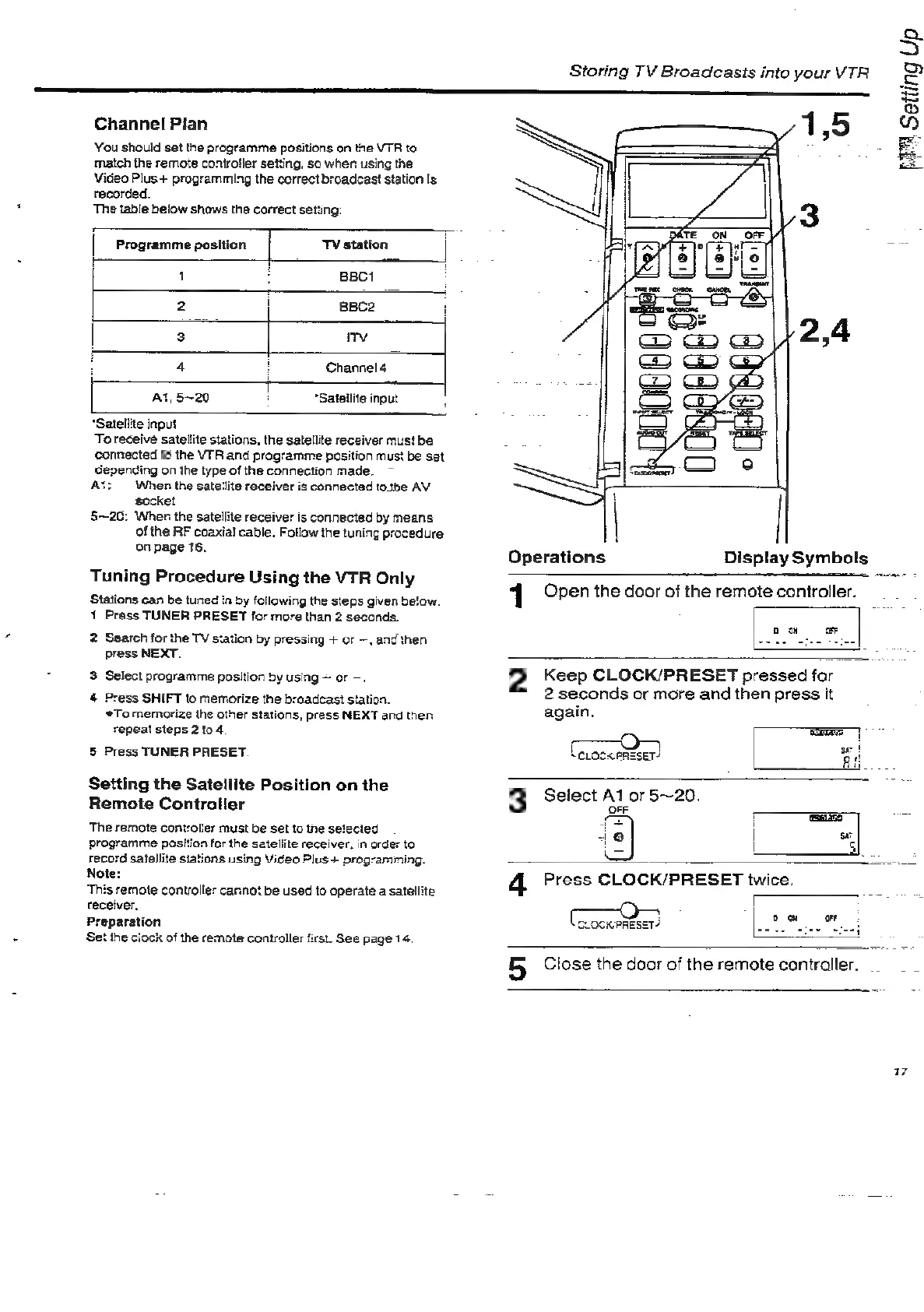
Channel
Pian
You
should
set
the
programme
positions
on
the
VTR
to
match
the
remote
controller
setting,
so
when
using
the
Video
Plus+
programming
the
correct
broadcast
station
is
recorded.
The
table
beiow
shows
the
correct
setting:
Programme
position
f=
TV
station
i
1
!
BBCI
;
2
i
BBC2
'
3
iTv
4
1
Channel
4
7
At,
5~20
"Satellite
input
“Satellite
input
To
receive
satellite
stations,
the
satellite
receiver
must
be
connected
to
the
VTR
and
programme
position
must
be
set
epending
on
the
type
of
the
connection
made.
AS:
§~20:
When
the
satellite
receiver
is
cannected
tothe
AV
socket
Wher
the
satellite
receiver
is
connected
by
means
of
the
RF
coaxial
cable.
Follow
the
tuning
procedure
on
page
16.
Tuning
Procedure
Using
the
VTR
Only
Stations
can
be
tuned
in
by
following
the
steps
given
be!ow.
1
Press
TUNER
PRESET
for
more
than
2
seconds.
2
Search
for
the
TV
station
by
pressing
+
or
~,
and
then
press
NEXT.
3
Select
programme
pasition
by
using
~
or
—.
4
Press
SHIFT
to
memorize
the
broadcast
station.
°To
memorize
the
other
stations,
press
NEXT
and
then
repeat
steps
2104
5
Press
TUNER
PRESET
Setting
the
Satellite
Position
on
the
Remote
Controller
The
remote
controlier
must
be
set
to
the
sefecied
programme
position
for
the
satellite
receiver,
in
order
to
record
satellite
stations
using
Video
Plus
+
programming.
Note
This
remote
controller:
cannot
be
used
to
operate
a
satellite
receiver.
Prepar:
nm
Set
the
ciock
of
the
remate
controller
first.
See
page
14,
Storing
TV
Broadcasts
into
your
VTR
1,5
Operations
Display
Symbols
1
Open
the
door
of
the
remote
controller.
2
Keep
CLOCK/PRESET
pressed
for
2
seconds
or
more
and
then
press
it
again.
Lctocee:
er)
3
Select
Al
or
5~20.
OFF
i
+i
@
|
st
4
Press
CLOCK/PRESET
twice.
Corocuenéser)
5
Ctose
the
door
of
the
remote
controller.
Setting
Up
7
ame
7

Related product manuals