EasyManua.ls Logo

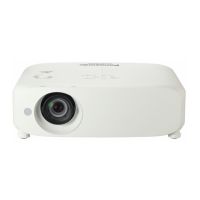
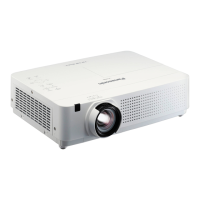
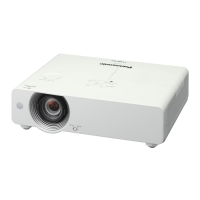
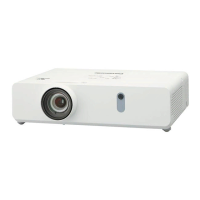
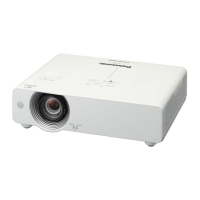
Panasonic PT-VW540 - User Manual

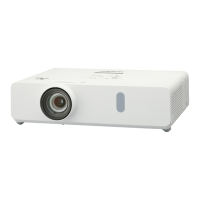
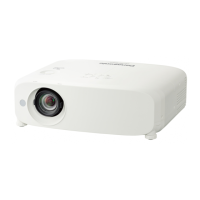
Panasonic PT-VW540
131 pages
Print Icon
To Next Page IconTo Next Page
Loading...
Operating Instructions
Functional Manual
LCD Projector
Commercial Use
Thank you for purchasing this Panasonic product.
This manual is common to all the models regardless of sufxes of the Model No.
f for India
PT-VZ580D / PT-VW540D / PT-VX610D
f for Taiwan
PT-VZ580T / PT-VW540T / PT-VX610T
Before operating this product, please read the instructions carefully, and save this manual for
future use.
Before using your projector, be sure to read “Read this rst!” (
Æ
pages 4 to 9).
Model No.
PT-VZ580
PT-VW540
PT-VX610
ENGLISH
DPQP1172ZB

Table of Contents

Other manuals for Panasonic PT-VW540

Questions and Answers

  • S
    sandrawuSep 23, 2025
    What to do if buttons on the control panel of my Panasonic PT-VW540 do not work?
    • N
      Natalie BauerSep 23, 2025
      If the buttons on the control panel of your Panasonic Projector do not work, check if the [CONTROL PANEL] setting in [CONTROL DEVICE SETUP] is set to [DISABLE].
  • J
    Jill RomeroAug 23, 2025
    What to do if my Panasonic PT-VW540 shows no image?
    • J
      Joy HancockAug 23, 2025
      If your Panasonic Projector is not displaying an image, here are a few things to check: First, ensure that all connections to external devices are correctly performed and that the input selection setting is correct. Verify that the [BRIGHTNESS] adjustment is not set to the minimum. Confirm that the external device connected to the projector is working properly. Finally, check whether the AV mute function is activated, and if so, deactivate it.
  • C
    Christopher AdamsAug 25, 2025
    How to display image from computer on Panasonic PT-VW540 Projector?
    • K
      Kimberly WilsonAug 26, 2025
      If you're having trouble displaying an image from a computer on your Panasonic Projector, check if the cable is too long (for D-Sub cables, it should be 10 m (32'10") or shorter). Also, verify that the external video output on the laptop computer is set correctly. (For example, the external output settings may be switched by pressing the “Fn” + “F3” or “Fn” + “F10” simultaneously. Refer to the user manual provided with your computer, as the method varies depending on the computer type.)
  • R
    Rachel VaughnAug 27, 2025
    Why Panasonic PT-VW540 power does not turn on?
    • G
      Greg HutchinsonAug 27, 2025
      If your Panasonic Projector isn't powering on, make sure the power plug is firmly connected to the outlet and that the wall outlet is supplying electricity. Check if the circuit breakers have tripped. Also, verify if the lamp indicator or temperature indicator is lit or blinking, and ensure the lamp cover is securely attached.
  • A
    Alexis HarveyAug 27, 2025
    What to do if Panasonic Projector remote control does not work?
    • F
      Felicia LeonAug 28, 2025
      If the remote control for your Panasonic Projector isn't working, first check if the batteries are depleted and ensure their polarity is correctly set. Make sure there are no obstructions between the remote control and the projector's signal receiver, and that you're using the remote within its effective operation range. Also, check for interference from fluorescent light. Finally, confirm that the [REMOTE CONTROLLER] setting in [CONTROL DEVICE SETUP] is not set to [DISABLE], and verify that the ID number setting operation is correct.
  • D
    Danielle ThomasSep 18, 2025
    Why is audio from HDMI compatible device not output from my Panasonic PT-VW540?
    • M
      Michelle EstradaSep 18, 2025
      To resolve audio issues from an HDMI compatible device connected to your Panasonic Projector, set the audio output of the connected device to linear PCM.
  • S
    Sharon TorresSep 15, 2025
    Why is the color pale or grayish on my Panasonic PT-VW540?
    • E
      Eugene GilbertSep 15, 2025
      If the color on your Panasonic Projector appears pale or grayish, ensure that the [COLOR] or [TINT] settings are correctly adjusted. Check that the external device connected to the projector is properly adjusted. Also, inspect the RGB signal cable for any damage.
  • E
    ecardenasSep 16, 2025
    Why does video from HDMI compatible device not appear or it appears jumbled on Panasonic PT-VW540 Projector?
    • S
      Steven RossSep 17, 2025
      If video from an HDMI compatible device does not appear or appears jumbled on your Panasonic Projector, ensure the HDMI cable is securely connected. Try turning the power of both the projector and the external device off and on. Also, verify that the signal input is compatible with the projector.
  • J
    Joseph GonzalezSep 6, 2025
    Why does image from a computer not appear on my Panasonic PT-VW540?
    • M
      Megan PerezSep 6, 2025
      If the image from your computer isn't appearing on the Panasonic Projector, check if the cable is too long; for D-Sub cables, it should be 10 m (32'10") or shorter. Also, verify that the external video output on your laptop is set correctly. (The external output settings may be switched by pressing the “Fn” + “F3” or “Fn” + “F10” simultaneously. Refer to your computer's user manual, as the method varies depending on the computer type.)
  • H
    hartclarenceSep 3, 2025
    How to fix fuzzy image on Panasonic Projector?
    • W
      William WileySep 3, 2025
      If the image on your Panasonic Projector is fuzzy, first check that the lens cap is removed. Then, verify that the lens focus is correctly set and the projection distance is appropriate. Also, inspect the lens to ensure it is clean, and confirm that the projector is installed perpendicular to the screen.

Summary

Chapter 1 Preparation

Safety Precautions for Use

Essential safety guidelines, warnings, and precautions for operating the projector.

Security and Software Features

Measures to protect the projector from unauthorized access and data leaks.

Storage and Disposal

Proper procedures for storing the projector and disposing of it.

Accessories Information

Lists included projector accessories and optional items available for purchase.

Projector Components Overview

Overview of the projector's physical components, remote control, and preparation.

Chapter 2 Getting Started

Setting Up the Projector

Instructions for physically setting up the projector in various installation modes.

Screen Size and Throw Distance

Information on determining screen size and projector placement distance.

Connecting External Devices

Procedures and examples for connecting various external devices to the projector.

Chapter 3 Basic Operations

Powering the Projector On and Off

Step-by-step guide for turning the projector on, off, and standby modes.

Direct Power Off Function

Explanation of the direct power off feature and its implications.

Projecting and Image Adjustment

Steps for projecting an image and adjusting its position, focus, and size.

Remote Control Operations

How to use the remote control for various projector functions.

Chapter 4 Settings

On-Screen Menu Navigation

How to navigate and use the projector's on-screen menu system.

Main Menu Structure

Overview of the main menu categories and their corresponding page numbers.

Picture Settings

Adjustments for image mode, contrast, brightness, color, sharpness, and temperature.

Position Settings

Adjustments for keystone, screen alignment, shift, dot clock, and aspect ratio.

Display Option Settings

Various display adjustments like color, OSD, captions, and signal levels.

Projector Setup Menu

Configuration options for projector ID, startup, projection method, and lamp power.

Security Menu Options

Settings related to password protection and control device setup.

Network Menu Settings

Configuration options for wired LAN connection and network control.

Chapter 5 Operation of Function

Network Connection Setup

Steps to connect the projector to a network using a wired LAN.

Web Control Functionality

How to control and monitor the projector remotely via a web browser.

Chapter 6 Maintenance

Indicator Lights and Status

Explanation of lamp and temperature indicator lights and their meanings.

Routine Maintenance Procedures

General maintenance tasks including cleaning the projector body and lens.

Air Filter Unit Maintenance

Instructions for cleaning, drying, and replacing the air filter unit.

Lamp Unit Replacement

Critical procedure for replacing the projector's luminous lamp unit.

Troubleshooting Common Issues

A guide to diagnose and resolve common projector problems.

Chapter 7 Appendix

Technical and Signal Information

Details on protocols, commands, and compatible signal types for projector operation.

Physical Specifications and Installation

Projector dimensions, technical specifications, and ceiling mount safety guidelines.

Panasonic PT-VW540 Specifications

General IconGeneral
Brightness5, 000 lumens
Contrast Ratio16, 000:1
Zoom Ratio1.6x
Speakers10 W
Display Technology3LCD
Aspect Ratio16:10
Resolution1280 x 800 (WXGA)
ConnectivityHDMI, VGA, USB, RS-232C
Lamp Life5, 000 hours (Normal) / 7, 000 hours (Eco) / 10, 000 hours (Long Lamp)

Related product manuals