18
support@ionodes.com | www.ionodes.com
7 Advanced Operations
7.1 Connecting to the network
The PERCEPT body camera can be integrated via ONVIF to many video management systems, either on-
premises or cloud-based (like the PERCEPT Cloud for example). For initial set-up, the PERCEPT body
camera needs to be configured prior to using it with your network video management system. In most
cases, only network configuration will be required.
The initial configuration can be done locally using a mobile, laptop or workstation connected to the
Internet. The user will need to enter his Wi-Fi access information on a dedicated web portal
(
https://www.ionodes.com/percept-body-cam-QR)
and generate a specific QR code. When the body
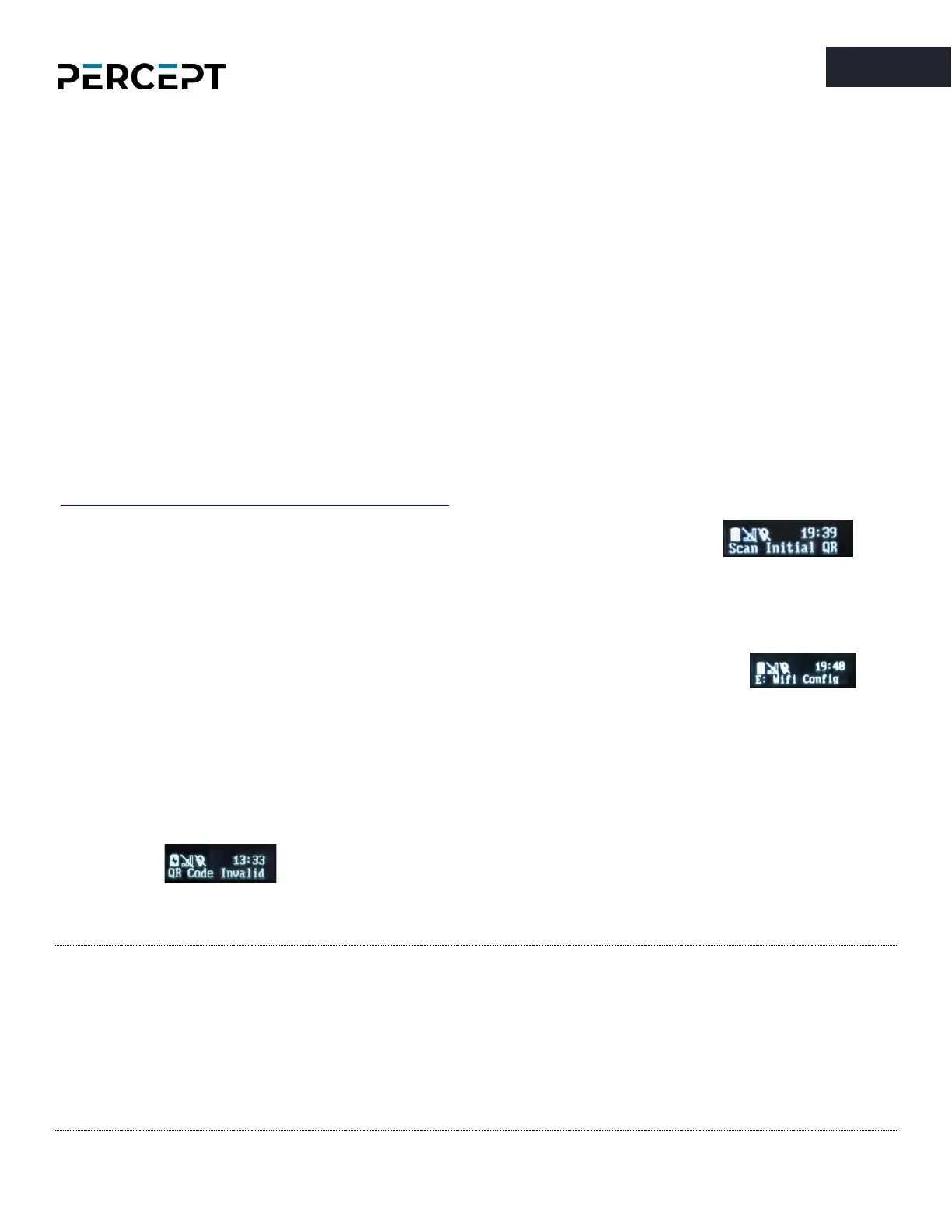
camera is ready to scan the QR code, the user will see the message “
Scan Initial QR
” on
the OLED screen. By scanning this code with the body camera, the Wi-Fi configuration (alongside the
other optional settings configured) will be imported to the device automatically.
After the QR code is scanned, a new message may appear on the OLED, “
E: Wifi Config
” ,
indicating to the user that the body camera encountered an error when attempting to connect to the Wi-
Fi network using the information contained in the QR code. If the Wi-Fi password is incorrect, the body
camera will revert back to QR scanning mode after about 15 sec. If the QR code is not recognized at all
(for instance if it’s not a QR code generated from the dedicated IONODES web portal) the message “
QR
Code Invalid
” will appear on the OLED.
Note: Please check the IONODES Support Center for dedicated technical guides on how to integrate
the body camera to different video management systems.
Note: During the initial setup the system administrator can optionally define the behavior of the
Wearer ID. This is useful for situations where, for instance, the body camera is handed down
by the system administrator to a security guard. Once that security guard receives the body
camera, he’ll need to generate a new QR code with his own unique Wearer ID (so that the
captured media files are tagged accordingly).


 To Next Page