5 Use More Functions
Some functions are valid under a specific source.
(Because the product is constantly updated, the
software is upgraded at any time, if the software
operation is different from the actual operation,
please refer to the actual product.)
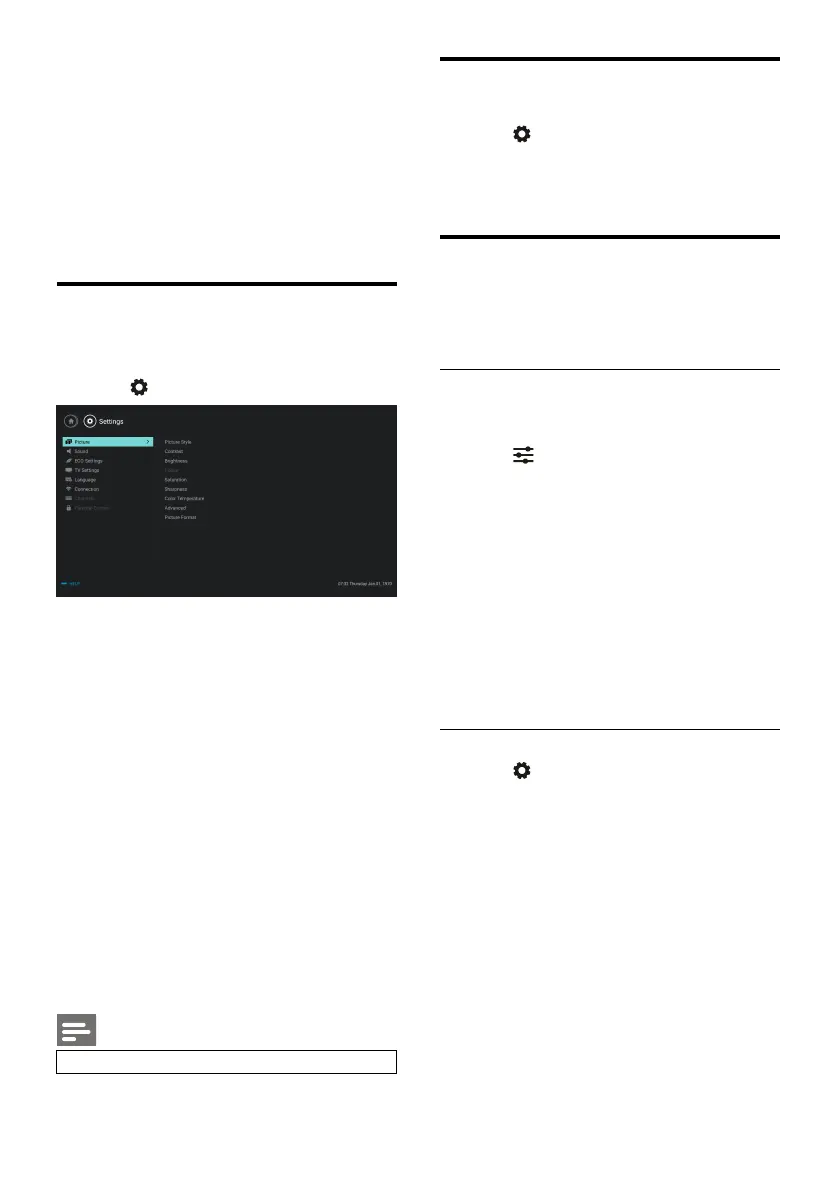
Access to the TV menu
The function list helps to set channels, change
pictures, and set audio and other functions.
1. Press key. Open the Setting menu.
2. Press ▲/▼ key to select one of the
following options; then press
OK
.
Picture:
apply the predefined picture
setting option.
Sound:
apply the predefined sound
setting option.
ECO Settings:
set screen backlight
display
items
.
TV Settings:
set TV function items.
Language:
set the menu language,
keyboard and input method.
Connection:
set wired network
connection and wireless network
connection.
Channels:
set channel searching.
Parental control:
this function helps
parents to set channels available for
children of different age groups.
Note
Change Language
You can change the menu language.
1. Press key to select language>menu
language; then press
key.
2. Select your needed language and then press
OK
key.
Change picture settings
You can change picture settings to your
preferred settings by applying predefined
settings or manually modifying settings.
Quick picture setting
You can set up picture quickly using this
function.
1. Press key, and select Picture Style; then
press
OK
key.
2. Select your preferred settings according to
the instructions on the screen.
Vivid: apply the color dynamic setting
suitable for watching during daytime.
Standard: adjust the picture setting to
suit most video environments and
types.
Natural: set natural mode.
Personal: use the self-defined picture
setting.
Manually adjust picture settings
1. Press key to select picture; and then
press
OK
key.
2. Select one of the following settings and then
press
OK
key.
Contrast: adjust contrast and increase
the light intensity difference between
the bright part and the dark part.
Brightness: adjust the light intensity and
fineness of the darker area.
Saturation: adjust color saturation.
Sharpness: adjust image definition.
Color temperature: adjust the overall
image color temperature.
Advanced:
Noise reduction; filter and reduce
the noisy points in the image.





 To Next Page