8 Network Setup
Switch on/off Smart TV
You can set the network so as to access to
different networks.
1. Connect the TV to Internet. If there is no
network connection, certain functions of the
smart TV cannot work.
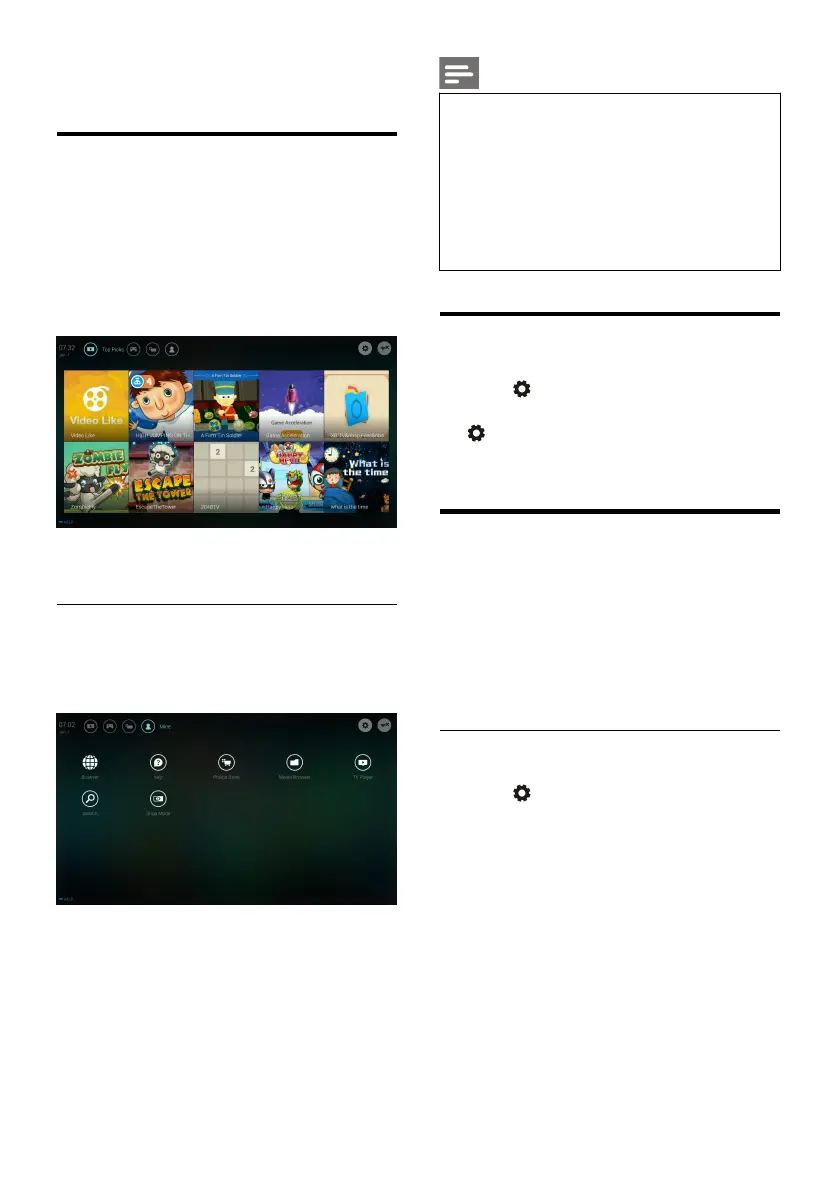
2. Press SMART button on the remote control.
The picture automatically skips to Smart TV.
(The picture and the applications in it are for
reference only!)
Applications
You can obtain apps from App store or manage
installed apps, and quickly switch between Apps
and Mine.
Some apps support only mouse operation.
The memory space is not equal to
available space.
Philips reserves the right to add or delete
some apps.
Do not change the ROM of TV at random.
Otherwise, any faults caused thereof are
not within the warranty scope.
Network Type
You can select network setting type.
Press key and then select Connection >
Wired or Wi-Fi.To view MAC address, press
key and then select Connection >
Wired or Wi-Fi > View Network Settings.
Cable Installation
To needing to connect the TV to PC network or
Internet, you need to install a route in the PC
network. Use a network cable (Ethernet cable)
to connect the route to the TV.
Connect the route to the network interface at
the bottom of TV using a network cable, and
turn on the route before network installation.
Wired Network Connection and
Automatic Searching
1. Press key and then select Connection >
Wired or Wi-Fi > Connect To Network >
Wired Network.
2. Select DHCP and then Connect and press
OK
key.The network protocol will be set
automatically.





 To Next Page