- 27 -
o
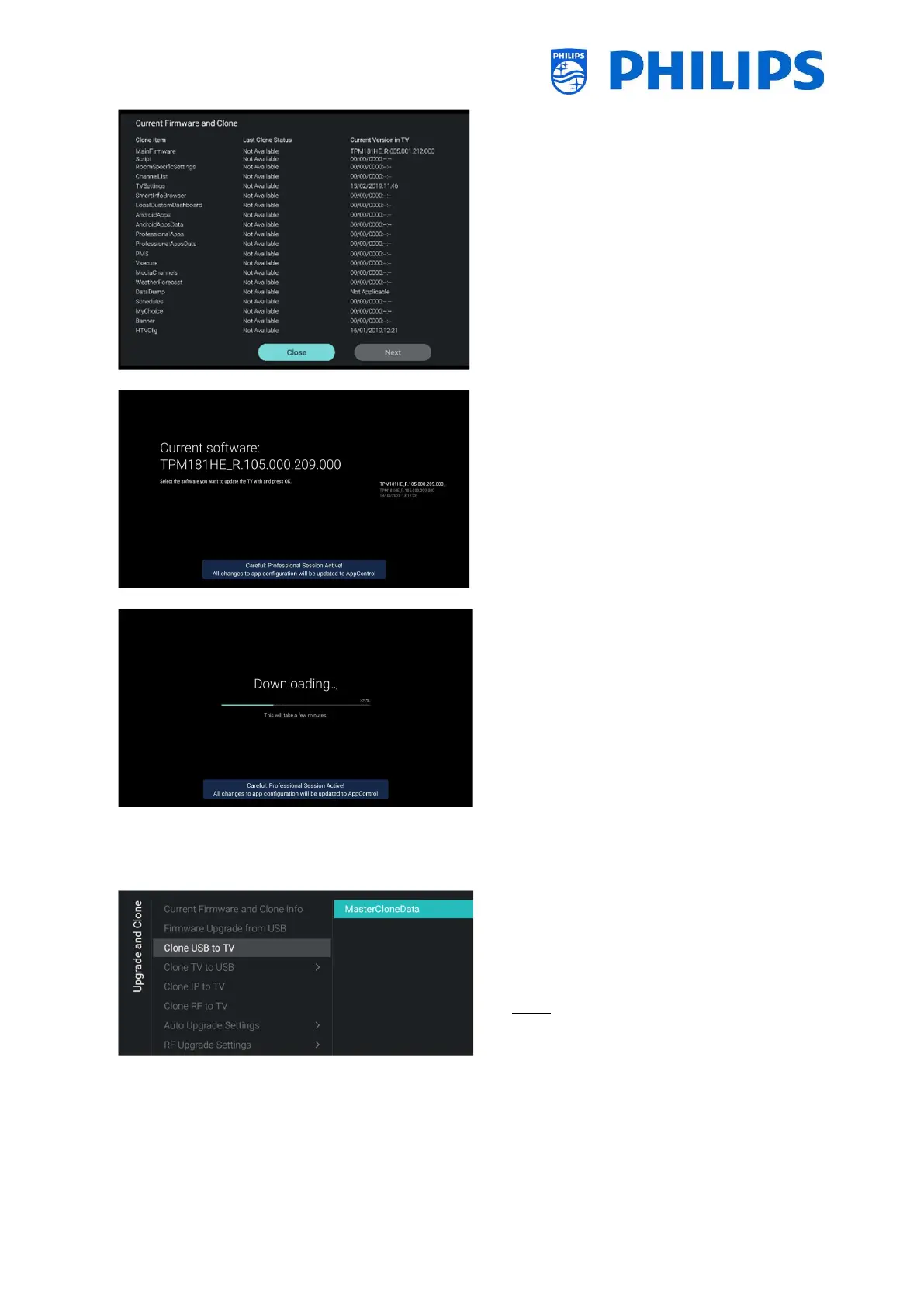
Current Firmware and Clone
info] menu
o You can see the SW version and the dates
when the last cloning actions were done
o Select [Next] and press “OK” to see the
second page
o Select [Previous] and press “OK” to see the
first page
o Select [Close] and press “OK” to go back to
the previous page
o
Firmware Upgrade from USB
menu and open it to go to the Software
Update Wizard
o If you are using an “autorun.upg” in the
root of your USB the TV will automatically
program the SW if it’s newer than the
currently installed TV SW
o Using the Software Update Wizard, you
will be able to load new SW in the TV. You
will see the “autorun.upg” if it’s on the
USB, you will also see a list of SW versions
that are available in the ‘upgrades’ folder
in the root of the USB device connected to
the TV if they are applicable for this
product
o Select the SW you want to install and press
“OK”, you will see that the TV starts with
the downloading from USB to TV
o Once the downloading is done, you will see
that TV is restarting and installing the
system update. This can take several
minutes. Once installing is complete, the
TV will reboot
o
o Using this you will be able to clone from
the USB device to the TV by selecting the
[MasterCloneData] and press “OK” to
start the cloning
Note: If you want to have multiple clone
files on your USB key, you can add extra
folders called “xxxxxCloneData” where
xxxxx represent 5 digits in the same
location where you see the
“MasterCloneData” and containing the
same structure as in your
“MasterCloneData” folder




 To Next Page