- 52 -
o
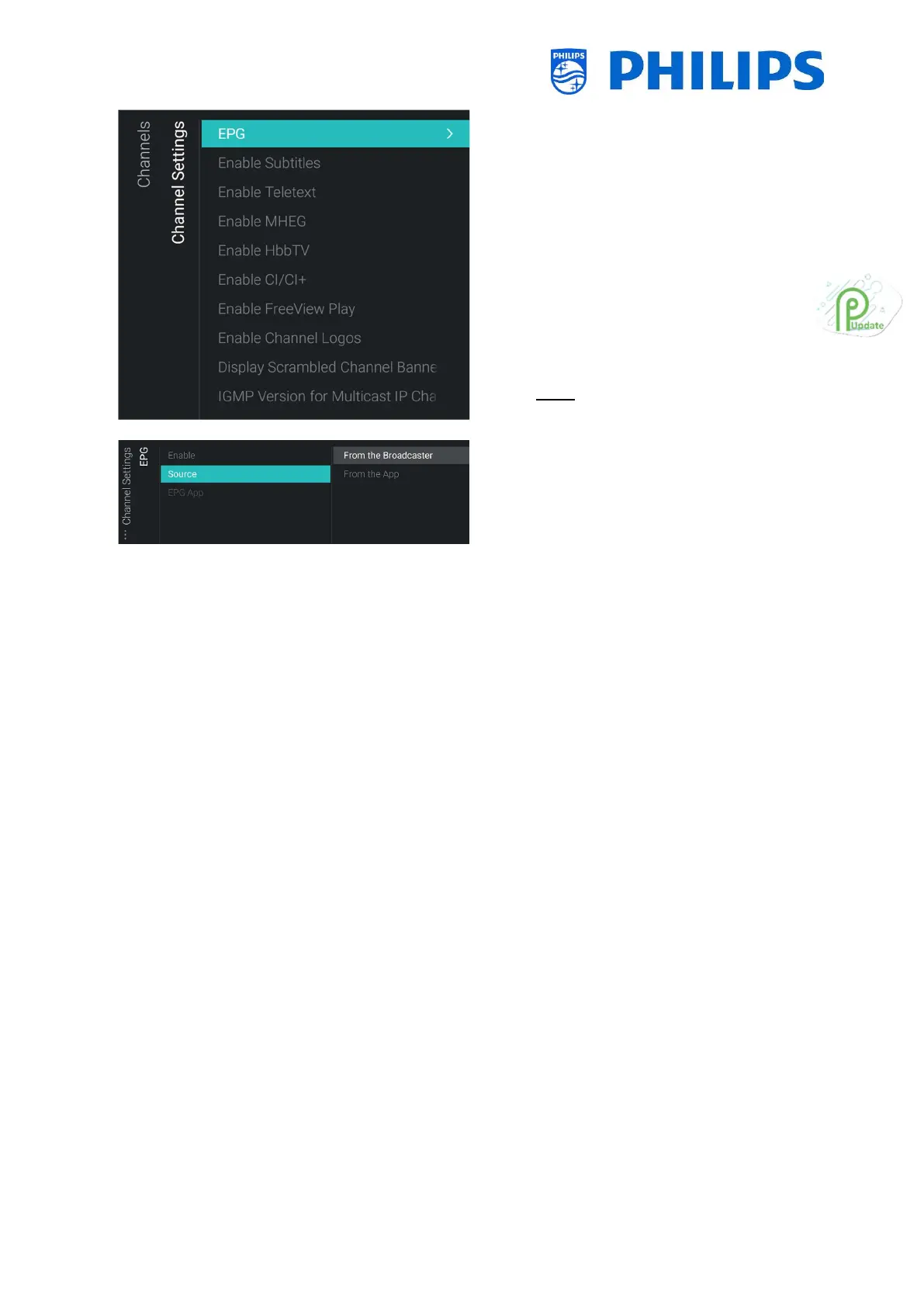
o You will see below items:
o [EPG]:
[Enable]: You can enable EPG via
[Yes] or disable via [No]
[Source]: The EPG data can come
[From the Broadcaster] or [From
the App]
[EPG App]: If you have installed an
EPG App then you can select it here
to download EPG data through this
app. By default, no apps are
installed for EPG data
Note: [Source] is only accessible when
[Enable] is set to [Yes] and [EPG App] is
only accessible when [Source] is set to
[From the App]. [EPG App] is for
feature usage
o [Enable Subtitles]: You can enable the
subtitles via [Yes] or disable via [No]
o [Enable Teletext]: You can enable
teletext via [Yes] or disable via [No]
o [Enable MHEG]: You can enable MHEG
via [Yes] or disable via [No]
o [Enable HbbTV]: You can enable
HbbTV via [Yes] or disable via [No]
o [Enable CI/CI+]: TV shall disable the
CI/CI+ conditional access support, all UI
elements relating to the CI/CI+ shall be
removed if [No] is selected, if [Yes] is
selected, then all CI/CI+ functionality
shall be available
o [Enable FreeView Play]: You can
enable FreeView Play via [Yes] or
disable via [No]
o [Enable Channel Logos]: Channel logos
will be shown if [Yes] or will not be
shown if [No]
o [Display Scrambled Channel Banner]:
If a channel is scrambled, you will get
an OSD with this information if [Yes] or
OSD will not be shown if [No]
o [IGMP Version for Multicast IP
Channels]: Set your IGMP version for
multicast to [Auto], [1], [2] or [3]




 To Next Page