Setting the language
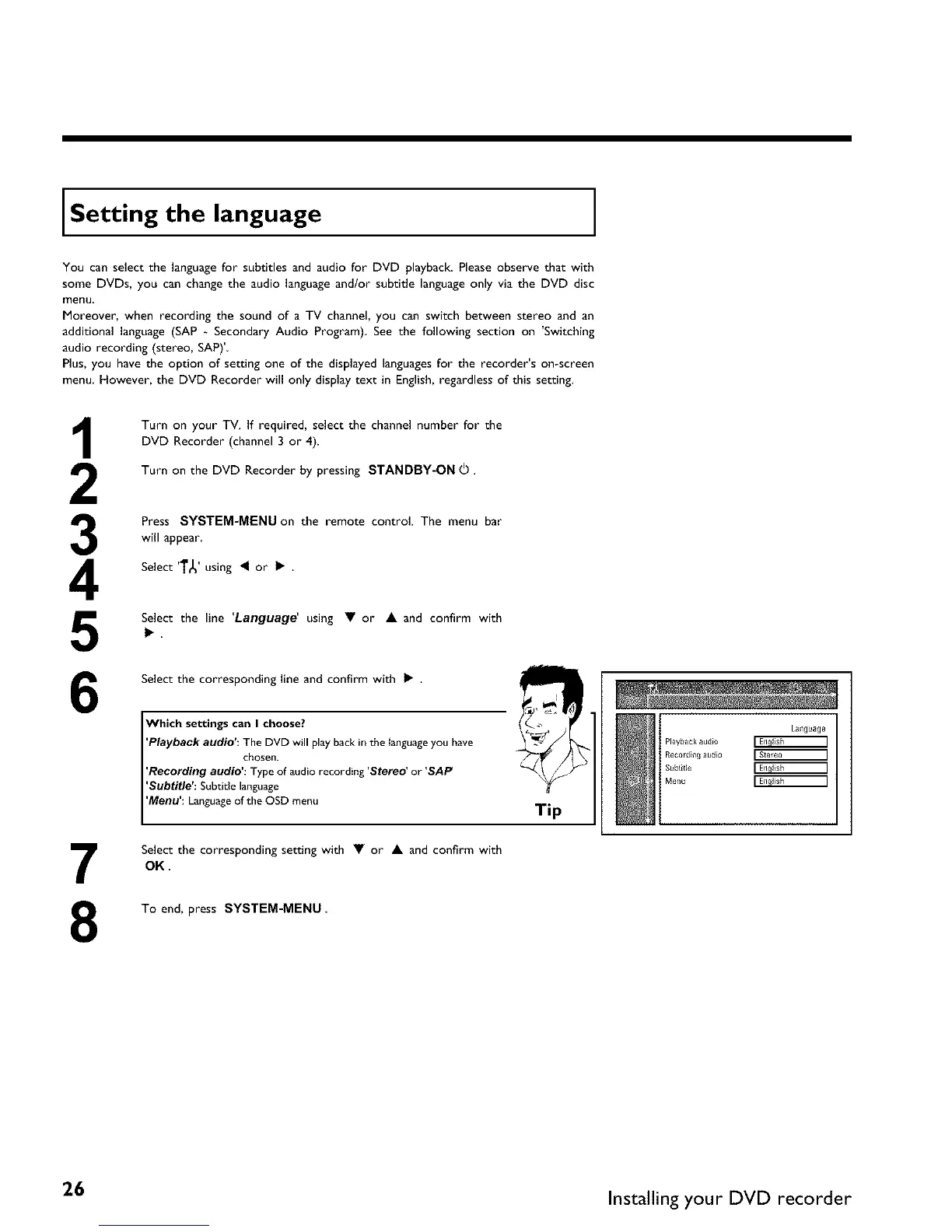
You can select the languagefor subtitles and audio for DVD playback. Please observe that with
some DVDs, you can change the audio language and/or subtitle languageonly via the DVD disc
menu
Moreover, when recording the sound of a TV channel, you can switch between stereo and an
additional language (SAP - Secondary Audio Program) See the following section on 'Switching
audio recording (stereo, SAP)'
Plus, you have the option of setting one of the displayed languagesfor the recorder's on-screen
menu However, the DVD Recorder will only display text in English, regardless of this setting•
3
4
5
6
7
8
Turn on your TV• If required, select the channel number for the
DVD Recorder (channel 3 or 4).
Turn on the DVD Recorder by pressing STANDBY-ON O •
Press SYSTEM-MENU on the remote control. The menu bar
will appear.
Select '1"_' using _I or _ .
Select the line 'Language' using • or • and confirm with
Select the corresponding line and confirm with _ •
Which settings can I choose?
'Playback audio': The DVD will play back in the ianguage you have
chosen.
'Recording audio': Type of audio recording 'Stereo' or 'SAP
'Subtitle': Subtitle language
'Menu': Language of the OSD menu
Select the correspondingsetting with • or • and confirm with
OK
To end, press SYSTEM-MENU
Tip
Language
Playback audio
Recording audio
Subtitle
Menu
26 Installing your DVD recorder



 To Next Page