15EN
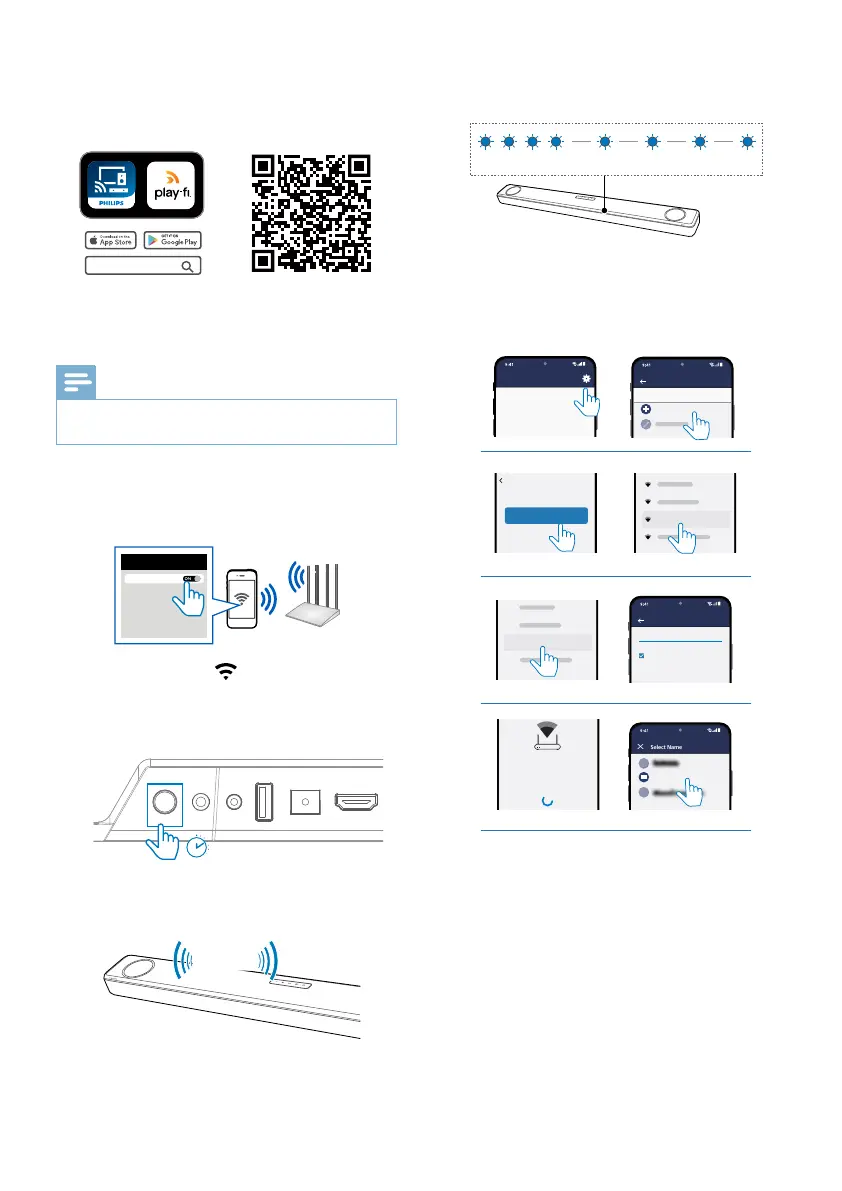
1 Download and install the Philips
Sound app powered by DTS Play- on
a phone or tablet.
Philips Sound
• Make sure your router is turned on
and working properly.
Note
•
Depending on the device version, the operation
screen and the way to perform operations may vary.
2 Connect your phone or tablet to the
same Wi-Fi network that you want to
connect your soundbar.
<
Wi-Fi
Wi-Fi
2
3
4
Two tone
1
Fast blink Slow pulse
>8 sec
3 Press and hold (Wi-Fi) button
located at the back cabinet for
8 seconds to trigger the Wi-Fi
connection.
<
Wi-Fi
Wi-Fi
2
3
4
Two tone
1
Fast blink Slow pulse
>8 sec
» Until the speaker make a second
tone and then release the button.
Two tone
1
<
Wi-Fi
Wi-Fi
Fast blink Slow pulse
>8 sec
2
4 Wait until the Wi-Fi light indicator on
the front cabinet goes from a fast blink
to a slow pulse. When it begins pulsing
slowly, it indicates that the speaker is
entering the Wi-Fi setup mode.
Fast blink Slow pulse
5 Launch the Philips Sound app
powered by DTS Play-. Follow the
instructions in the app to connect
this product to your Wi-Fi network.
Return to this app to continue setup.
Ready?
Go To Wi-Fi Settings
Your Home Router
Select Name
X
Wi-Fi Password
Enter the password for the network Your Home Router
1234567890
I
X
Show Password.
Your Play-Fi device is connecting to
Your Home Router
When the Wi-Fi light on the device stops
blinking and becomes solid the device is
setup and ready to be used.
Philips Sound
Settings
Setup Play-Fi Device
SETUP
Bedroom
Return to this app to continue setup.
Ready?
Go To Wi-Fi Settings
Your Home Router
Select Name
X
Wi-Fi Password
Enter the password for the network Your Home Router
1234567890
I
X
Show Password.
Your Play-Fi device is connecting to
Your Home Router
When the Wi-Fi light on the device stops
blinking and becomes solid the device is
setup and ready to be used.
Philips Sound
Settings
Setup Play-Fi Device
SETUP
Return to this app to continue setup.
Ready?
Go To Wi-Fi Settings
Your Home Router
Select Name
X
Wi-Fi Password
Enter the password for the network Your Home Router
1234567890
I
X
Show Password.
Your Play-Fi device is connecting to
Your Home Router
When the Wi-Fi light on the device stops
blinking and becomes solid the device is
setup and ready to be used.
Philips Sound Settings
Setup Play-Fi Device
SETUP
Bedroom
Return to this app to continue setup.
Ready?
Go To Wi-Fi Settings
PlayFiDevice 1234
Your Home Router
Select Name
X
Wi-Fi Password
Enter the password for the network Your Home Router
1234567890
I
X
Show Password.
Your Play-Fi device is connecting to
Your Home Router
When the Wi-Fi light on the device stops
blinking and becomes solid the device is
setup and ready to be used.
Philips Sound Settings
Setup Play-Fi Device
SETUP
Bedroom
Return to this app to continue setup.
Ready?
Go To Wi-Fi Settings
Your Home Router
Select Name
X
Wi-Fi Password
Enter the password for the network Your Home Router
1234567890
I
X
Show Password.
Your Play-Fi device is connecting to
Your Home Router
When the Wi-Fi light on the device stops
blinking and becomes solid the device is
setup and ready to be used.
Philips Sound Settings
Setup Play-Fi Device
SETUP
Bedroom
Return to this app to continue setup.
Ready?
Go To Wi-Fi Settings
Your Home Router
Select Name
X
Wi-Fi Password
Enter the password for the network Your Home Router
1234567890
I
X
Show Password.
Your Play-Fi device is connecting to
Your Home Router
When the Wi-Fi light on the device stops
blinking and becomes solid the device is
setup and ready to be used.
Philips Sound Settings
Setup Play-Fi Device
SETUP
Bedroom
Return to this app to continue setup.
Ready?
Go To Wi-Fi Settings
Your Home Router
Select Name
X
Wi-Fi Password
Enter the password for the network Your Home Router
1234567890
I
X
Show Password.
Your Play-Fi device is connecting to
Your Home Router
When the Wi-Fi light on the device stops
blinking and becomes solid the device is
setup and ready to be used.
Philips Sound Settings
Setup Play-Fi Device
SETUP
Bedroom
Return to this app to continue setup.
Ready?
Go To Wi-Fi Settings
Select Name
X
Wi-Fi Password
Enter the password for the network Your Home Router
1234567890
I
X
Show Password.
Your Play-Fi device is connecting to
Your Home Router
When the Wi-Fi light on the device stops
blinking and becomes solid the device is
setup and ready to be used.
Philips Sound Settings
Setup Play-Fi Device
SETUP
Bedroom
6 After successful Wi-Fi connection, the
Wi-Fi light indicator will stop pulsing
and turn solid. Once you set up this
product on your Wi-Fi network, you
can control it from any smartphone or
tablet on the same network.
7 After connection, you can change
the device name. There are several
names to choose from or create your
own by choosing Custom Name at
the end of the name list. Otherwise,
it follows the default name.



 To Next Page