16 EN
8 After connection, this product may
perform a software update.
Upgrade to the latest software
when it is your rst time set up.
The software upgrade may take
several minutes. Do not unplug your
speaker, turn o your device, or leave
the network during the update.
Note
•
After connection, the product may perform
a software update. Upgrade is required after
initial set up. Without the upgrade, not all
product features can be available.
• When the rst time set up is not successful, hold
down the Wi-Fi button on the soundbar for 8
seconds until the second tone can be heard and
the Wi-Fi light is changed to a slow pulse. Reset
the Wi-Fi connection, restart the app and start
the set up again.
• If you want to change from one network to
another, you need to set up the connection
again. Press hold down the
(Wi-Fi) button on
the soundbar for 8 seconds to reset the Wi-Fi
connection.
• When the rst time set up is not successful, please
close the Philips Sound app powered by DTS
Play-. Restart the app and try the setup again.
AirPlay setup
Use AirPlay to set up the Wi-Fi connection
of iOS device (iOS7 or later) and soundbar.
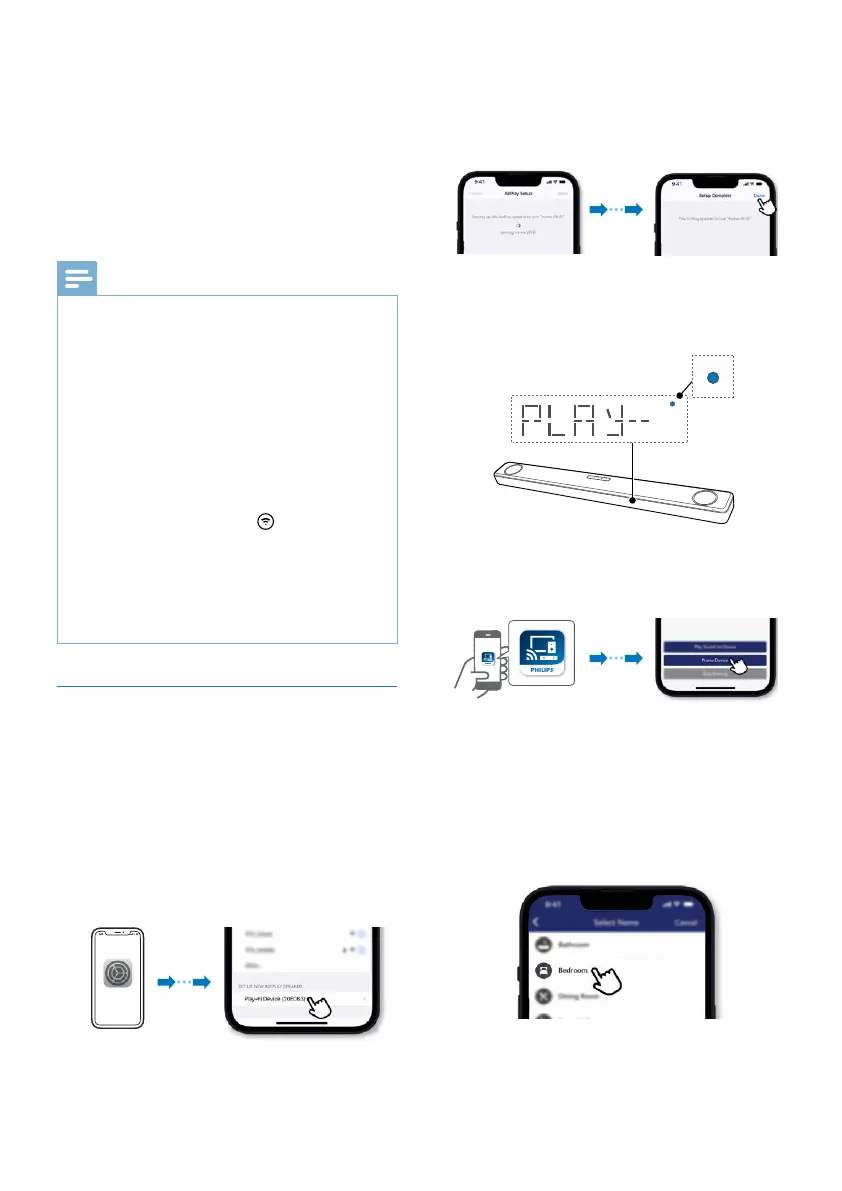
1 iOS device: Settings > Wi-Fi > select
home network [Play-Fi Device
(xxxxxx) ]
» Go to the Wi-Fi set up. The Play-Fi
device name displays around in 5
seconds.
Settings
» Select the Play-Fi device in the
Airplay set up.
» Press “Done” when set up
complete
» After successful Wi-Fi connection,
the Wi-Fi light indicator will stop
pulsing and turn solid.
Solid
2 Return to Philips Sound App to name
the device.
3 After connection, you can change
the device name. There are several
names to choose from or create your
own by choosing Custom Name at
the end of the name list. Otherwise,
it follows the default name.



 To Next Page