36 Philips · HDP16x0 & HDP16x0TV
11 Settings
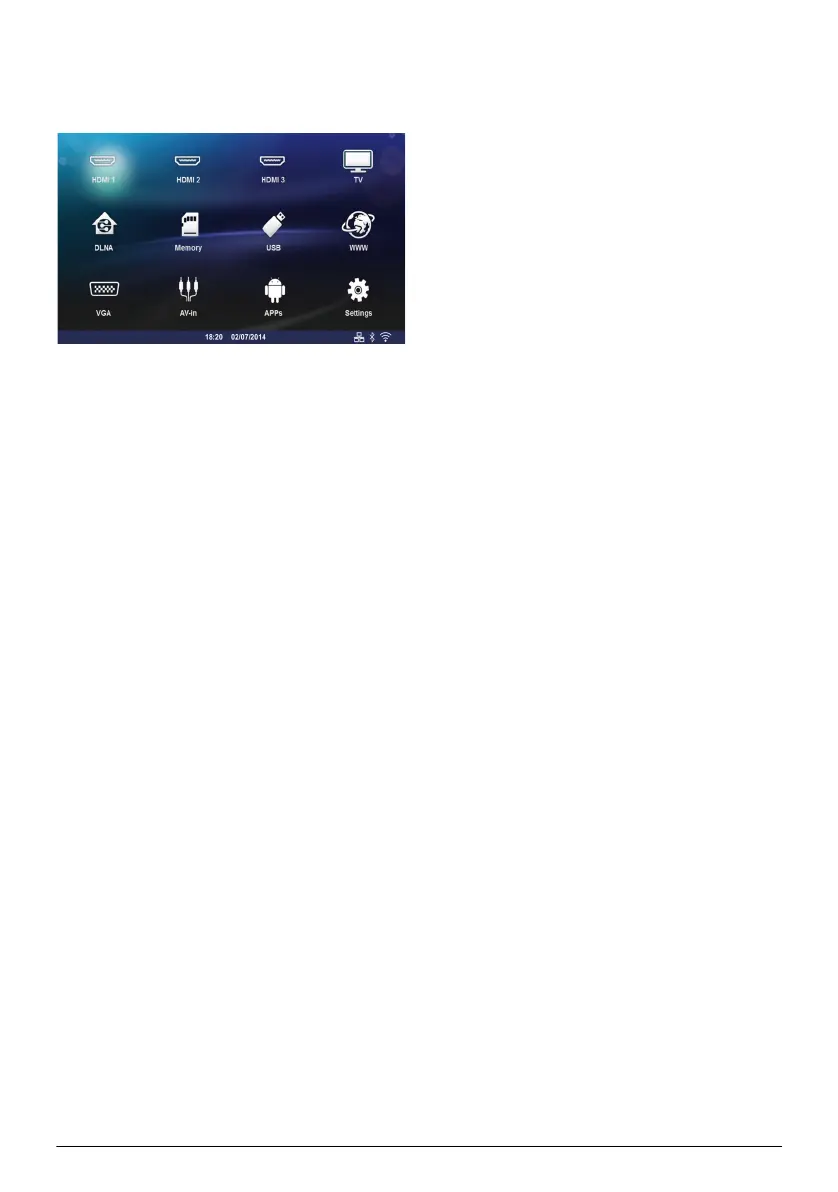
1 Switch the device on using the on/off key.
2 After the initial screen the main menu appears.
3 Use the navigation keys to select Settings.
4 Confirm with OK.
5 Use / to select from the following settings.
6 Confirm with OK.
7 Modify the settings using OK, /,
8 Confirm with OK.
The ¿ key takes you one step back in the menu.
Overview of the Menu
Functions
Wireless and Network
WiFi – switching the wireless network (WLAN) off
and on.
Network Selection – select the wireless network
with which the device is to connect.
WiFi Hot Spot – activate and deactivate WLAN
tethering.
LAN – switching the LAN network (LAN) off and
on.
Advanced – (LAN mode only) check the Network
actual IP address or change the address by inputting
new address. You can also select Automatic or
Use static IP
DLNA Sharing – switching DLNA off and on.
Bluetooth – switching the Bluetooth connection off
and on.
Image settings
3D – set the picture modes with 2D/3D options.
Keystone – use / to set the keystone.
Fit Screen – use / to select the screen mode
to adjust the size of your screen.
Projection mode
Front – normal projection; the device is located
in front of the projection surface/screen
Rear – rear projection; the device is located
behind the projection surface; the image is
reflected horizontally.
Front Ceiling – the device is hanging from the
ceiling in an upside-down position; the image is
rotated by 180 degrees.
Rear ceiling – the device is located behind the
projection surface, hanging from the ceiling in an
upside-down position; the image is rotated by
180 degrees and reflected horizontally.
Wall color correction – colour correction of the
projected image to adjust to coloured projection
surfaces
Smart Settings – select predefined settings for
brightness / contrast / colour saturation. If you mod
-
ify these settings, the setting is switched to Manual.
Brightness – use / to adjust the brightness
and press OK to confirm.
Contrast – use / to adjust the contrast and
press OK to confirm.
Advanced
Colour temperature – set to Warm to enhance
hotter colors such as red, or set to Cool to
make picture bluish.
Dynamic contrast – adjusts the contrast to
keep it at the best level according to the bright
-
ness of the screen.
Color space – to convert the color space set-
ting to another standard.
Gamma – adjusts the gamma correction
according to the type of the projected image.
Manual colors RGB – manually adjust the hue, sat-
uration and brightness of colors in RGB mode. Use
//À/Á to adjust the colors according to
your needs.
Manual colors CMY – manually adjust the hue, sat-
uration and brightness of colors in CMY mode. Use
//À/Á to adjust the colors according to
your needs.
Reset – valid manual modifications of colors RGB
and CMY.
Sound Settings:
Volume – adjust the volume
Deep Bass – switching the deep bass on and off
Wide sound – switching the wide sound on and off
Equalizer – select the equalizer mode
Smart volume – turn on/off the volume level auto-
matic control function
Key beep – turn key tones on and off
Speaker – switching the speaker on and off
System settings
Date and time – set date and time
Android Settings – set Android system
Screeneo_User-Manual_HDP16x0_V1-1_EN-US_253634032-A.book Page 36 Jeudi, 18. décembre 2014 8:56 08



 To Next Page