25
Delete
Table of contents
7 Delete
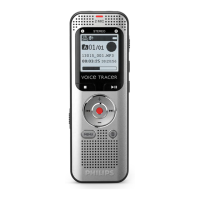
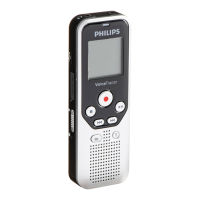
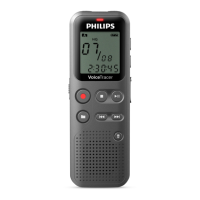
You can delete an individual recording on the device or all the
recordings in the folder
7.1 Deleting recordings on the device
You can delete individual recordings from the device. Connect the
device to a computer if you want to delete multiple files.
Caution
• Only delete the recordings that you no longer need. Keep in mind
that deleted recordings can not be recovered.
1
In stop mode (start-up screen) select the folder in which you wish
to delete a recording by pressing a.
2
Press h / b to select the recording that you wish to delete.
3
Press the delete key z.
4
Press + / – Delete to select.
5
Press the record key, g, to confirm.
6
Use + / – OK to select.
7
Press g to confirm the deletion.
X The recording is deleted. Sequential file numbers are
reassigned automatically.
7.2 Deleting all recordings in the folder
You can delete all recordings in the selected folder. Connect the
device to a computer if you want to rename an entire folder.
1
In stop mode (start screen), select the folder in which you wish to
delete all recordings by pressing a.
2
Press the delete key z.
3
Press + / – Delete all to select.
4
Press the record key, g, to confirm.
5
Use + / – OK to select.
6
Press g to confirm the deletion.
X All recordings in the folder are deleted. The numbering of the
recordings is renewed.


 To Next Page
 Loading...