22
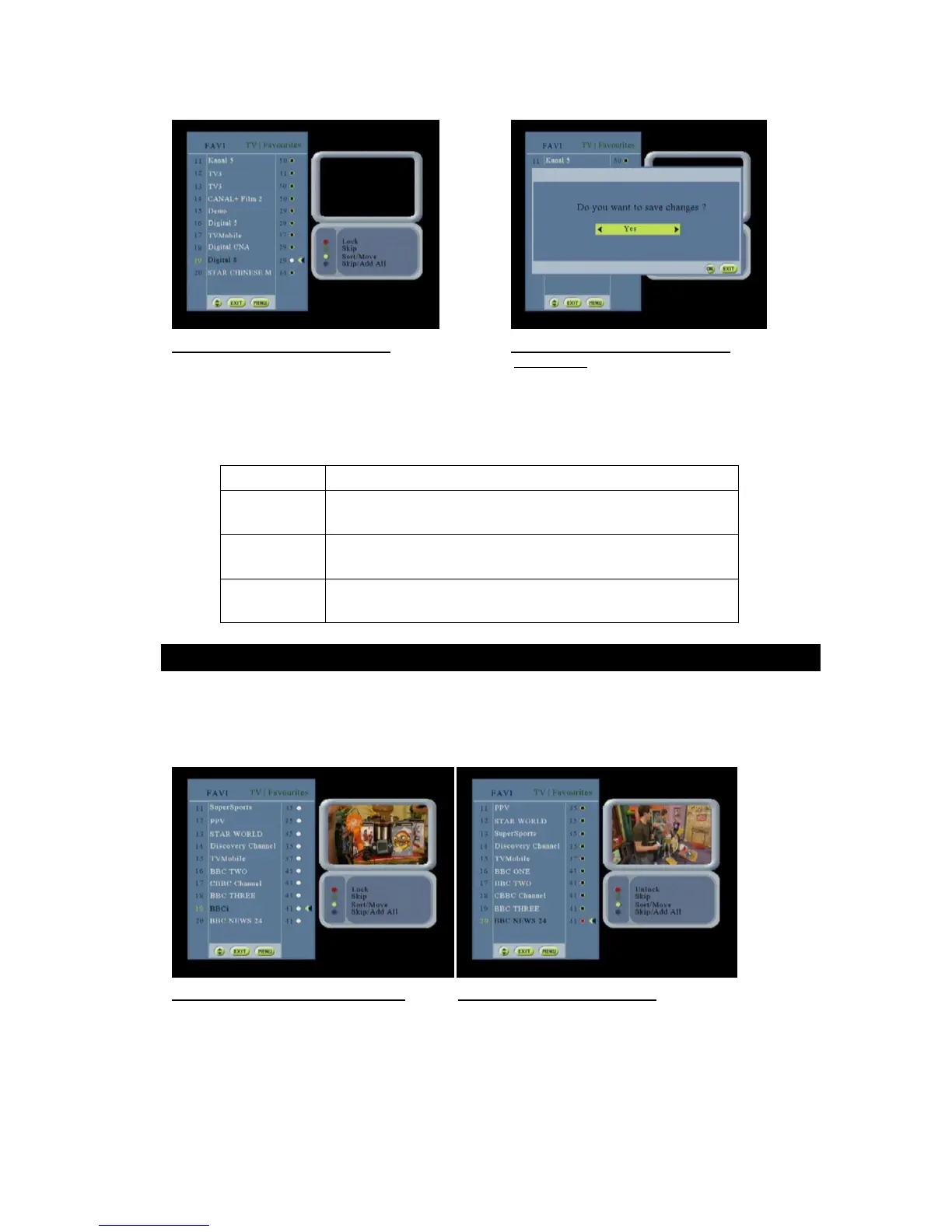
Figure 17: Modify a favorite list screen Figure 18: Modify a favorite list screen
confirmation
Use PRF+/PRF- ( buttons used for activating the favorite list)to select the list created
Mark the channel that you wish to edit by using the keys
Select the function by using the appropriate color.
Use the menu/exit to exit the menu or pess the OK button to save and exit
RED Go to the “Lock/Unlock a program” screen.
GREEN If the list is a favorite
Go to the “Skip/Add a program” screen.
YELLOW If the list is a favorite
Go to the “Sort/Move a program” screen.
BLUE If the list is a favorite
Go to the “Skip/Add all programs” screen
This screen allows the user to lock or unlock services by pressing the OK key on the highlighted service. If the
service is already locked then it is unlocked and vice versa. The locked services are signaled with a graphical or
color mark (e.g. red mark).
If a service belonging to several lists (default and favorite) is locked then it is locked in all the lists.
Figure 19: Lock/unlock a program screen Figure 20: selected program screen



 To Next Page