Page 18 of 37
5.1.2.7 Maintenance Station
The wipers and the caps in the maintenance station could accumulate ink after extended usage. Use water
to dampen a soft cloth and remove the ink from the caps and the wipers with the machine powered down,
the capping sled pushed to the back, and the print head moved out.
IMPORTANT!
Clean print head, cartridge, ink surfaces and covers with plain water only (water works best!).
Clean all rubber rollers with isopropyl, denatured and rubbing alcohol only.
Use of any other cleaning solvents will VOID all warranties.
Keep petroleum based cleaning solvents away from rubber or plastic parts. Anything but alcohol will cause
premature breakdown of the rubber compound.
5.1.3 How do I clean the print heads on my printer?
Press On Line. The LCD displays --OFF LINE--. Press the Cartridge + key, and the cartridge station
should come out. Remove the cartridge.
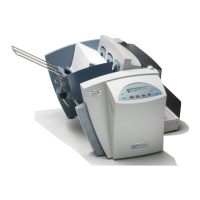
During printing, ink spray, paper fibers, and dust can build up on the print cartridge. These can
eventually degrade the print quality. When this occurs, the print cartridge should be wiped with a wet
fiberless cloth. Wipe slowly across the long-axis with the print cartridge facing down (as shown). Do
not apply excessive force, as this could scratch the nozzle area.
When finished, replace cartridge. If the print quality remains a problem, install a new cartridge.
5.1.4 How do I clear a shuttle jam on my printer?
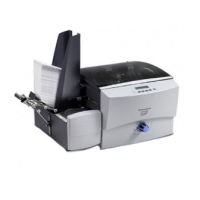
First, clear any media or blockage. Then press Cartridge key + and verify it goes back to the maintenance
station, or comes out then goes back. Wipe the print head shaft clean with a dry, soft, lint free, cotton cloth.
If the shuttle head doesn't move or moves slightly/slowly, but the motor sounds like its trying to perform
normal operation, it will require a service call. In this scenario, the set screw holding the motor to the shaft
may have come loose. Service will need to go in and tighten the screws or replace the screws for new ones.
Set screw is on the pulley perpendicular to motor shown on top right of photo.


 To Next Page