71 72
Mini100/Mini2
Mini100/Mini2
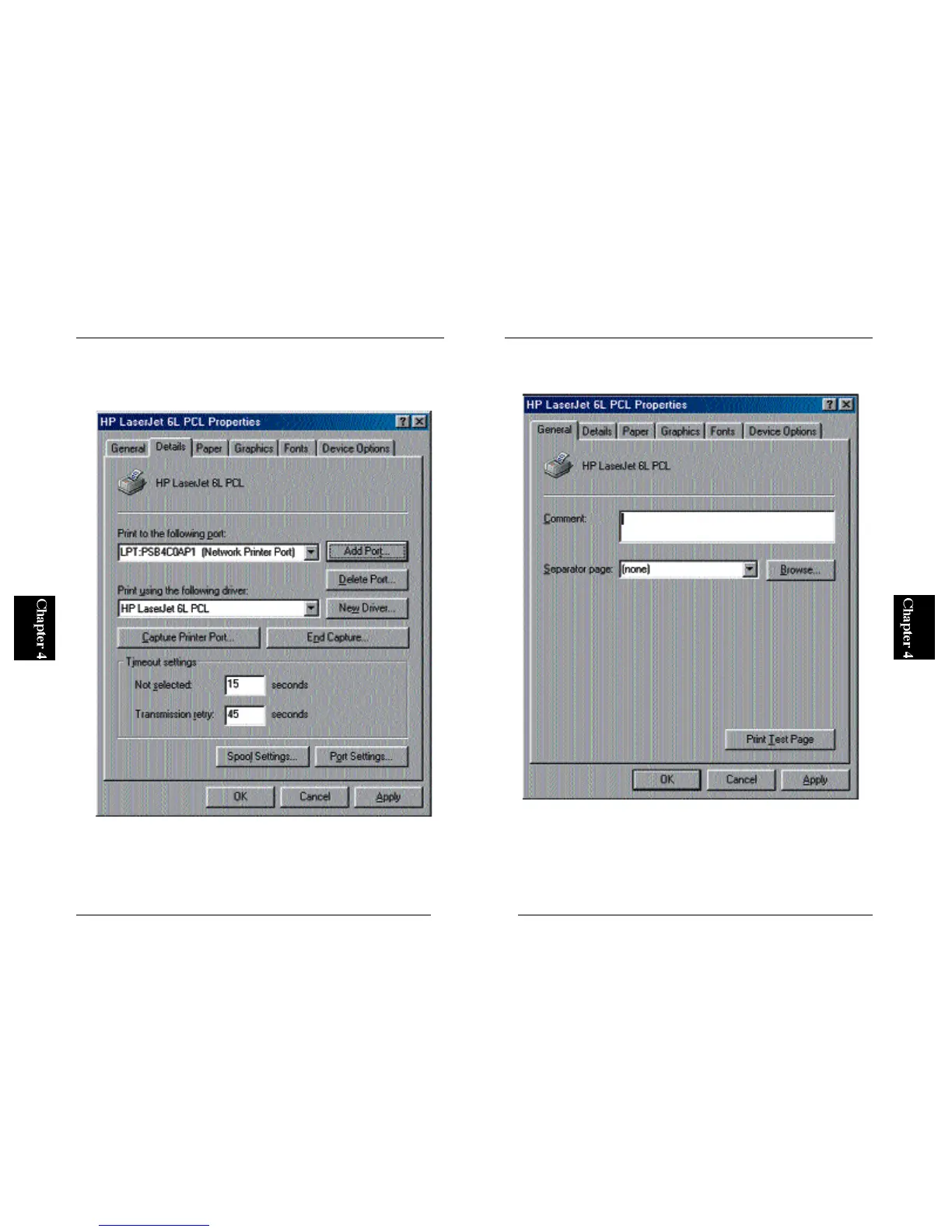
10. See the “Port” field in the “Details” tab (see below), and check whether
a port name similar to the example is shown. If it is, click on the Apply
button and then the General tab.
※ If the Apply button is grayed out, click on the OK button first and then
display the Properties screen of the printer (right-click on the printer name
in the Printers folder)
11. Click on the “Test” button in the window. The configuration of the
printer is over if the test page is printed normally.
* If the test page is not printed properly, see Appendix A for troubleshooting
information.



 To Next Page