140
Mini100/Mini2
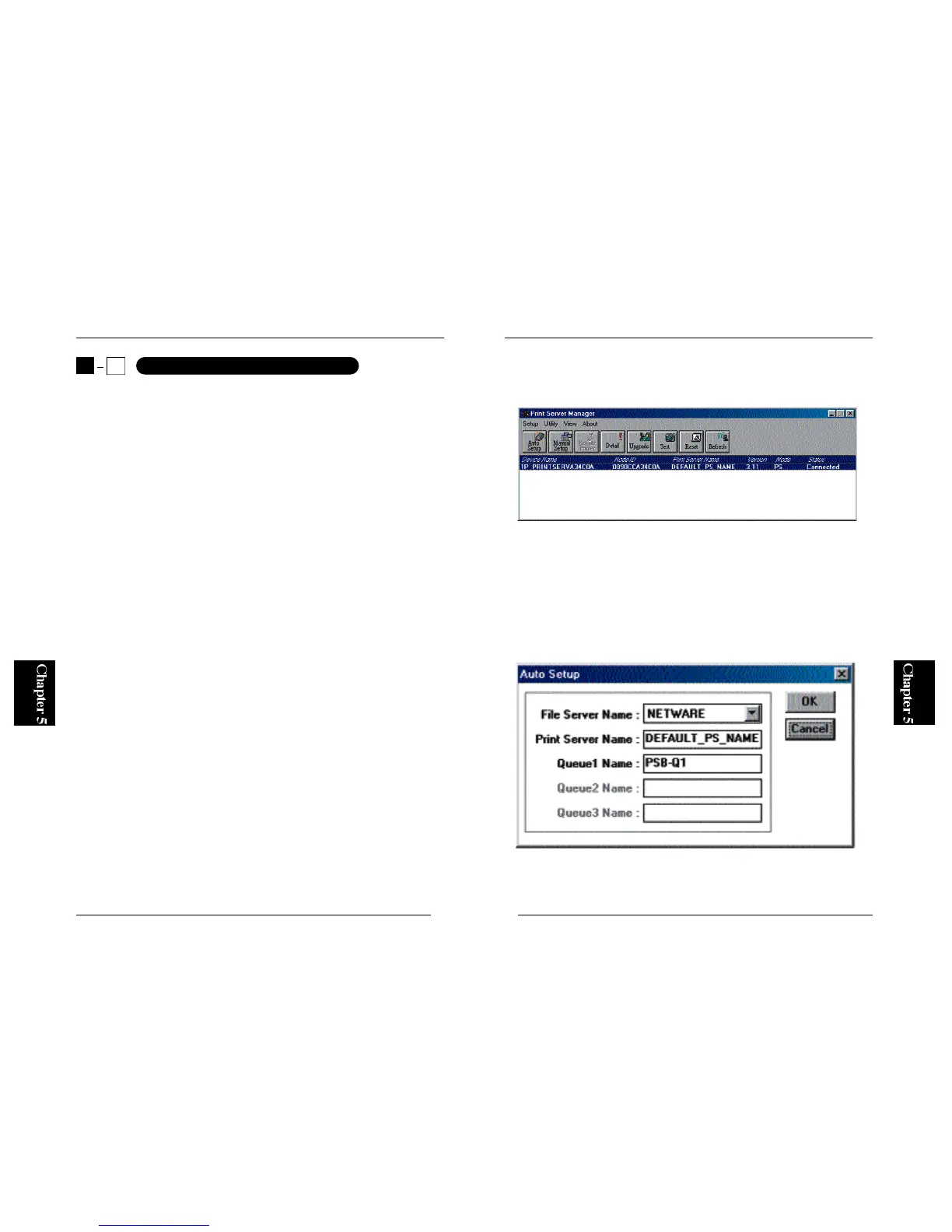
3. All the print servers on your network will be detected in the next screen.
Select the print server you wish to configure, and click on the Auto Setup
button.
4. A window titled “Auto Setup” will be displayed. One of the NetWa r e
servers on your network is displayed in the “File Server Name” field (if
there are multiple servers). Select the NetWare server to which you wish
to enable the print server. Next, specify a print server name in the “Print
Server Name” field. The print server will be identified as a NetWa r e
print server with this name. Similarly, enter a print queue name in the
“Queue1 Name” field. Click on the OK button to continue.
139
Mini100/Mini2
The Mini100/ Mini2 Print Server can be used as a NetWare print server. To
enable the print server under NetWare, select either the Auto Setup or the
Manual Setup option.
●Using Auto Setup to initiate automatic installation : see Section 5-4-a
●Using Manual Setup to install the print server manually: see Section 5-4-c
●Configuring a Client PC: see Section 5-4-c
Note :
The print server does not support the NDS mode of NetWare4.X/ 5.X. If
your NetWare server is currently set to NDS, select the Bindery mode
before configuring the print server (and creating print queues). For more
details, please refer to your NetWare manual.
● 5-4-a Using Auto Setup
The Auto Setup option of Smart Print Manager 2 greatly eases installation
of the print server. Follow the steps below to enable the print server under
NetWare.
1. Log on to your NetWare server with supervisor (or admin) permission.
2. From the Start button, select Program and then Smart Print Manager 2 to
start Smart Print Manager 2.
5
4
Printing via a NetWare Server



 To Next Page