138
Mini100/Mini2
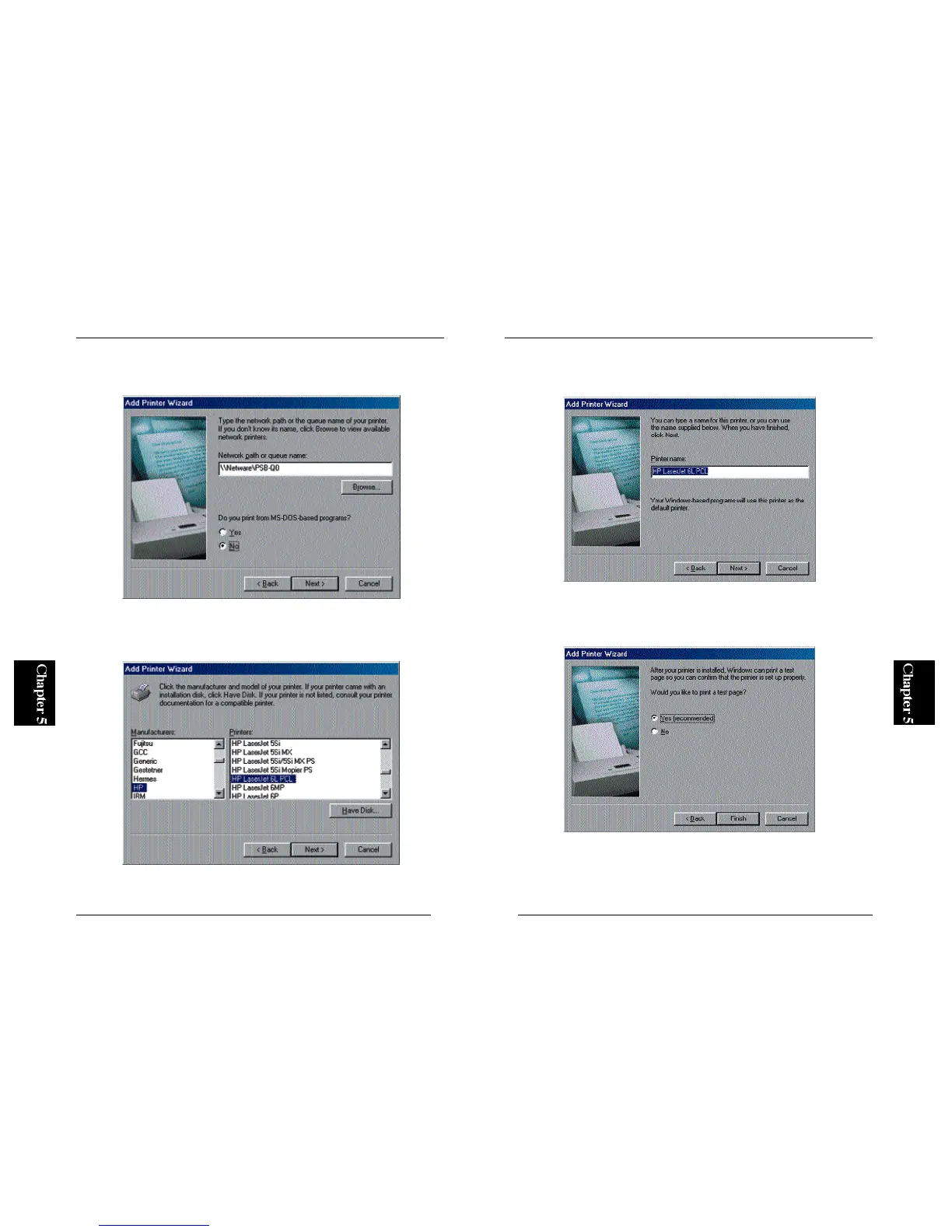
7. You can define a name for your printer. If the default printer name is
okay, simply click on the Next button.
8. The wizard will ask you whether you wish to print a test page. Select
“Yes” and click on the Finish button. The configuration of the printer is
complete if the test page is printed properly.
※ If the test page does not come out properly, please refer to Appendix A
for troubleshooting information.
137
Mini100/Mini2
5. In the next screen, the network path you have selected in Step 4 will be
displayed. Click on the Next button.
6. Refer to the user’s manual of your printer, and select the manufacturer
and the model name of your printer in the two lists. Click on the Next
button.
※ For details on adding the driver for your printer, refer to the user’s manual
of the printer.



 To Next Page