PocketBook 302 User Manual
26
CHANGE OF SCREEN ORIENTATION
To enable convenient for you orientation of device, tap with stylus on the button
in Quick
access menu and select one of icons.
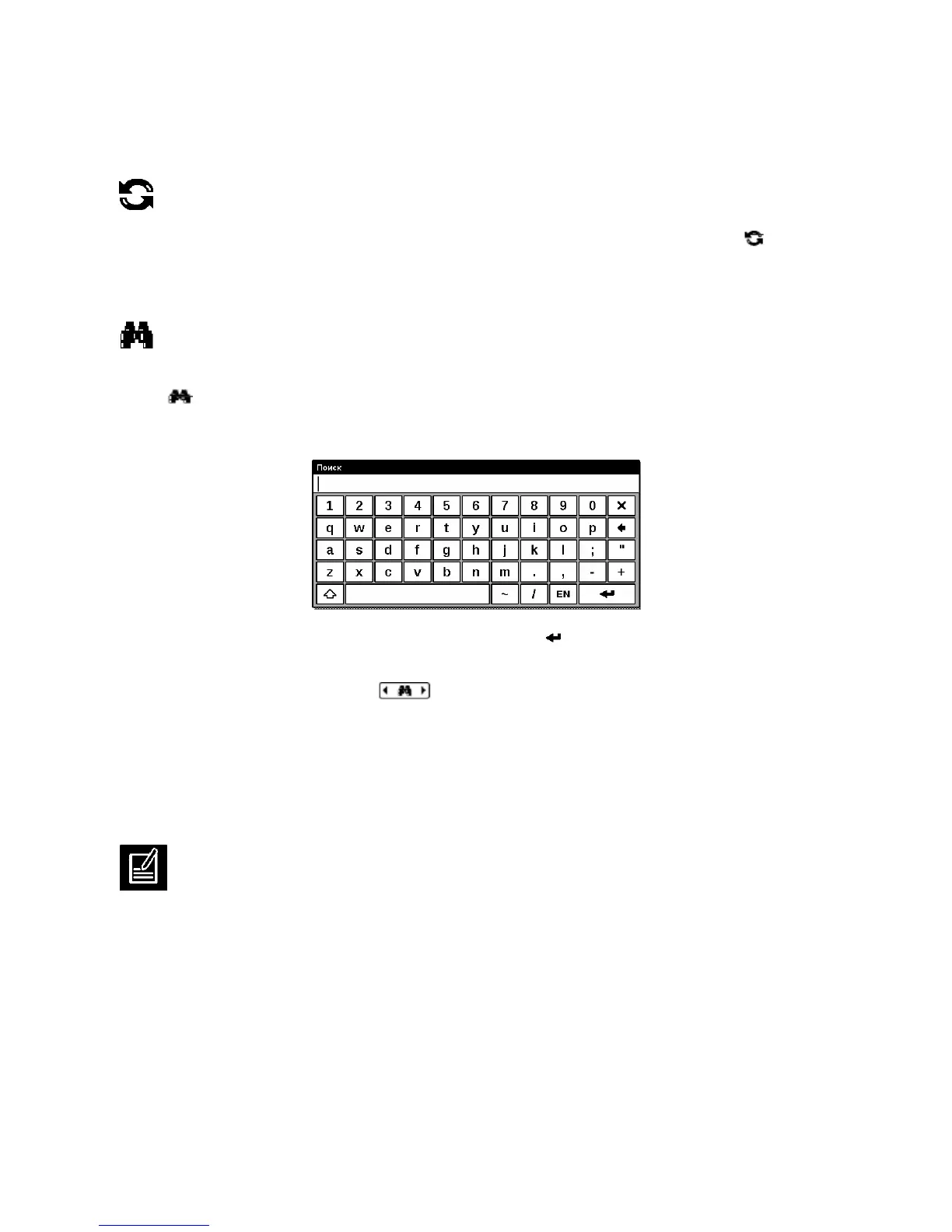
SEARCH FOR WORDS OR PHRASES IN BOOK TEXT
To quickly find the desired words or parts of words in book text, tap with stylus on the
button
in Quick access menu. A keyboard appears in pop-up window on the screen.
Figure 13. Screen Keyboard
In the field Search type the desired word and press Enter
.
Search results will be colour highlighted in the text, and in the right lower screen corner there
will be a panel "Search Results":
. To move to previous / next found word, tap with
stylus the appropriate arrow on the panel "Search Results".
To exit “Search” mode, tap with stylus on screen.
Note: The search mode is not available for books in the format DjVU.
NOTES
Sometimes it is useful to store a selected book fragment to a separate notebook. To create a
new note in the read mode call quick menu by short pressing in the middle of the screen, and
click on the central icon “Notes”. Using stylus highlight the text you want to put to note: tap
with stylus in the place where your note starts, drag the stylus across the screen and release at
the point where your note ends. The opened menu gives you an opportunity to add a note to
the existing notebook, or create a new notebook. When you select an item there appears a pop-
up keyboard on screen. Using this keyboard you can name your new note.
To learn how to work with pop-up keyboard, see the section “Work with keyboard”.
To look through the made notes you can from the main menu (item "Notes").


 To Next Page