PM451 Android 9.0 User Manual
31
© 2024 Point Mobile Co., Ltd. All rights reserved
Learning the basics
Settings
There are two ways to go to
Settings
:
Open the App drawer and tap
Settings
Open the Quick setting panel and tap gear icon
Adjust Display Brightness
To adjust the display brightness level,
Open Quick setting panel and adjust display brightness bar
Go to
Settings
>
Display
>
Brightness level
You can also adjust the brightness using the keypad. See Keypad – Functions.
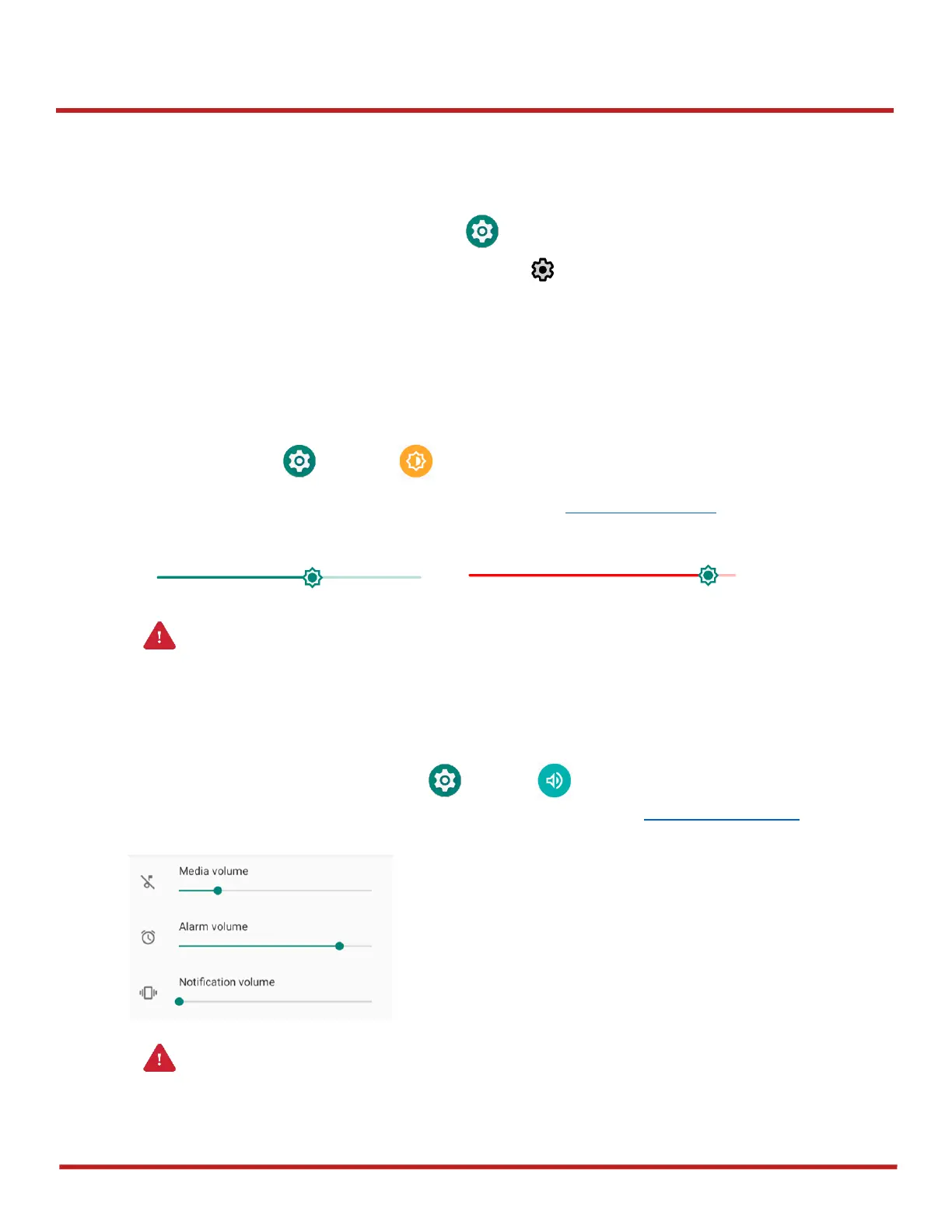
Adjust Sound
To adjust sound volume, go to
Settings
>
Sound
and control the Media, Alarm, Notification
volume bars. You can also adjust the volume using the keypad. See Keypad – Functions.



 To Next Page