
 Need help?
Do you have a question about the POINTMOBILE PM451 and is the answer not in the manual?
Records changes and updates made to the user manual, including version and date.
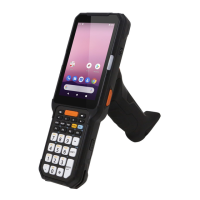
Identifies and describes the physical components of the PM451 device, including ports and buttons.
Lists and illustrates the items included in the product box, such as battery, charger, and cables.
Provides step-by-step instructions for safely installing and removing the device's battery.
Guides users on inserting micro SIM and microSD cards into their respective slots correctly.
Explains the process of connecting the device to a power source for charging using the provided adapter.
Details the specifications and charging times for the device's different battery types.
Explains the meaning of different colored and blinking LED indicators on the device.
Provides instructions on how to power the device on and off using the power button.
Describes the feature allowing battery replacement without powering down the device.
Explains various touch gestures like tap, long-press, and swipe for device interaction.
Guides initial device setup, including language, Google account, Wi-Fi, and data transfer.
Describes the main interface elements and navigation of the device's home screen.
Explains the information displayed on the status bar and the meaning of various status icons.
Details the icons used for notifications and their corresponding meanings.
Explains how to access and interact with the notification panel by dragging the status bar.
Allows quick access and control of frequently used settings like Wi-Fi and Bluetooth.
Covers managing applications, creating folders, and adding widgets to the home screen.
Instructions on creating and organizing application folders by dragging app icons.
Explains how to access and navigate the list of all installed applications alphabetically.
How to place frequently used apps in the quick access tray on the home screen.
Steps to rearrange apps and widgets on the home screen for customization.
How to add and manage widgets on the home screen for quick information access.
Shows how to view and manage recently opened applications for quick access.
How to connect the device to a PC for file transfer using the MTP protocol.
Instructions for navigating, organizing, and managing files and folders on the device.
Overview of accessing and navigating the device's settings menu for customization.
How to adjust screen brightness for optimal viewing and battery saving.
Steps to adjust volume levels for media, alarms, and notifications.
How to enable and adjust the keyboard backlight for better visibility in low light.
Guide on changing the font size for better readability on the screen.
Instructions on using the device's camera application for photos and videos.
Steps to enable and activate the device's built-in scanner functionality.
Overview of available scanner settings and configuration options.
Configures fundamental scanner options like trigger timeout and scan modes.
Adjusts advanced scanner settings such as decode mode and power save.
Manages scanner feedback like beep sounds, LED indicators, and vibration.
Configures how scanned data is transmitted to applications.
Allows customization of decoded data, including prefix, suffix, and character sets.
Enables or disables specific barcode types for scanning.
Displays scanner information and options for factory reset.
Provides guidance on proper techniques for successful barcode scanning.
A utility to test and verify the scanner's performance.
Connects the device to mobile data networks using a SIM card.
Guides on connecting the device to wireless Wi-Fi networks.
Instructions for pairing and connecting the device with Bluetooth accessories.
Explains how to use the Near Field Communication feature for data exchange.
Shows how to view device and system details via Settings or EmKit.
Procedures for updating the device's Operating System via storage, OTG, or FOTA.
Steps to update the OS using an image file from storage media.
Instructions for updating the OS using a USB flash drive via OTG.
How to update the OS wirelessly using the FOTA (Firmware Over-The-Air) server.
Guides on resetting the device to factory settings to resolve issues.
Performing a factory reset through the device's settings menu.
Performing a factory reset using hardware key combinations when the device is off.
Step-by-step guide on physically attaching the gun handle accessory.
Information on how the gun handle's scan button functions.
Details the functions and layout of the numeric keypad.
Explains the layout and usage of the alpha-numeric keypad mode.
Describes the function and numeric keys on the keypad.
A reference table for key combinations and their respective functions.
How to remap keys to custom functions or applications.
Shows the location of the microphone on different keypad types.
Important safety notes regarding battery, disassembly, and device handling.
 General
| Operating System | Android |
|---|---|
| Connectivity | USB |
| Weight | 300g |
| Touch Panel | Capacitive |
| Wi-Fi | 802.11 a/b/g/n/ac |
| Cellular | Optional |
| GPS | GPS, GLONASS, Galileo, Beidou |
| Barcode Scanner | 1D/2D |
| Humidity | 95% non-condensing |
| Drop Specification | 1.5m |
| RFID | Optional |

 To Next Page