6 - 44
information encoded in those bar codes. Once the proper number of codes
is reached, the data is output in the order specified in the bar codes.
Default = On.
QR Code Page
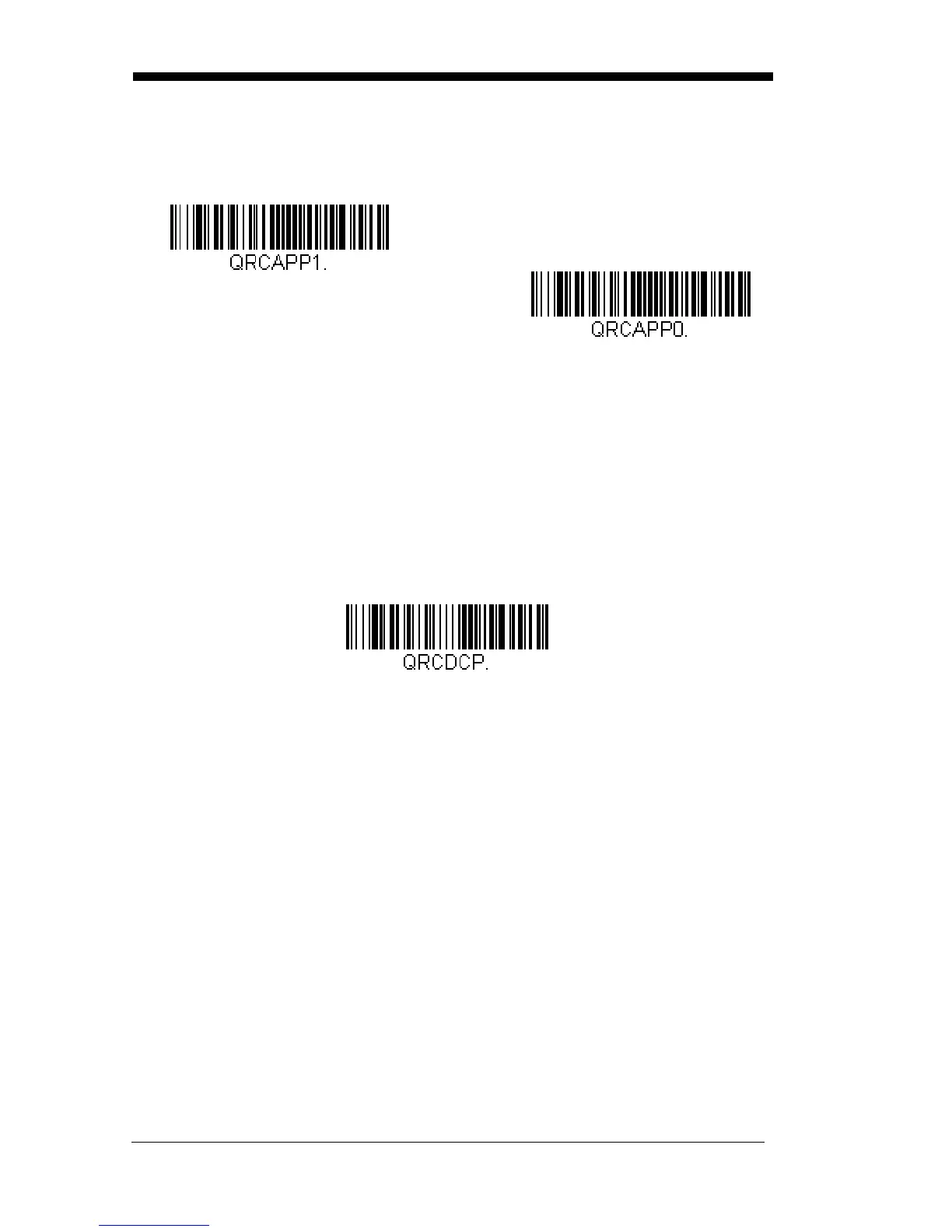
QR Code pages define the mapping of character codes to characters. If
the data received does not display with the proper characters, it may be
because the bar code being scanned was created using a code page that
is different from the one the host program is expecting. If this is the case,
scan the bar code below, select the code page with which the bar codes
were created (see Code Page Mapping of Printed Bar Codes on page A-6),
and scan the value and the Save bar code from the Programming Chart on
the inside the back cover of this manual. The data characters should then
appear properly.



 To Next Page