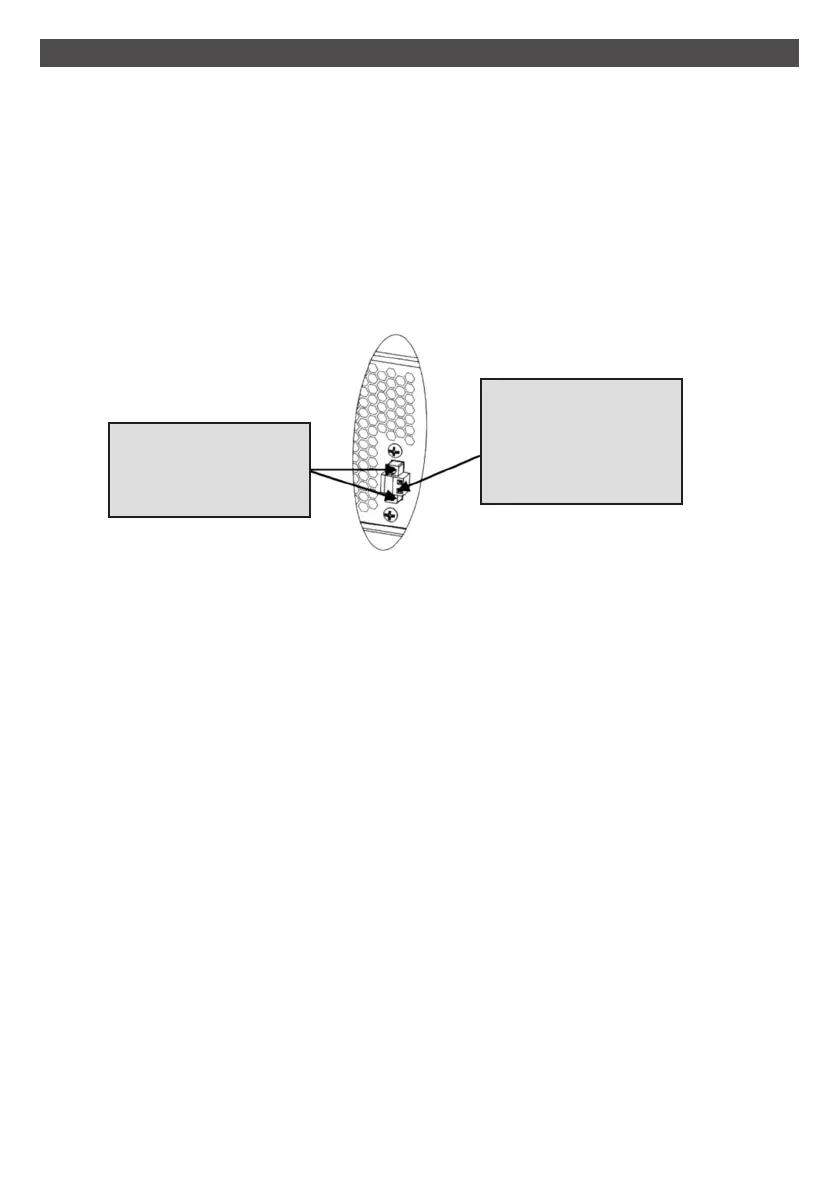
Step 4: EPO (Emergency Power OFF) function
This UPS is equipped with EPO function. By default, the UPS is delivered from factory with
Pin 1 and Pin 2 closed (a metal plate is connected to Pin 1 and Pin 2) for UPS normal
operation. To activate EPO function, remove the two screws on the EPO port, then remove
the green connector.
Note: The EPO function logic can be set up via LCD setting. Please refer to program 8 in
UPS setting for the details.
2 INSTALLATION AND SETUP continued
Step 5: Turn on the UPS
Press the ON/Mute button on the front panel for two seconds to power on the UPS.
Note: The battery charges fully during the first five hours of normal operation. Do not
expect full battery run capability during this initial charge period.
Step 6: Install software
Install NetGuard UPS monitoring software to fully configure UPS shutdown. Please follow
steps below to download and install monitoring software:
1. Go to the website www.powershield.com.au/downloads
2. Click NetGuard software icon and then choose your required OS to download the
software.
3. Follow the on-screen instructions to install the software.
4. When your computer restarts, the monitoring software will appear as an orange plug
icon located in the system tray, near the clock.
To activate EPO
function, remove
these two screws.
The default
factory setting is
normally closed
(NC).
10


 To Next Page