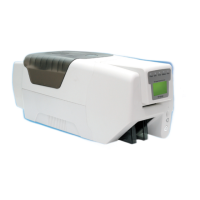
300 Card Printer – User Guide
12
DRIVER INSTALLATION
Windows
The Windows driver is available in two versions: the ‘.exe’ version and the ‘Bare Driver files’ version.
The ‘.exe’ format driver is the standard version for most users whereas the bare files version is more suited to
I.T. support personnel. Both versions can be downloaded from the Magicard website using the links below.
‘Bare Driver files’ version and video:
https://support.magicard.com/solution/network-admin-magicard-ultradriver-bare-files/
The ‘.exe’ driver version can be downloaded as follows:
1. From your PC, first go to the Magicard website: https://magicard.com
2. Select the Support option at the top of the page and then select your printer model from the selection
shown.
3. Select Drivers and Downloads and then the Magicard Windows Printer Driver option. You should now see
the current driver version. Scroll down the page until you see the Downloads and attachments section.
4. Select the Magicard Printer Driver option from this. The driver will then download to your PC.
NOTE: Before running the downloaded driver, please ensure the printer’s USB cable is disconnected (you
will be prompted to connect this during the installation process).
5. Finally, please follow the on-screen instructions (this will guide you through the installation process).
With the printer driver successfully installed, you can view the installed printer icon on your PC as follows:
6. Open the Control Panel window. When open, ensure the View by: option (top-right of window) is selected
to Small icons. Select the Devices and Printers option from the displayed list.
7. In the ‘Devices and Printers’ window, you should now see various driver icons representing the drivers
already installed on the computer (one of which, should be the Magicard printer you’ve recently installed).
From here, you will be able to configure the printer driver to suit your own particular printing requirements
using the ‘Printing Preferences’ options.
8. To open the ‘Printing Preferences’ window, right-click on the icon representing your printer and select the
Printing Preferences option.
9. To assist in configuring the driver printing preferences, there is a separate ID Card Printer Driver Guide
which can be viewed on the Magicard website using the link:
https://support.magicard.com/solution/windows-driver-help-guide/
This document will guide the user through each stage of the printer driver, explaining the various options
available. The guide can also be downloaded as a separate document if required.


 To Next Page