300 Card Printer – User Guide
26
INITIAL PRINTER SETUP
Ethernet Setup
Setting up a Static IP Address
printer for Ethernet (network) operation, the printer will first need to be connected via the USB
port - this is temporary.
After the printer has been setup for networking, the USB cable can be disconnected and the network
(Ethernet) connector fitted. First, ensure the printer has a communication link (or Status) with the PC.
This can be done as follows:
1. Open the Control Panel window. When open, ensure the View by: option (top-right of window) is
selected to Small icons. Select the Devices and Printers option from the displayed list. In the ‘Devices and
Printers’ window, you should now see various driver icons (one of which, should be the Magicard printer).
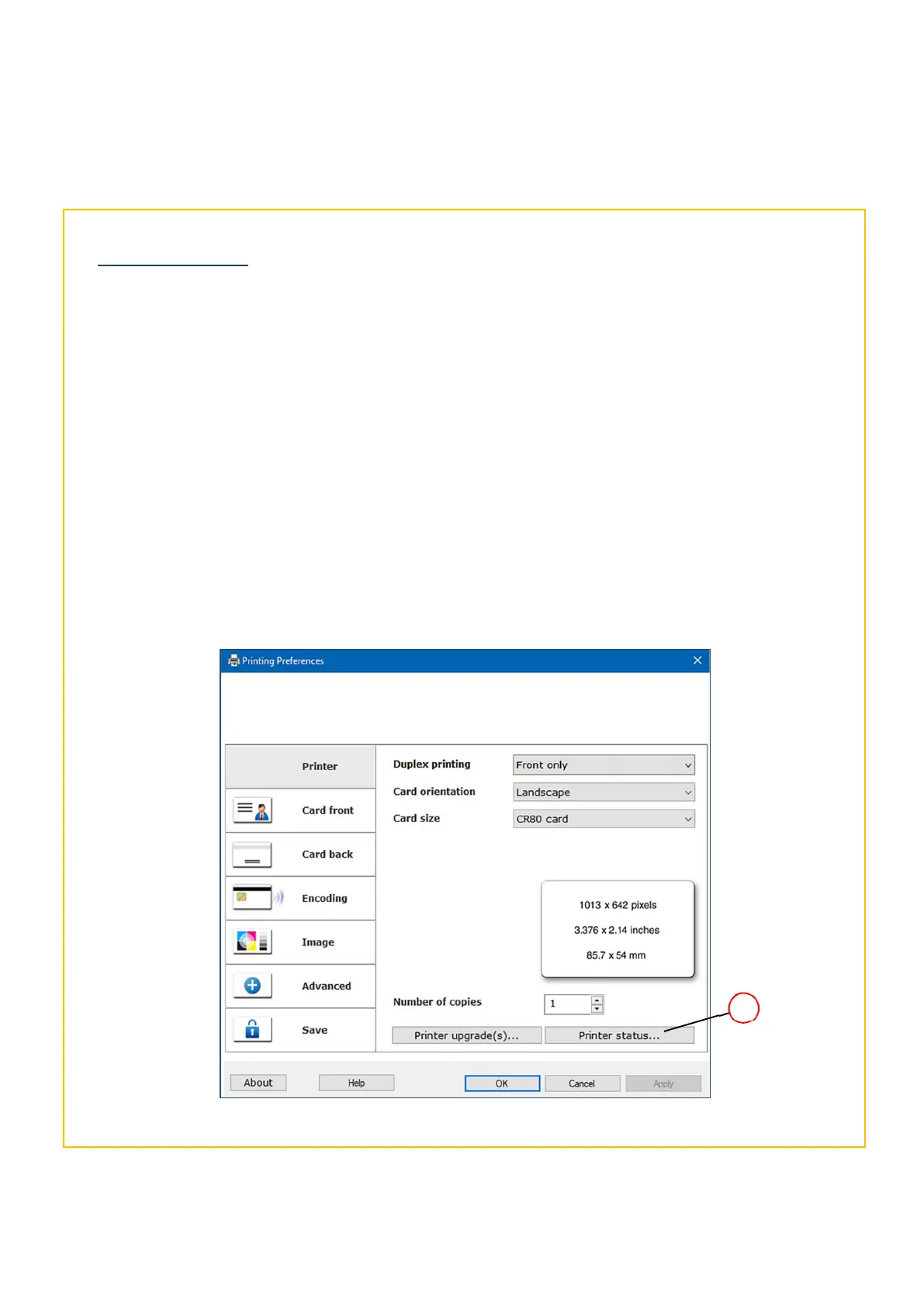
2. Right-click on the printer icon and select Printing Preferences. This will open the Printer window below.
3. Click on the Printer Status… button (1). The printer should show as ‘connected’ (please see the following
page for the Printer Status window details).
This ensures there is communication between the printer and PC.
Selecting the Printer Status option
1


 To Next Page