300 Card Printer – User Guide
27
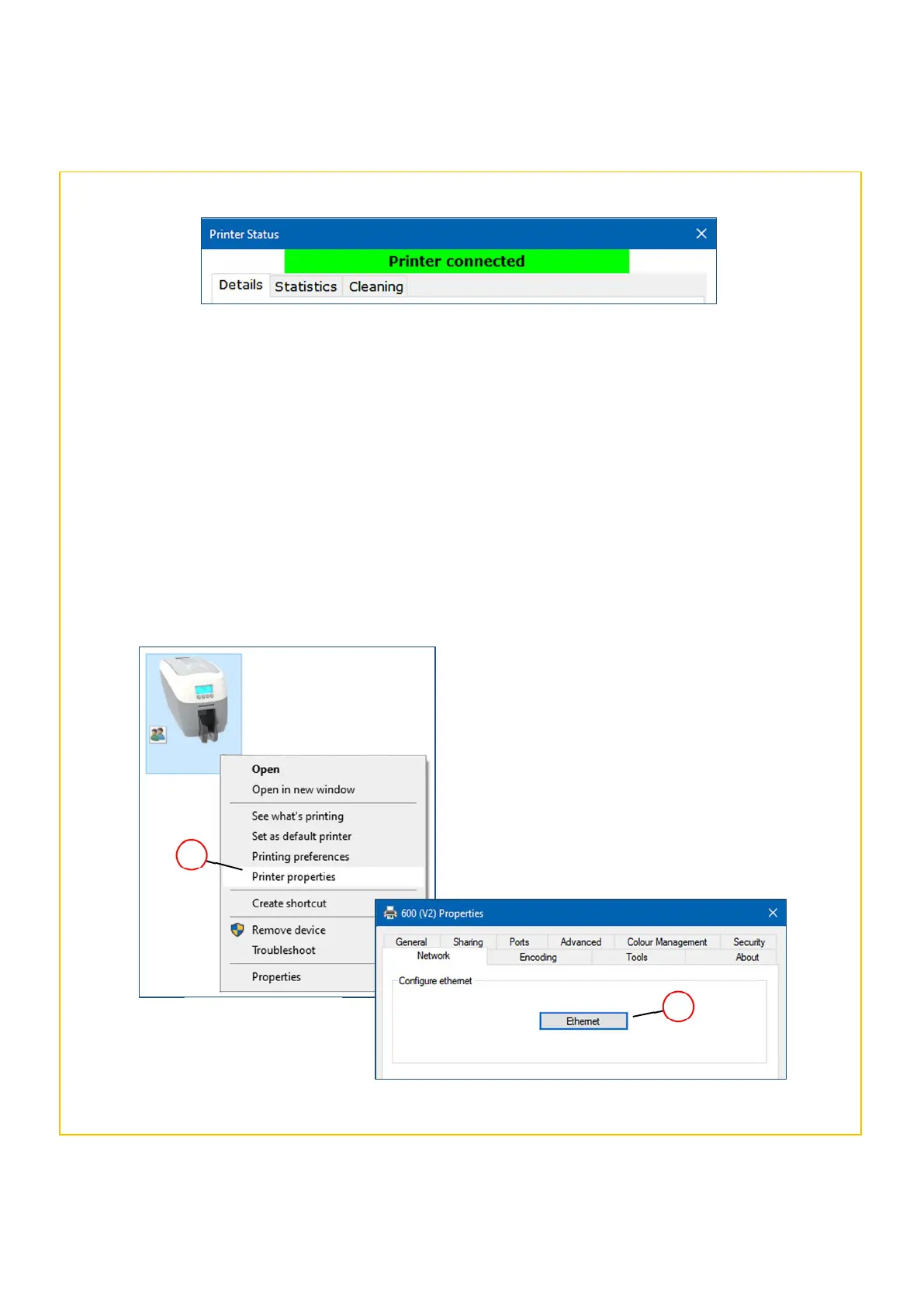
Printer Status – Connected
will also be available to the user such as
statistics and cleaning history details.
4. If there is no problem, close the Printer Status dialogue box and continue (NOTE: Setting the printer up for
network operation will not be possible if there is no status (communication) between the printer and PC).
5. Right-click on the printer icon (in the ‘Devices and Printers’ window) and select Printer Properties (2) and
then the Network tab. Next, click the Ethernet button (3). The Network configuration dialogue box should
now be displayed.
NOTE: The procedure below shows the 600 printer model. The procedure is identical for the 300 model.
NOTE: The physical appearance of the Network
Configuration window may vary slightly between
printer models in terms of layout (please see the
following page for further details).
Printer Properties
window
2
3


 To Next Page