300 Card Printer – User Guide
37
Replacing the Blue Sticky Roller
When cleaning your printer, it is also recommended the internal blue cleaning roller is replaced also. (This roller is
easily identifiable, as when new, it will be supplied with a protective paper wrapper and pull-tab).
The Blue Sticky roller can be replaced as follows:
1. Open the printer’s lid and remove the old (used) blue roller (this is held by two clips and can easily be removed
by hand).
2. Slide out the metal bar inside the blue roller.
NOTE: Do not discard this metal bar as it will be required for the replacement roller. Discard the old (used)
blue roller.
3. Slide the metal bar into the new replacement blue roller.
4. Refit the new roller (with bar) into the printer.
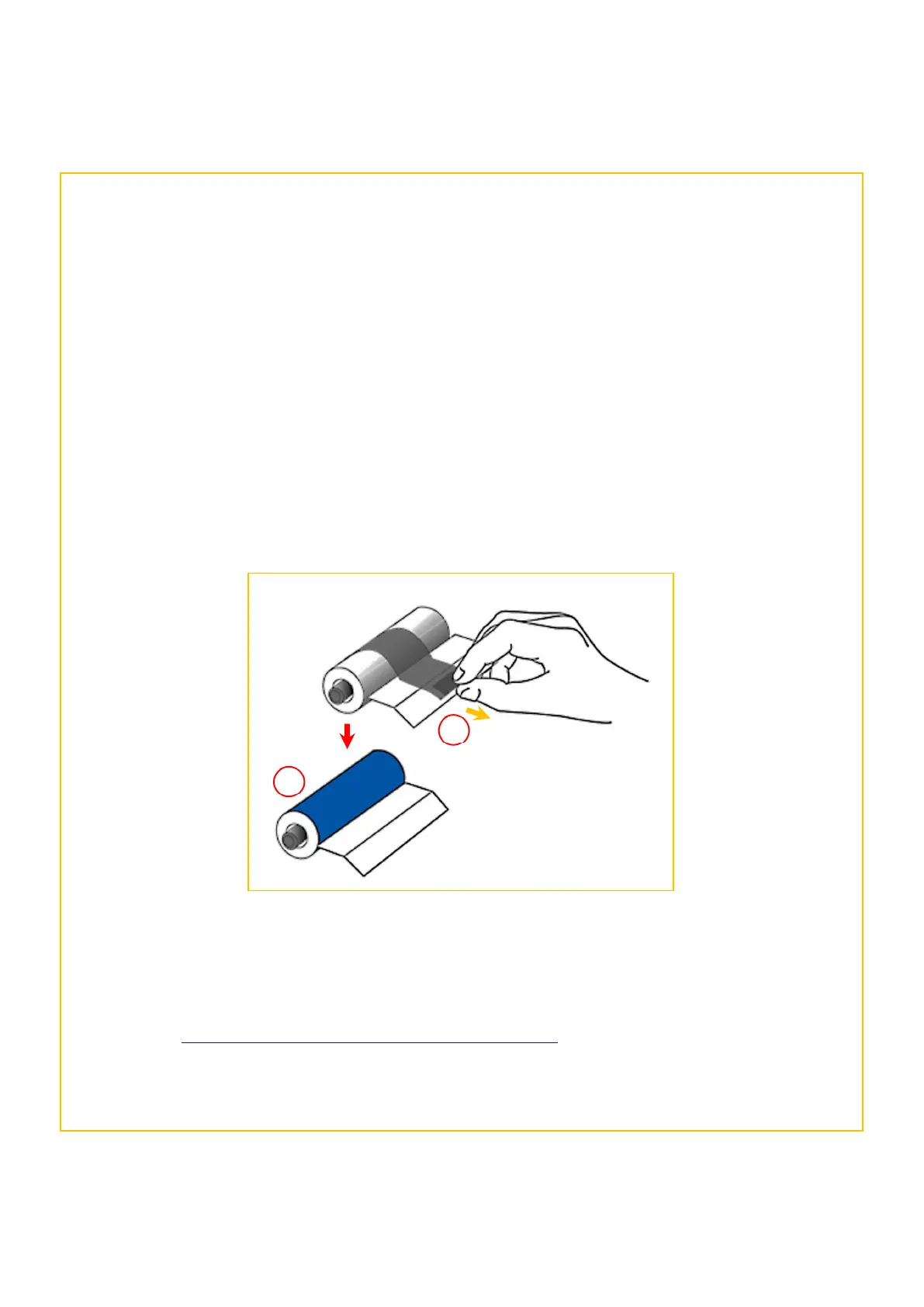
5. When fitted, remove the protective paper wrapper (using the pull-tab) to expose the sticky layer. Close the
printer’s lid.
Cleaning your Printer (video)
In addition to the above, a video on cleaning your printer is also available to watch on the Magicard website
using the link: https://support.magicard.com/solution/cleaning-rollers
The printer shown in the video is the 360 model but the process is identical to all 360 family printers.
Pull Tab to release
protective wrapper
1
Preparing the Blue Sticky Roller


 To Next Page