300 Card Printer – User Guide
33
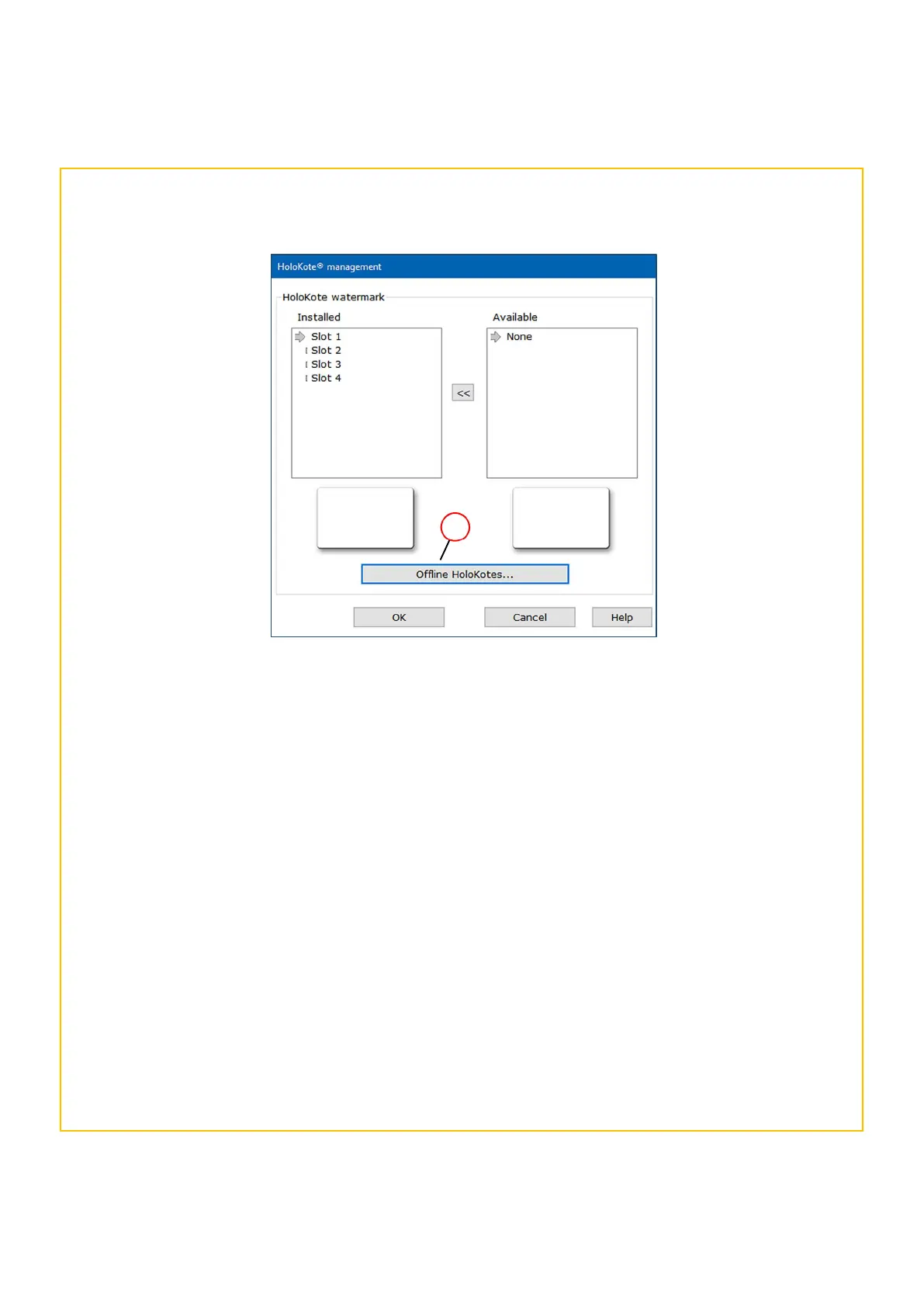
Select Manage Holokote to move an available Holokote into one of the printer’s Holokote ‘slots’.
If the printer’s PC is ‘online’, your custom Holokote file will be visible in the Available, right hand side
pane. If the printer’s PC is ‘offline’, the custom Holokote file can be downloaded from the Magicard
Support Account (‘Feature Key’ section) from an online computer, then moved to the printer’s computer
and placed into the Available section via the computer’s ‘Browse’ option.
The custom Holokote can then be allocated a slot in the left (Installed) pane using the ‘<<’ button.
The user is free to choose the order in which specific images are placed.
(NOTE: The number of available slots may vary between printer models).
The Offline Holokotes… option (a) allows the user to browse for previously downloaded Holokote
images stored on their computer which can then be added as required.
(Holokote files will have a *.jfif file extension).
Offline Holokotes
a


 To Next Page