56
Channel and Mix Settings
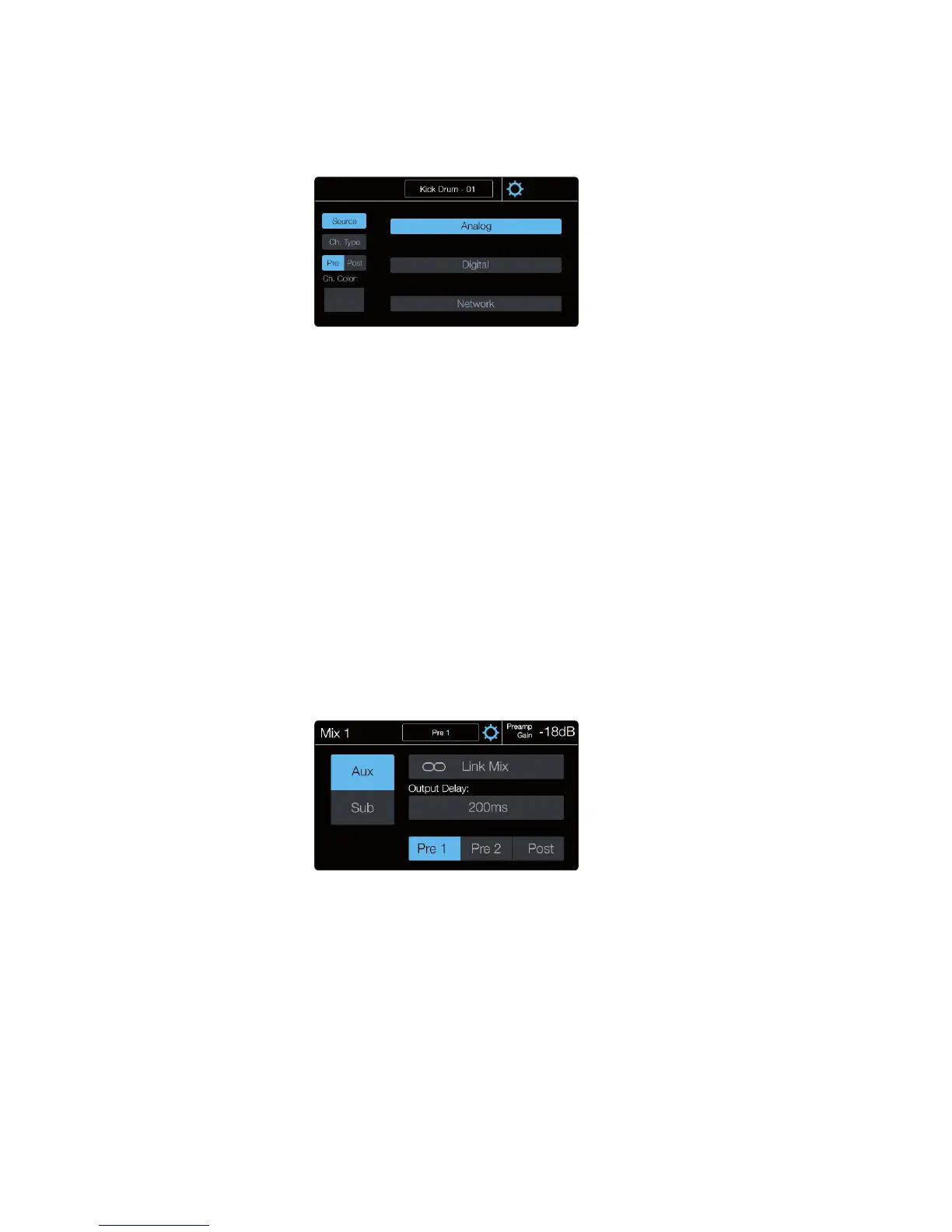
Pressing the gear icon in the Selected Channel banner in the
touchscreen will open the Settings screen. Here you can change the
name, channel type, source, select button color, and more.
Name the channel by touching the name while on the Channel Settings
screen. This will bring up the Text Entry screen. From here you can customize
the name of the channel. The name will be displayed in the touchscreen when
the channel is selected and in the scribble strip display for that channel. The
name is also synchronized with all StudioLive UCNET devices and software,
such as UC Surface, QMix-AI, and Capture, so you only have to name it once.
Source will display the options for the channel
source: Analog, FireWire, and Network.
Type allows you to select a channel type. This is helpful when setting up a
mix and will save you a lot of time. Setting a type will give your channel a
default name, tag the channel with the type category, and create an automatic
Filter DCA group with all channels tagged with that category type.
Pre/Post determines whether the digital send for the selected channel is
sent before or after the Fat Channel processing. When Post is enabled, the
signal sent to the digital bus is post-EQ and post-dynamics processing. When
Pre is enabled, the signal sent to the digital bus is pre-Fat Channel. All digital
sends are pre-fader except for the subgroups and the main outputs.
Color opens the options for assigning a custom color for the Select button
of the selected channel while on the main mix. This can be useful to
create visual groups of channels, such as drums, guitars, and vocals.
Name the mix by touching the name while on the Mix Settings screen. This
will bring up the Text Entry screen. From here you can customize the name
of the mix. The name will be displayed in the touchscreen when the channel
is selected and in the scribble strip display for that channel. The name is
also synchronized with all StudioLive UCNET devices and software, such as
UC Surface, QMix-AI, and Capture, so you only have to name it once.
Aux/Sub will change the selected mix between an aux mix and a subgroup.
Aux mixes are typically used for creating individual monitor mixes that are tailored
to each performer’s needs. Vocalists can have more vocals, guitarists can have
more guitars, and bass players will likely need more kick to help stay on the beat.
A subgroup allows you to combine multiple channels into a single bus,
giving you level control for the entire group. They also enable you to apply
Fat Channel processing to the group as a whole, in addition to the processing
available for each channel. Subgroups can be soloed and muted.










 To Next Page